Organizes a window into a sidebar and a detail view with SwiftUI's native split view.
Usage
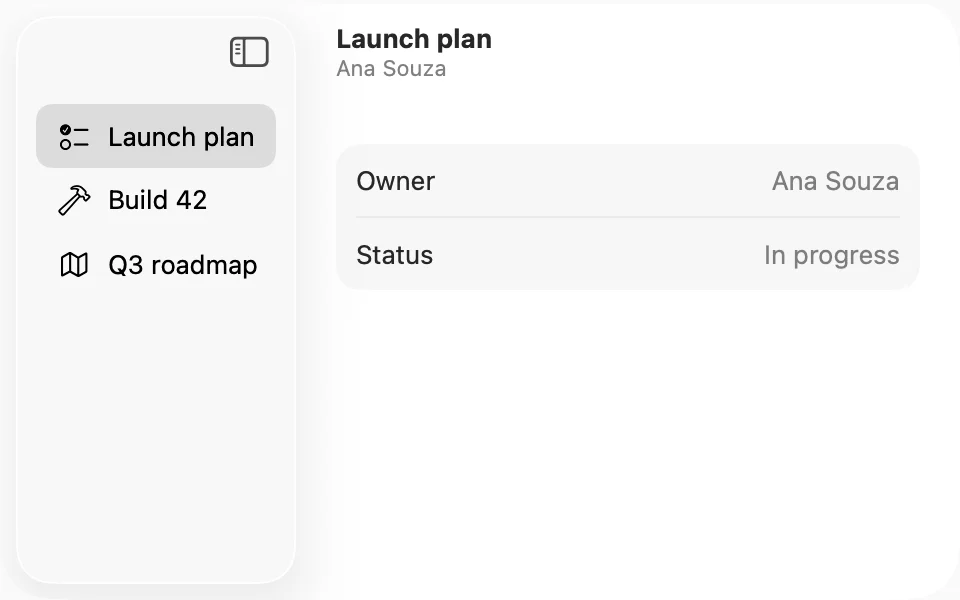
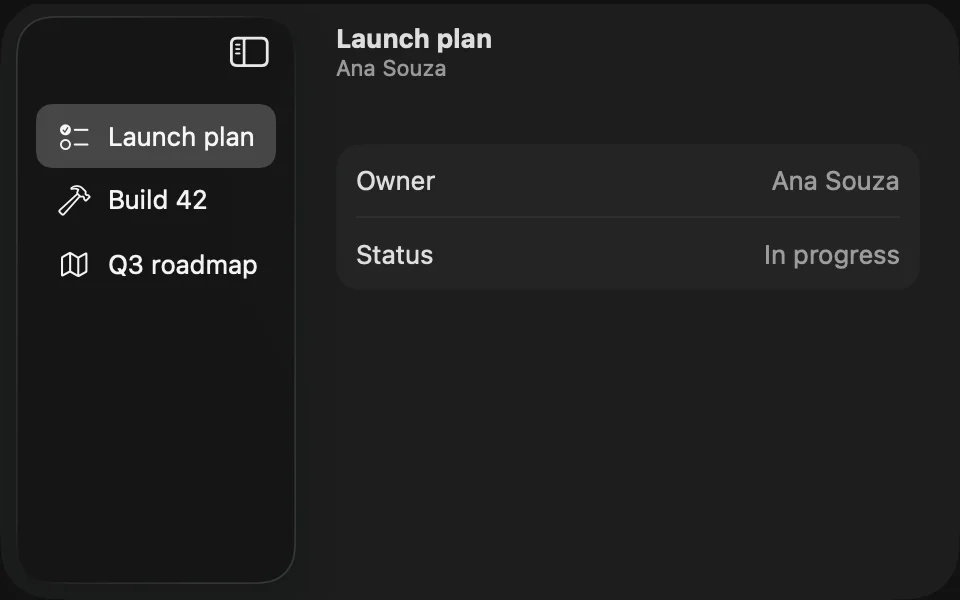
Mac apps show their main sections in a sidebar. NavigationSplitView brings the Liquid Glass sidebar, its resizing and collapsing, and the window toolbar, so use it directly:
Bind the list's selection, and the detail shows the selected row. When nothing is selected, show a short message in the detail, as in the example. The title of the detail view appears in the window toolbar, and .navigationSubtitle(_:) adds a line under it.
For a third column, pass a content: view between the sidebar and the detail.
NavigationView is deprecated. Use NavigationSplitView instead, or NavigationStack for a single column.
Keep titles under 15 characters, so they leave room for the toolbar items.
Examples
Navigation stack
To go deeper from a view, put it in a NavigationStack. Pushed views get a back button in the toolbar.
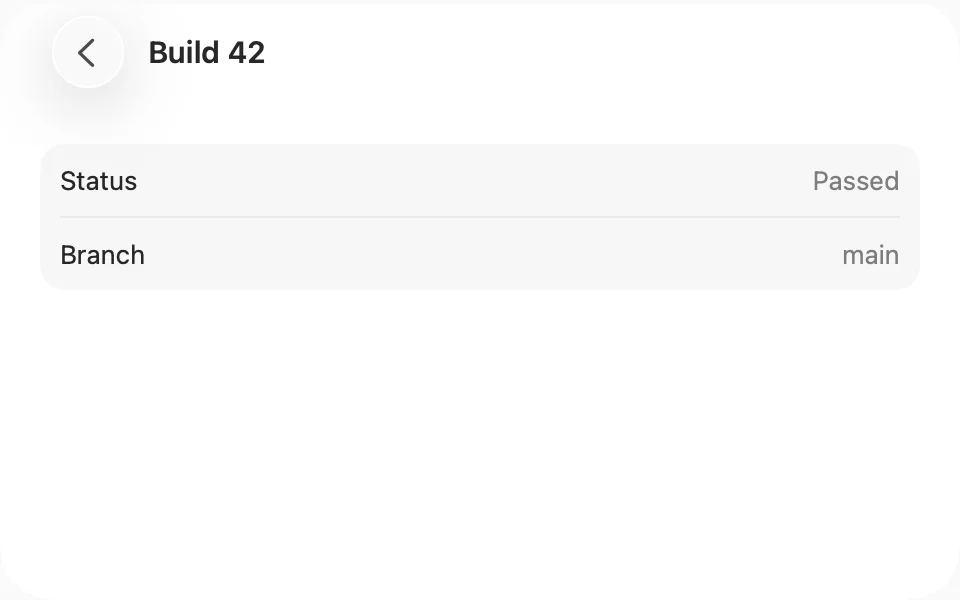
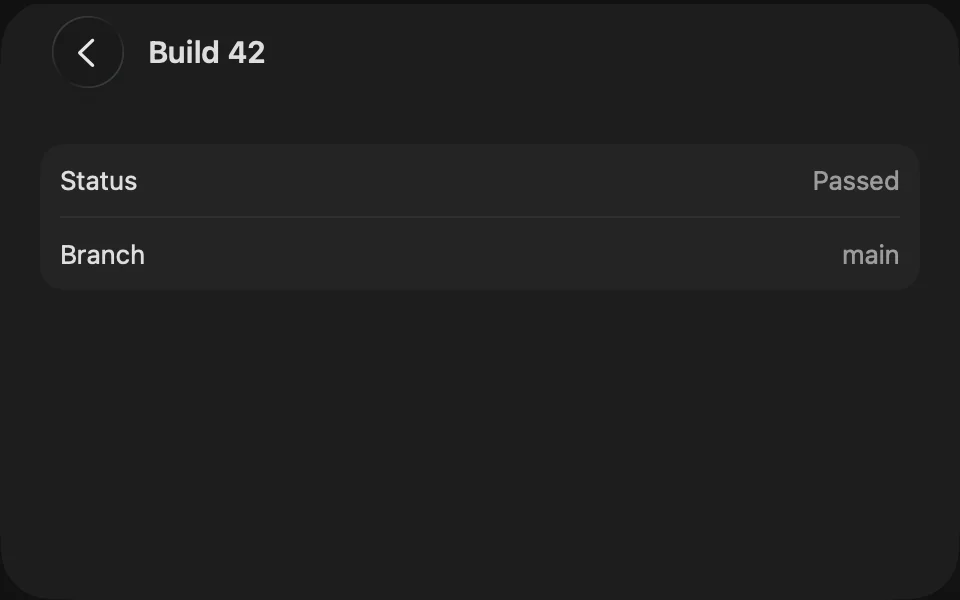
NavigationStack(path:) lets you push and go back in code, as on iOS.
Toolbar
To add actions to the window toolbar, use .toolbar(content:) with a plain Button, with no style. Put the toolbar on the detail view, and its items appear on the trailing side of the window, next to the title. Items in the same ToolbarItemGroup share one background.
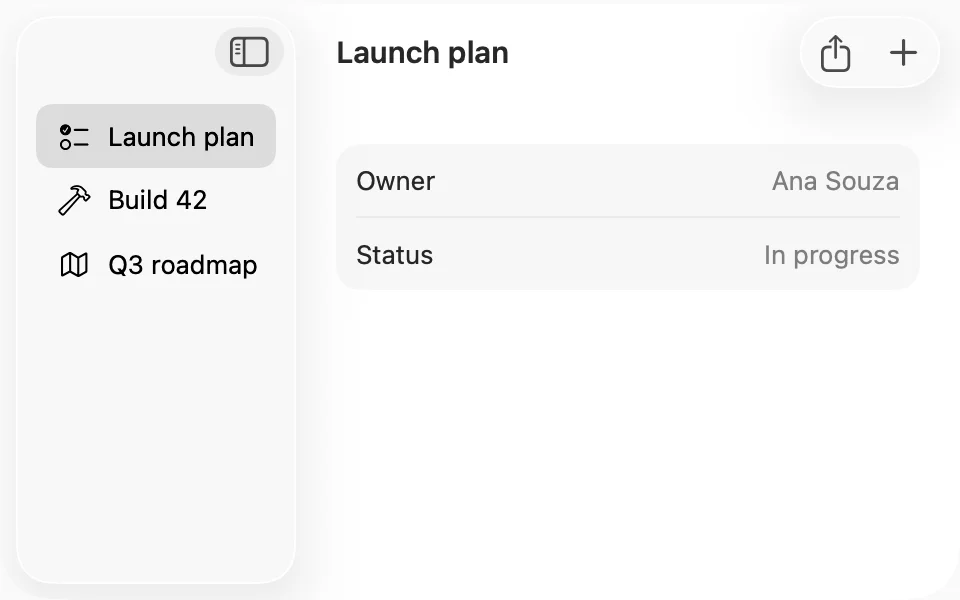
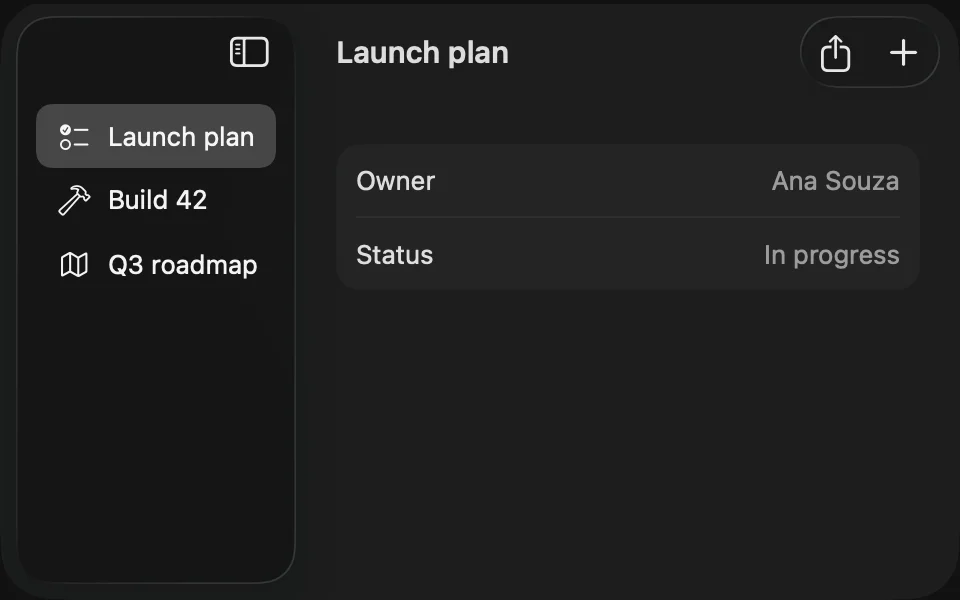
Make every toolbar action also available as a command in the menu bar, since people can hide or customize the toolbar. For more on toolbar buttons, see Button. For every placement and toolbar customization, see the Apple documentation.
Color
The toolbar title, the subtitle, and the back button use system colors, so FLX leaves them as they are. The selected row in the sidebar is gray while the sidebar doesn't have keyboard focus. With focus, macOS highlights it with the accent color, which is the app's AccentColor when people keep the system's multicolor accent, so set it to the theme's tint, as in Installation.
For more information, see the Human Interface Guidelines for sidebars and split views, and the Apple documentation.