Picks a date, a time, or both with SwiftUI's native date picker.
Usage
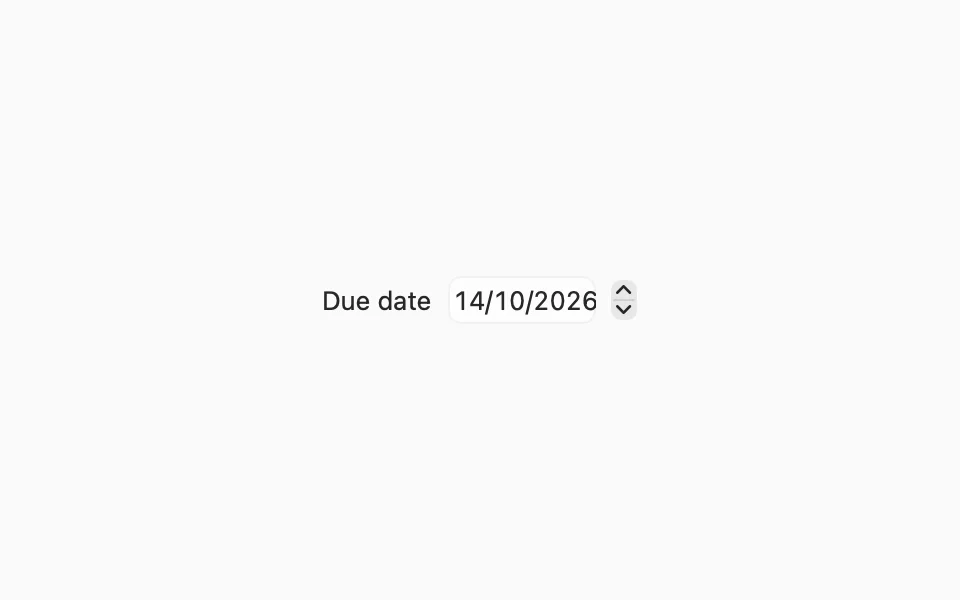
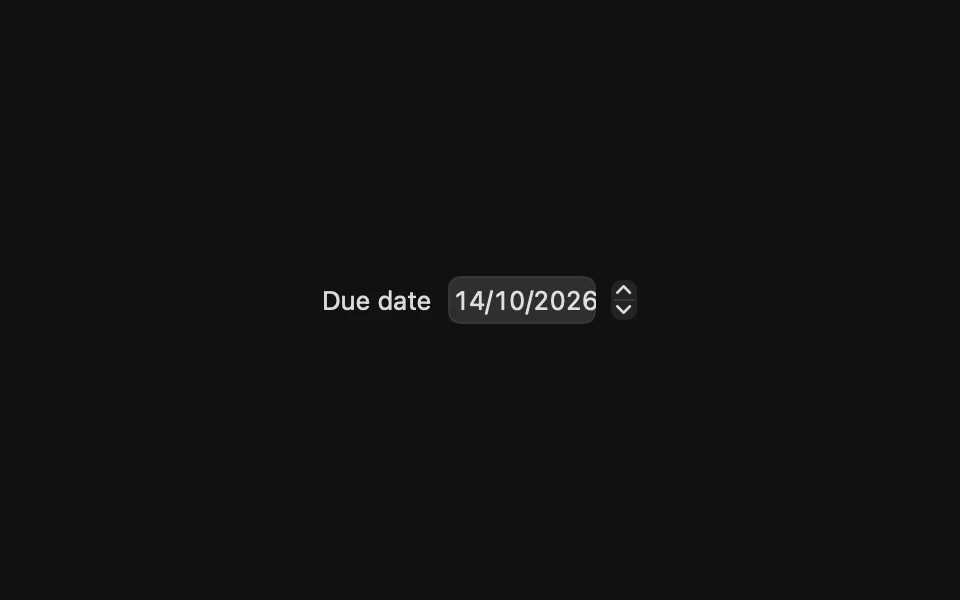
DatePicker already brings keyboard and VoiceOver support and the formats for every language and region, so use it directly:
macOS shows the title before a text field with a stepper. People type each part of the date or change it with the arrow keys. To hide the title, add .labelsHidden(). VoiceOver reads it either way.
Examples
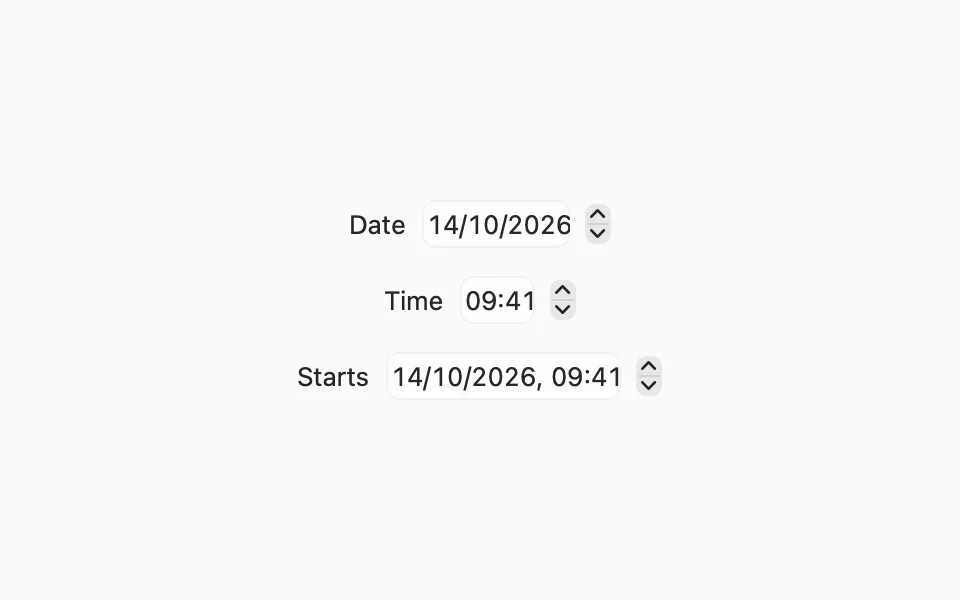
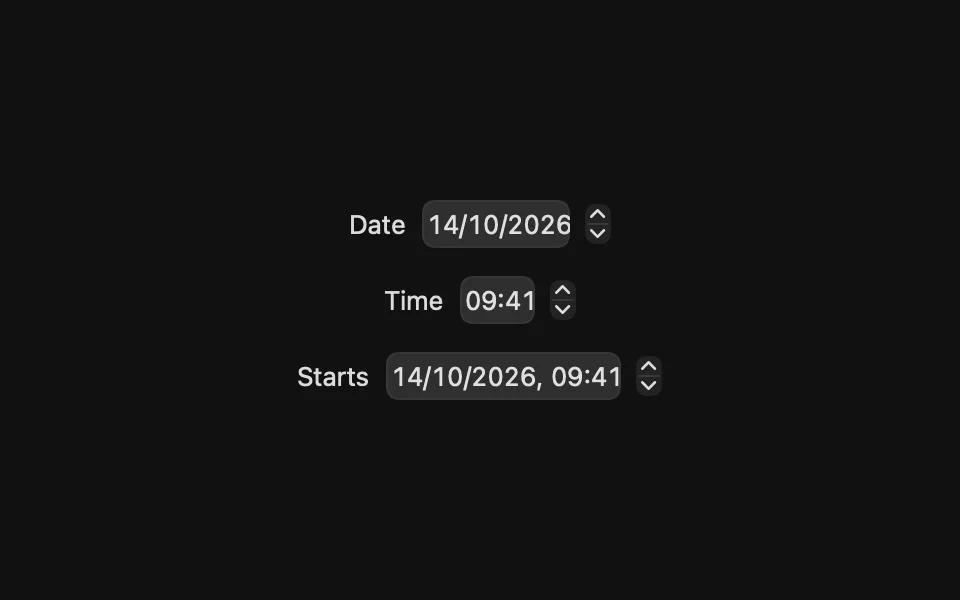
Date and time
displayedComponents picks what people can change: .date, .hourAndMinute, or both, which is the default.
Graphical
.graphical shows a calendar. With .hourAndMinute, it also shows a clock.
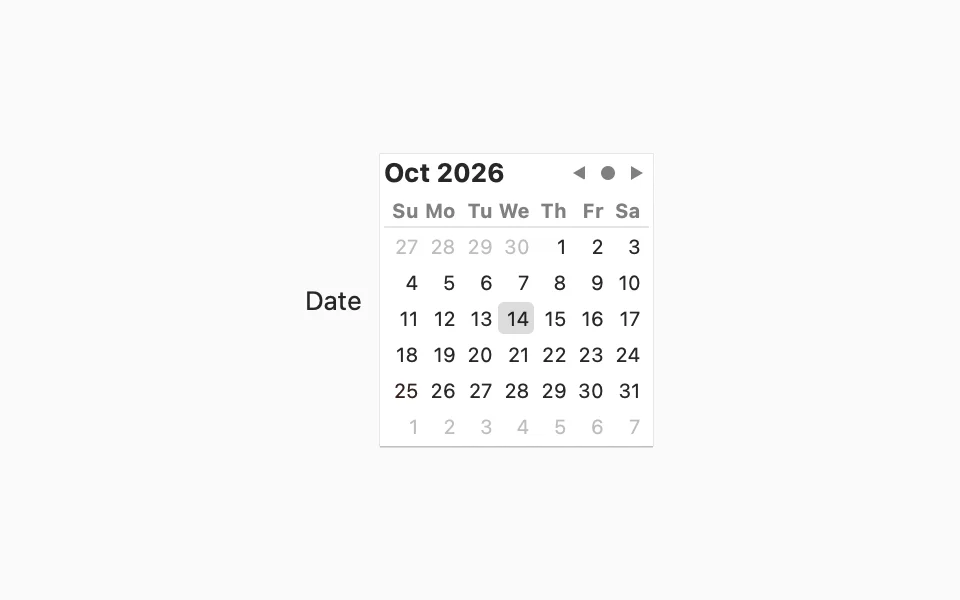
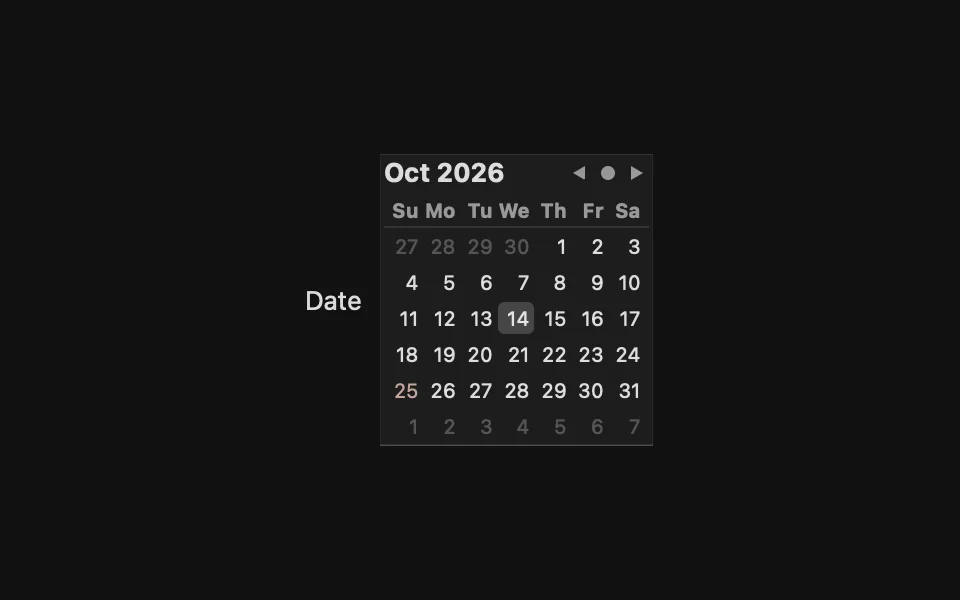
Field
.field shows the text field without the stepper.
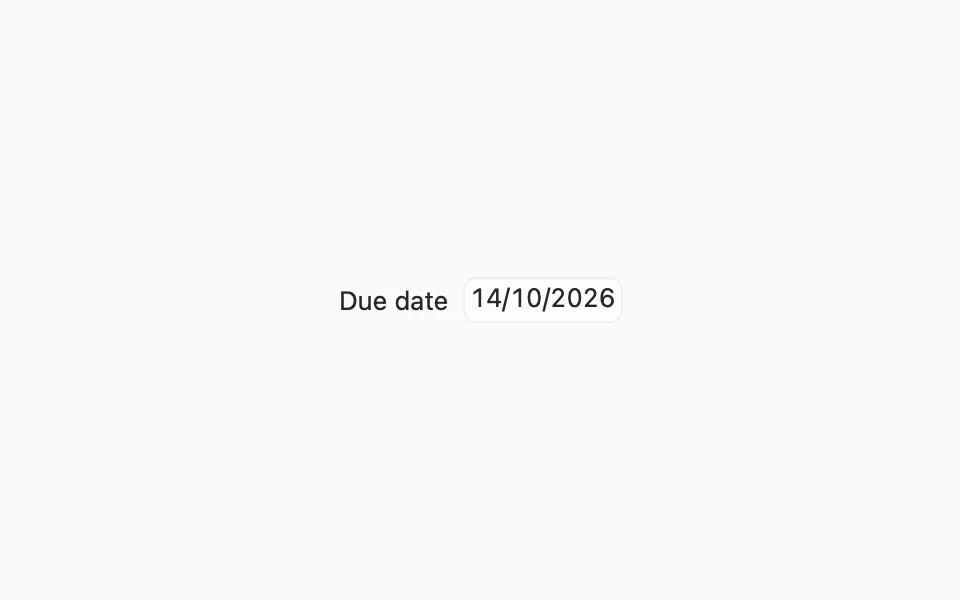
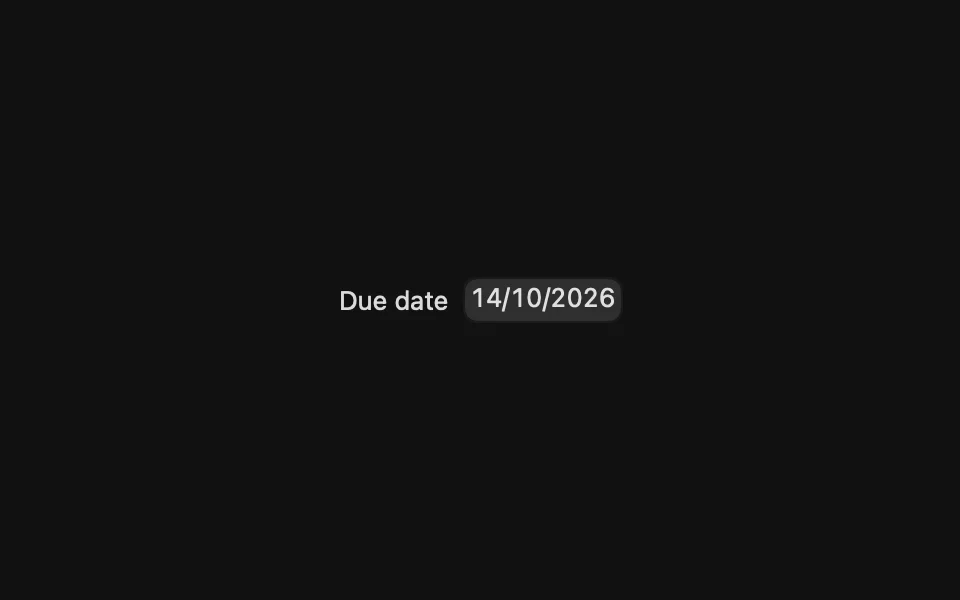
Range
Pass a range to in: to limit the dates people can pick.
In a form
Inside a Form, date pickers line up with the other controls.
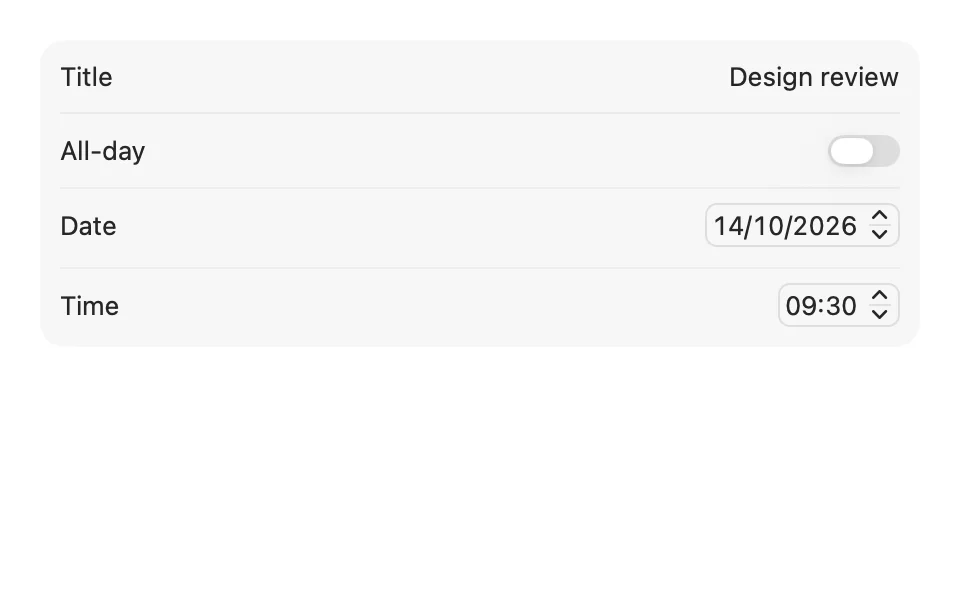
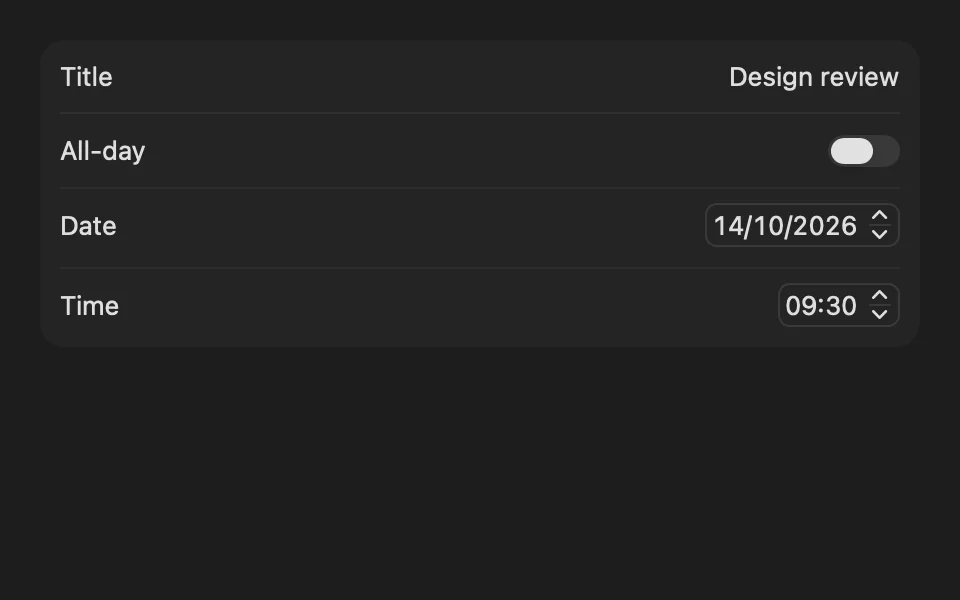
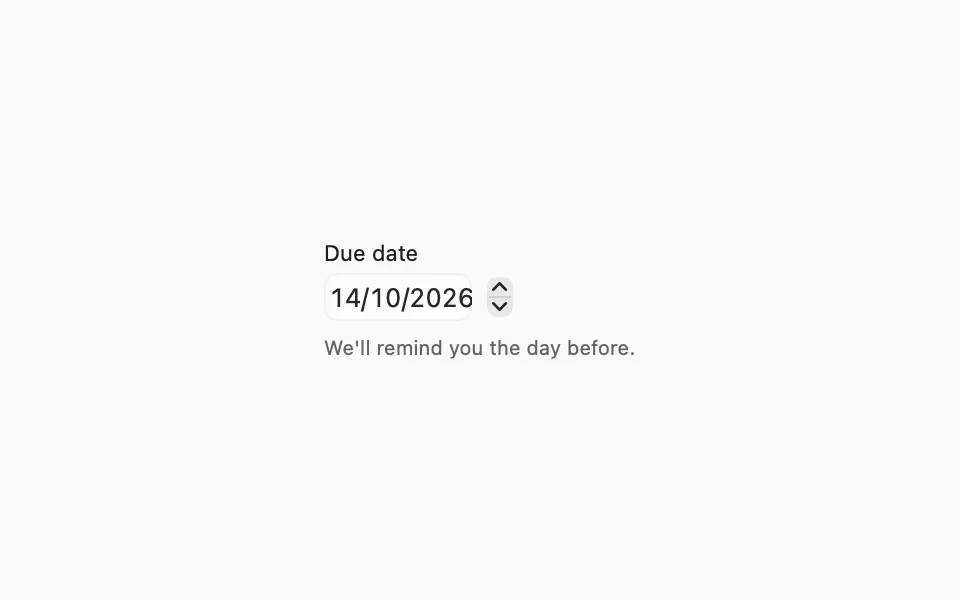
With Form Field
Inside a Form Field, hide the date picker's title with .labelsHidden() and let FLXFieldLabel show it above, with a description below.
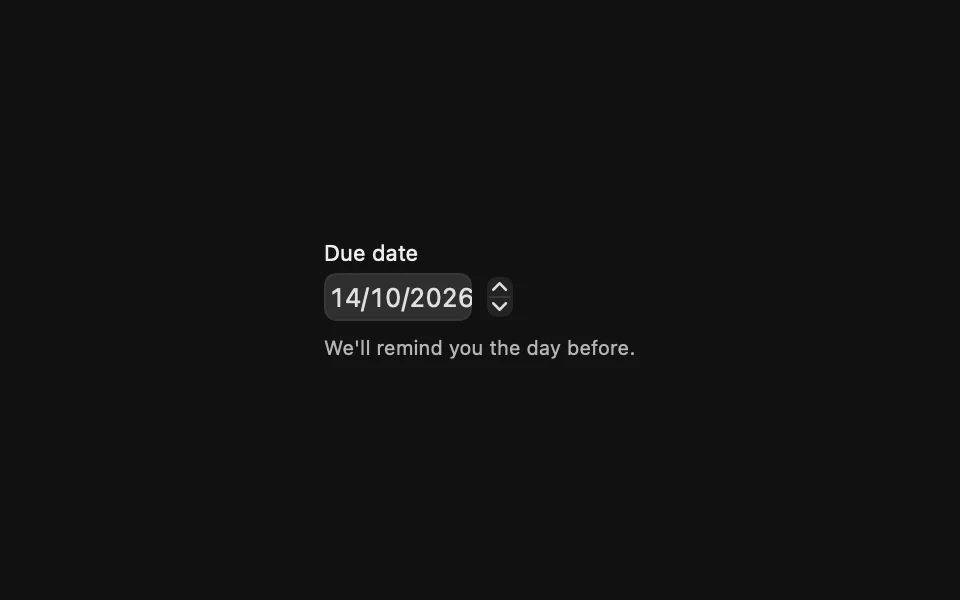
Color
The system draws every date picker style in its own colors. None of them take the theme's tint or the app's AccentColor.
Size
.controlSize(_:) changes the height of the field, from 20 points with .small to 26 with .large. The default, 22, is a little shorter than FLX's text fields.
For more information about date pickers, see the Apple documentation.