Picks one of a few closely related options with SwiftUI's native segmented picker.
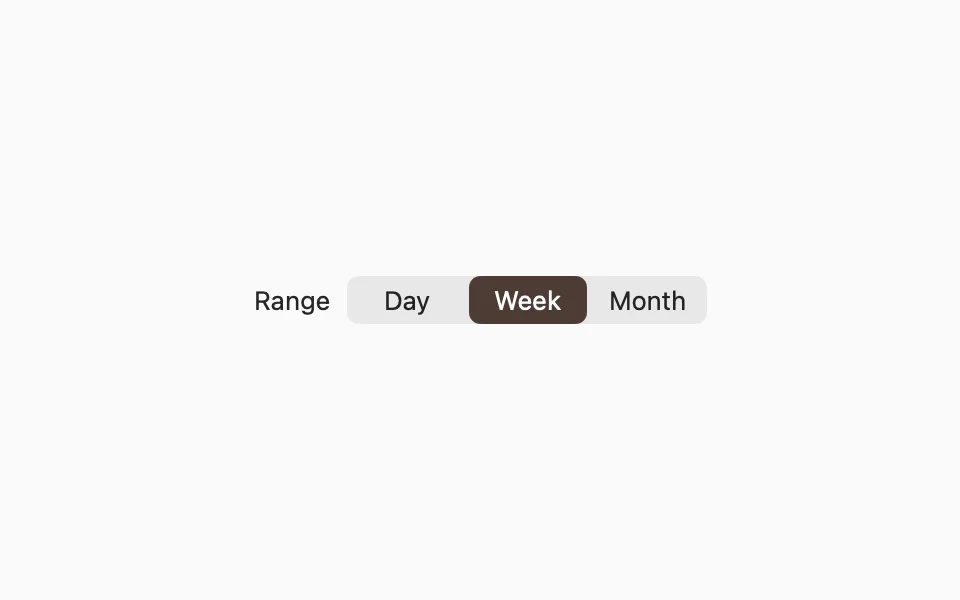
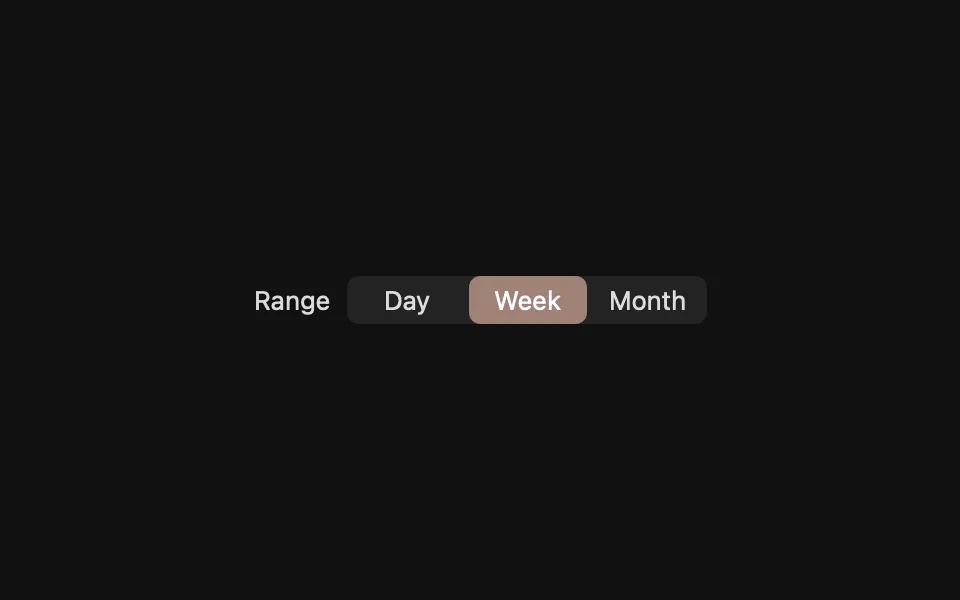
Usage
A Picker with the .segmented style already brings selection, keyboard and VoiceOver support, and its system appearance, so use it directly:
macOS shows the title before the control, which tells people what it's for. To hide it, add .labelsHidden(). VoiceOver reads it either way.
Use a segmented control for a few short options, such as in a toolbar, an inspector, or a settings pane. For more options, use a Picker with the .menu style.
Switching views
To switch the content in the main area of a window, use a Tab View, not a segmented control. A segmented control can switch views in a toolbar or an inspector.
Examples
Icons
Use either text or icons in one control, not both. Give each icon an accessibility label.


Sizes
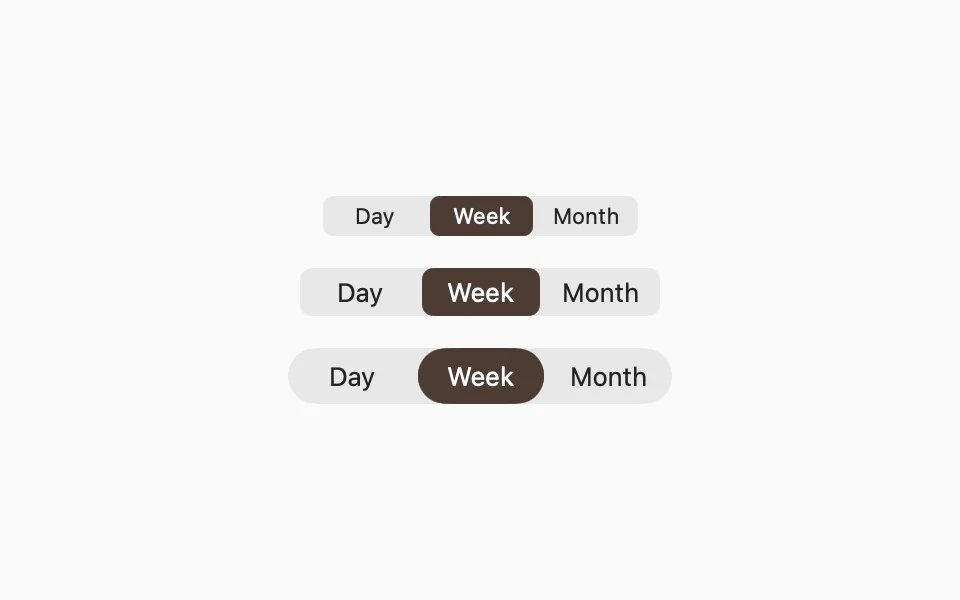
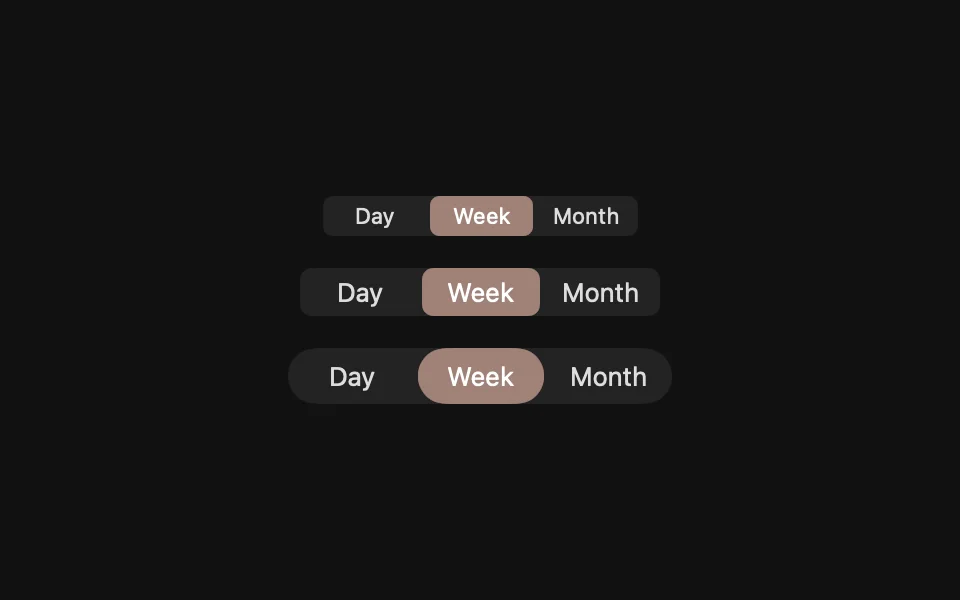
.controlSize(_:) changes the height.
Color
The selected segment uses the theme's tint, which .flxTheme(_:) applies. Without it, the control follows the app's AccentColor, so set that too, as in Installation.
For more information, see the Human Interface Guidelines for segmented controls and tab views.