Moves through a hierarchy of screens with SwiftUI's native navigation stack.
Usage
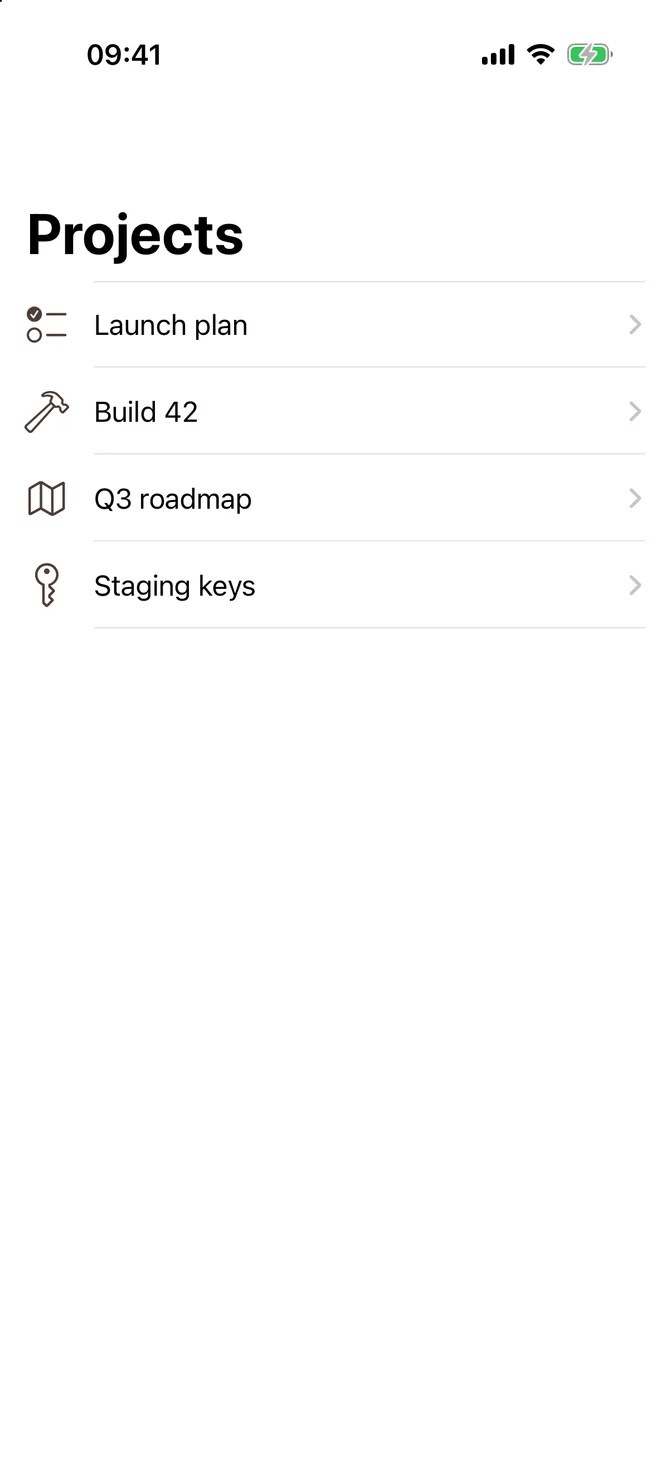
The native NavigationStack already brings the Liquid Glass navigation bar, the back button, the swipe back gesture, and accessibility, so use it directly:
NavigationLink(value:) pushes the screen that .navigationDestination(for:) returns for that value. Put the destination on the stack's content, outside the list rows.
NavigationView is deprecated. Use NavigationStack instead, or NavigationSplitView for columns.
Push a screen to show more about the item people chose. For a separate task, like creating an item, present a Sheet instead. In a Tab View, give each tab its own stack.
On iPad, prefer a tab view for your app's sections, and use .tabViewStyle(.sidebarAdaptable) when they need a sidebar. NavigationSplitView shows columns on iPad and collapses into a single stack on iPhone.
Examples
Navigate in code
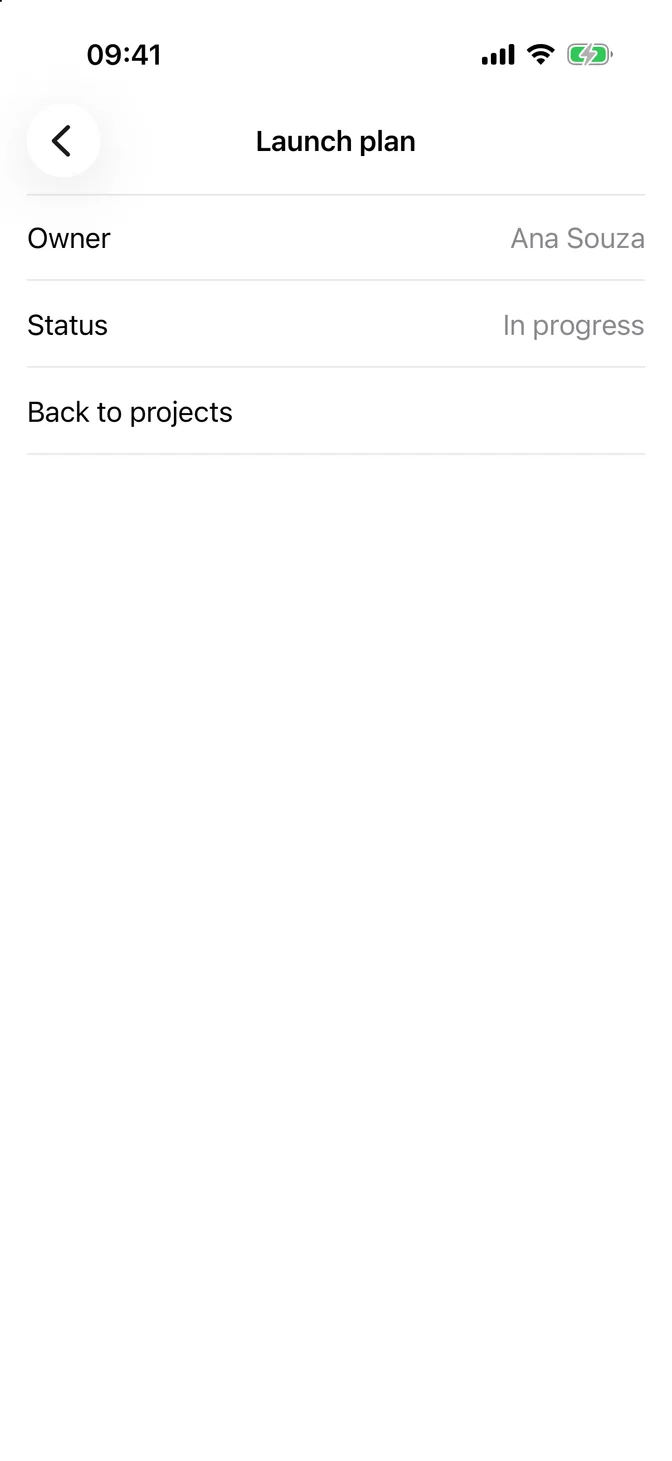
Bind an array to NavigationStack(path:). Appending a value pushes its screen, and removing values goes back. Every pushed screen gets a back button.
Subtitle
On iOS 26 and later, .navigationSubtitle(_:) adds a line of context under the title.
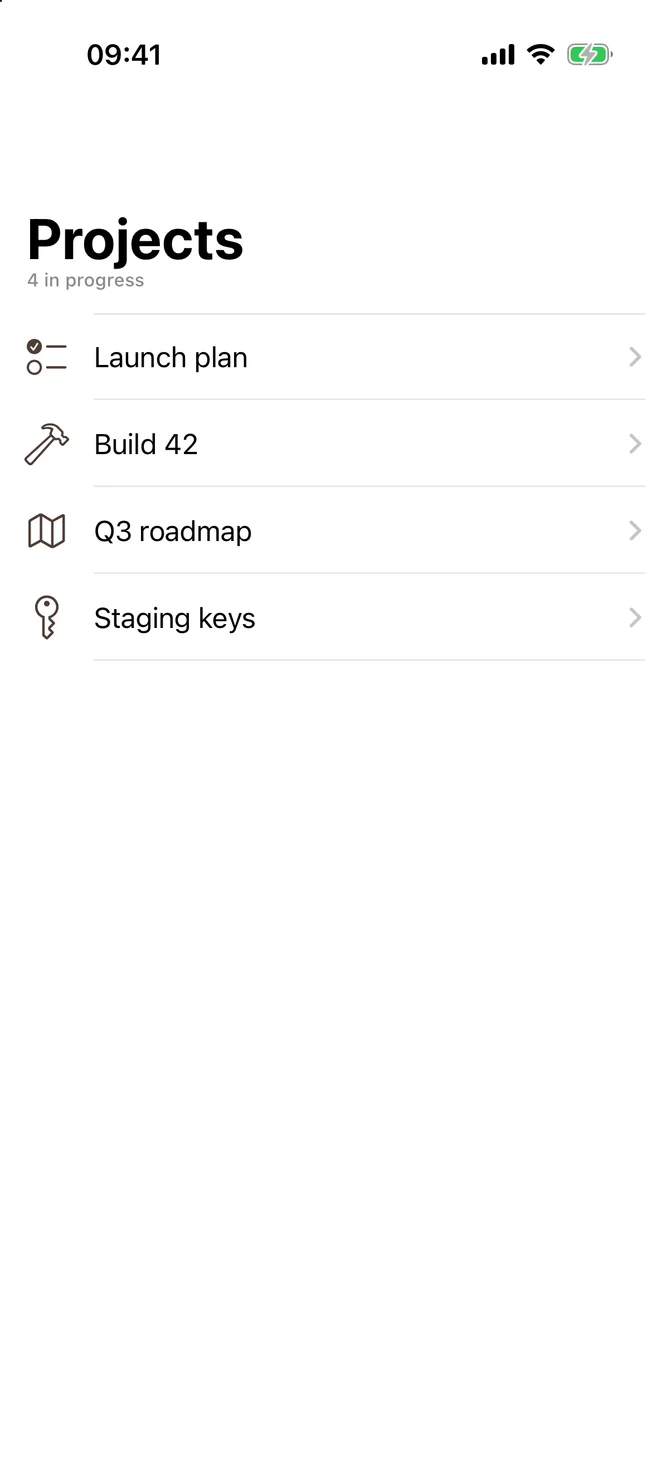
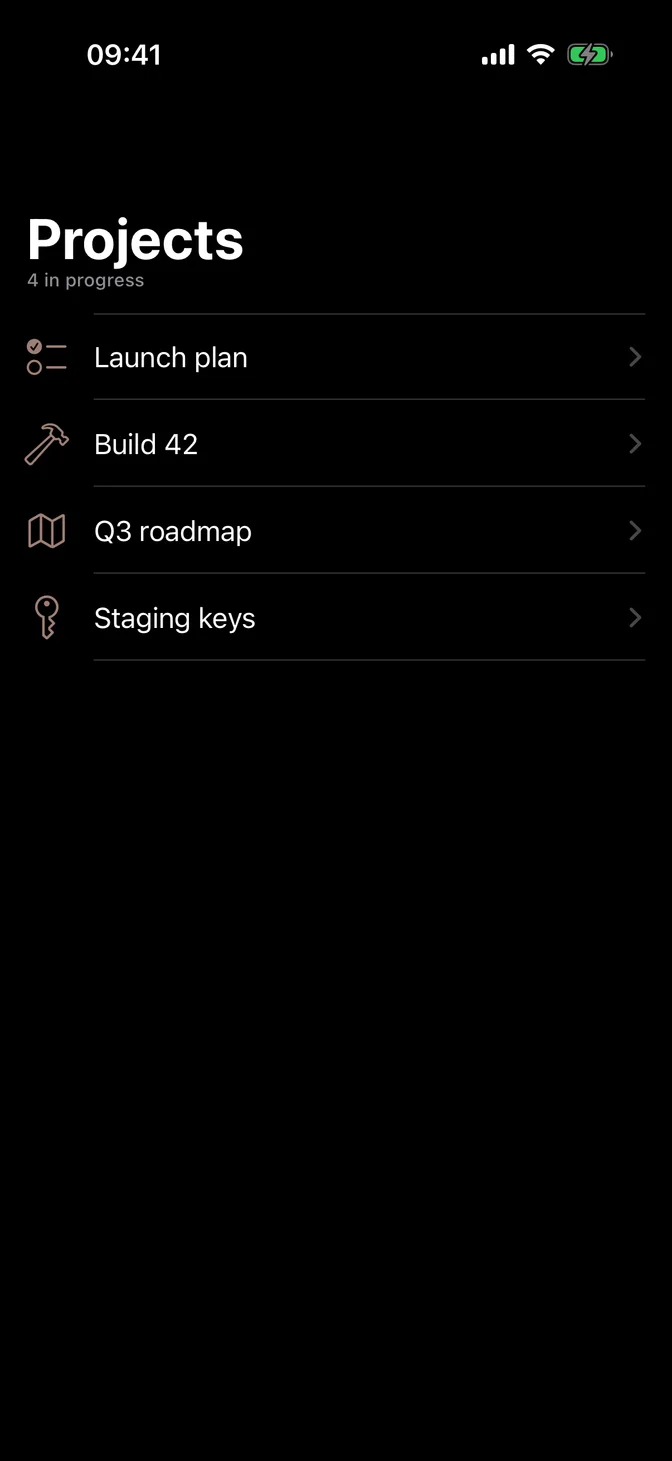
Title
A large title helps people stay oriented. It moves into the bar as people scroll and comes back when they scroll to the top. To keep a screen's title small, use .navigationBarTitleDisplayMode(.inline), as the pushed screens in the examples do.
Keep titles under 15 characters, so they leave room for the back button and toolbar items.
Toolbar
To add actions to the navigation bar, use .toolbar(content:) with a plain Button or Menu, with no style. The system applies Liquid Glass, and items in the same ToolbarItemGroup share one background.
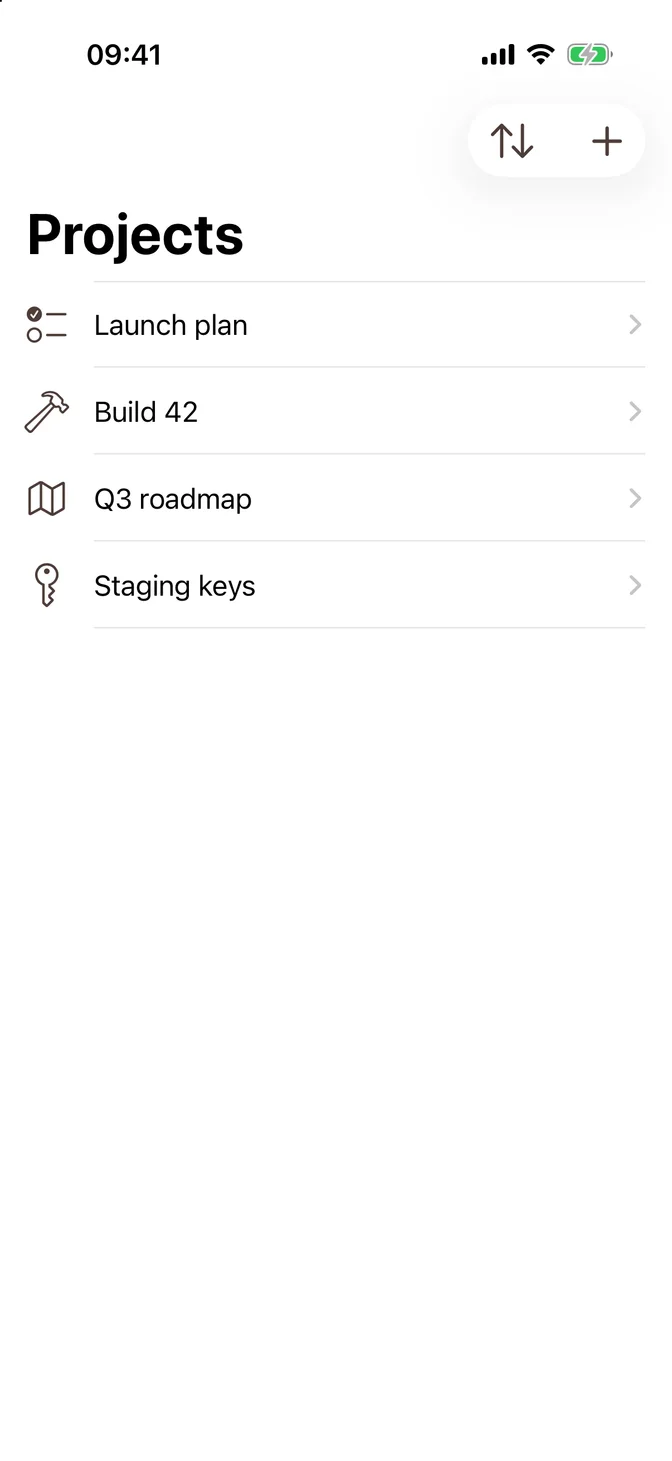
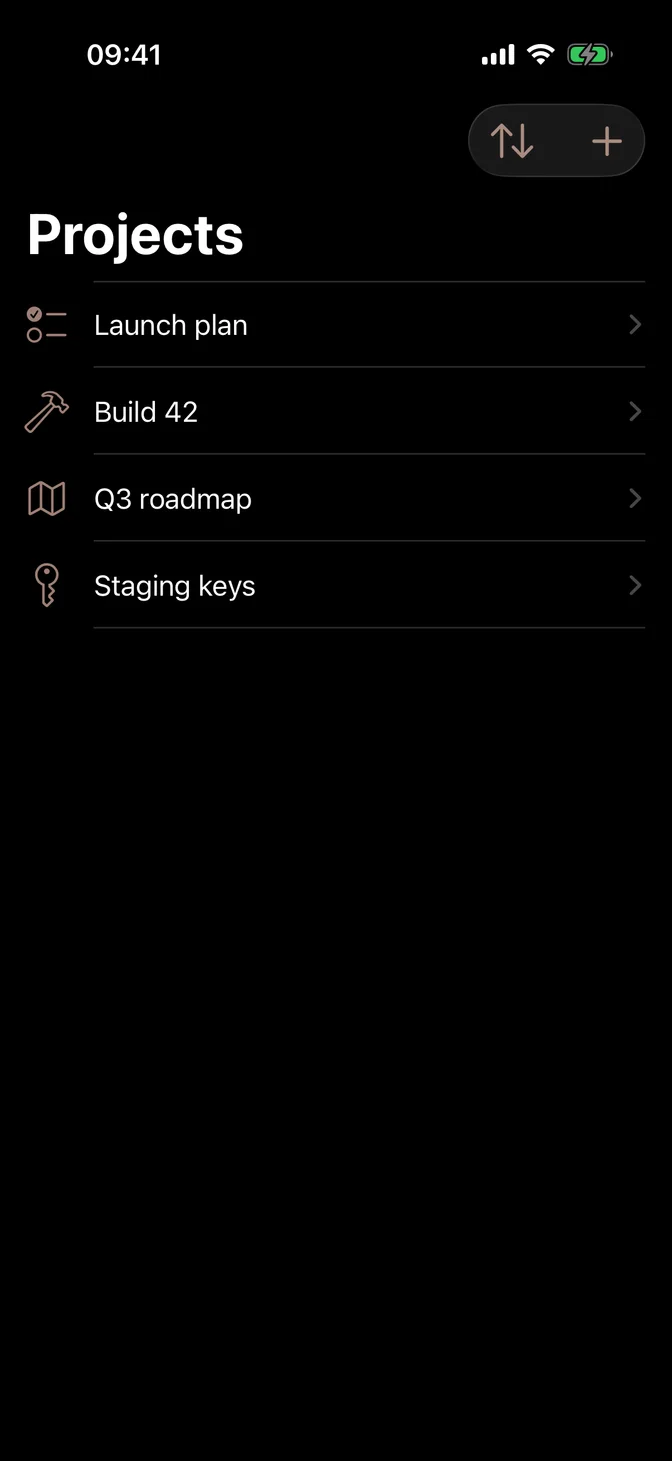
For more on toolbar buttons and menus, see Button and Menu. For every placement, see the Apple documentation.
Color
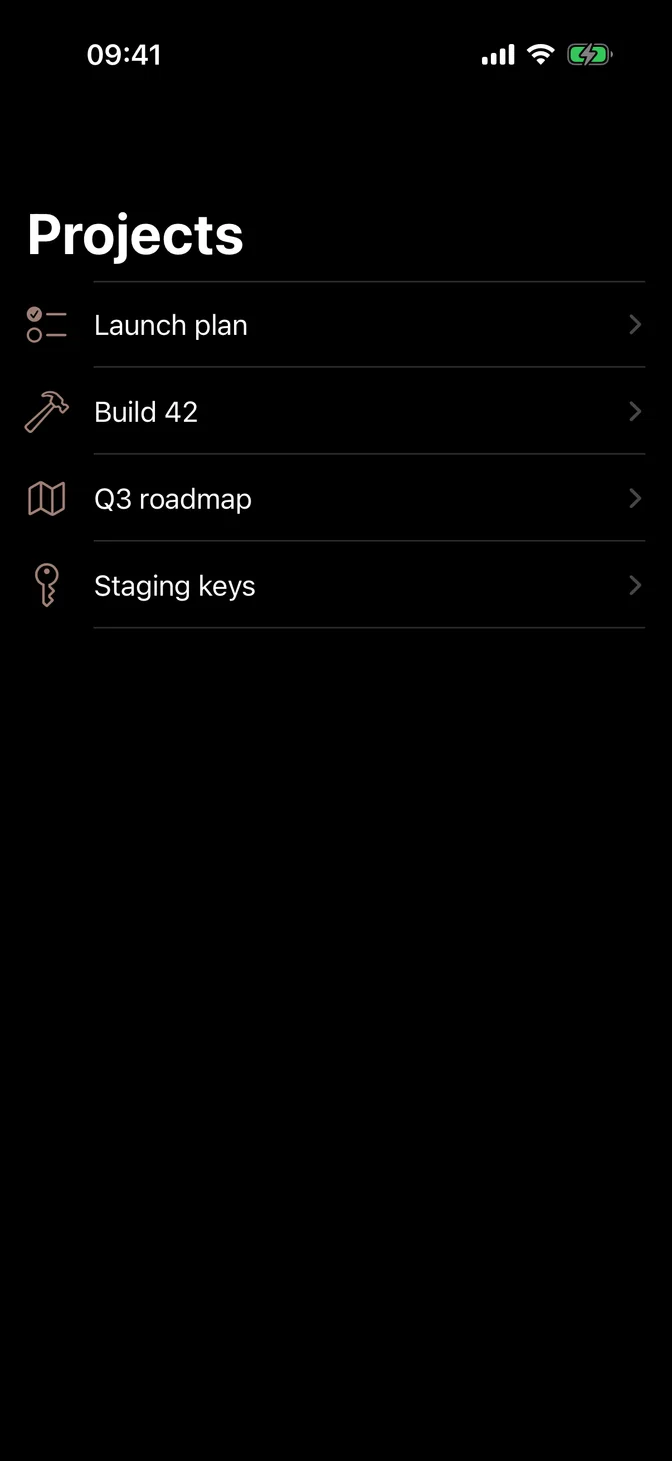
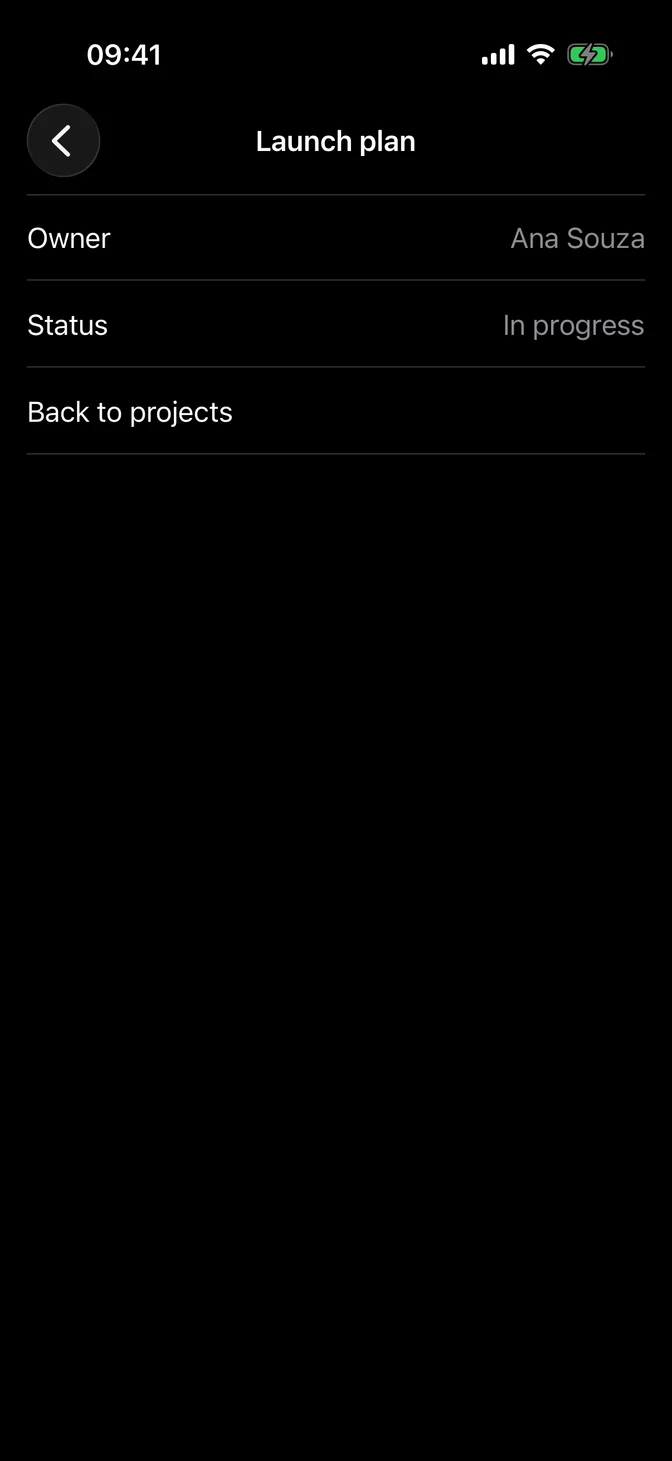
The title, the back button, and the chevrons of navigation links use system colors, which keep their contrast on Liquid Glass, so FLX leaves them as they are. Symbols in your rows, like a Label's icon, use the theme's tint, which .flxTheme(_:) applies at the root of your app.
A plain list draws the system background. To show the theme's background instead, see List.
For more information, see the Human Interface Guidelines for toolbars and the Apple documentation.