Searches the content of a screen with SwiftUI's native search field.
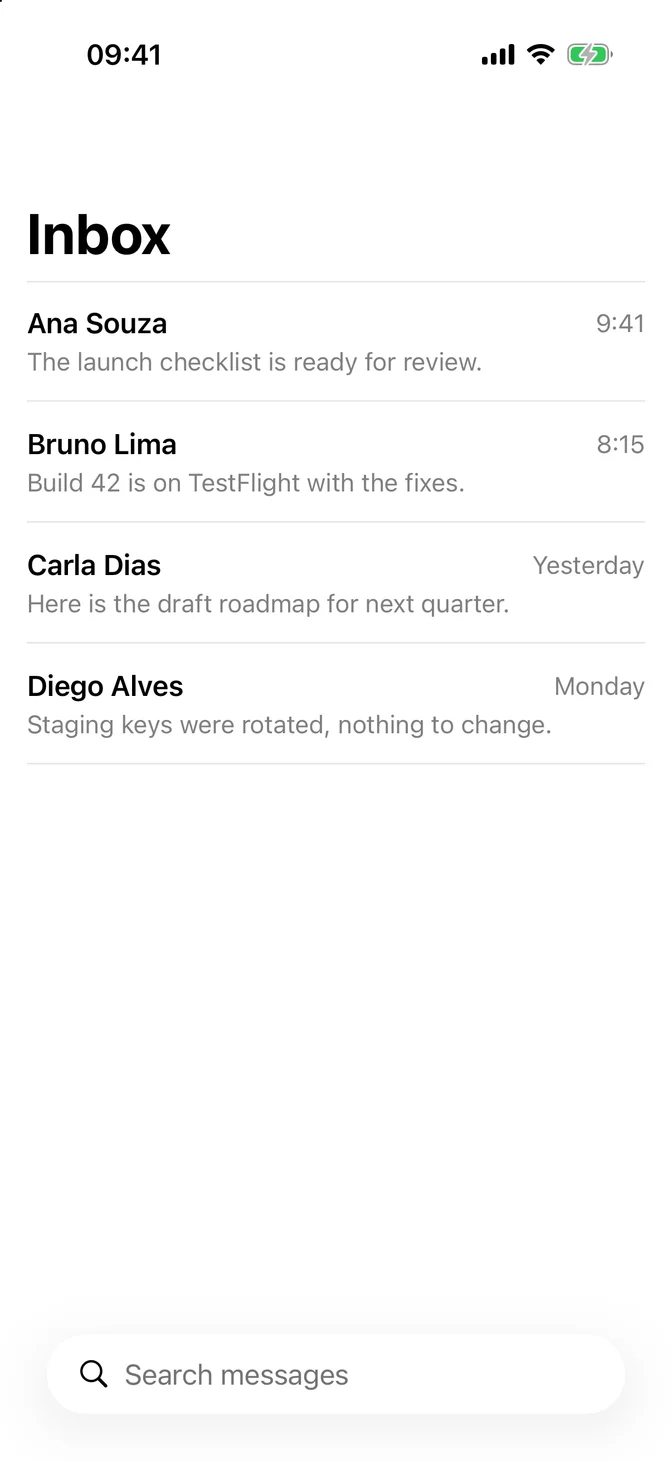
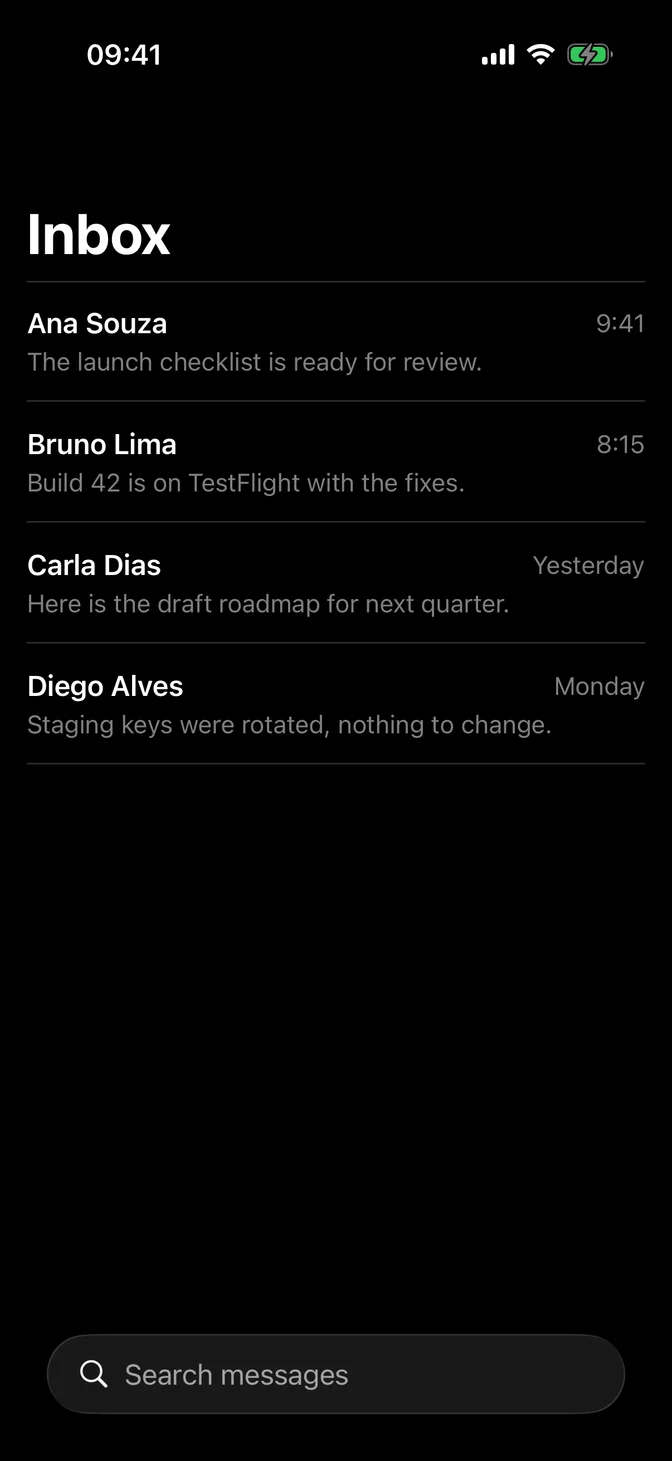
import SwiftUIstruct SearchUsageExample: View { struct Message: Identifiable { let id: String let sender: String let time: String var isUnread = false } private let messages = [ Message(id: "The launch checklist is ready for review.", sender: "Ana Souza", time: "9:41", isUnread: true), Message(id: "Build 42 is on TestFlight with the fixes.", sender: "Bruno Lima", time: "8:15", isUnread: true), Message(id: "Here is the draft roadmap for next quarter.", sender: "Carla Dias", time: "Yesterday"), Message(id: "Staging keys were rotated, nothing to change.", sender: "Diego Alves", time: "Monday") ] @State private var query = "" private var results: [Message] { guard !query.isEmpty else { return messages } return messages.filter { message in message.sender.localizedStandardContains(query) || message.id.localizedStandardContains(query) } } var body: some View { NavigationStack { List(results) { message in row(for: message) } .listStyle(.plain) .navigationTitle("Inbox") .searchable(text: $query, prompt: "Search messages") } } private func row(for message: Message) -> some View { VStack(alignment: .leading, spacing: FLXSpacing.xs) { HStack { Text(message.sender) .flxFont(.headline) Spacer() Text(message.time) .flxFont(.subheadline) .foregroundStyle(.secondary) } Text(message.id) .flxFont(.subheadline) .foregroundStyle(.secondary) } }}Usage
.searchable(text:prompt:) adds the system search field, with its placement, Liquid Glass, keyboard, and clear button, so use it directly and filter your content with the text:
@State private var query = ""NavigationStack { List(results) { message in MessageRow(message) } .navigationTitle("Inbox") .searchable(text: $query, prompt: "Search messages")}On iPhone, the field sits in the bottom toolbar, within easy reach. On iPad, it sits at the trailing end of the top toolbar. Filter the results as people type, and use the prompt to say what they can search for.
Examples
Suggestions
.searchSuggestions shows suggestions, such as recent searches, while the field is active. .searchCompletion(_:) fills the field when people pick one.
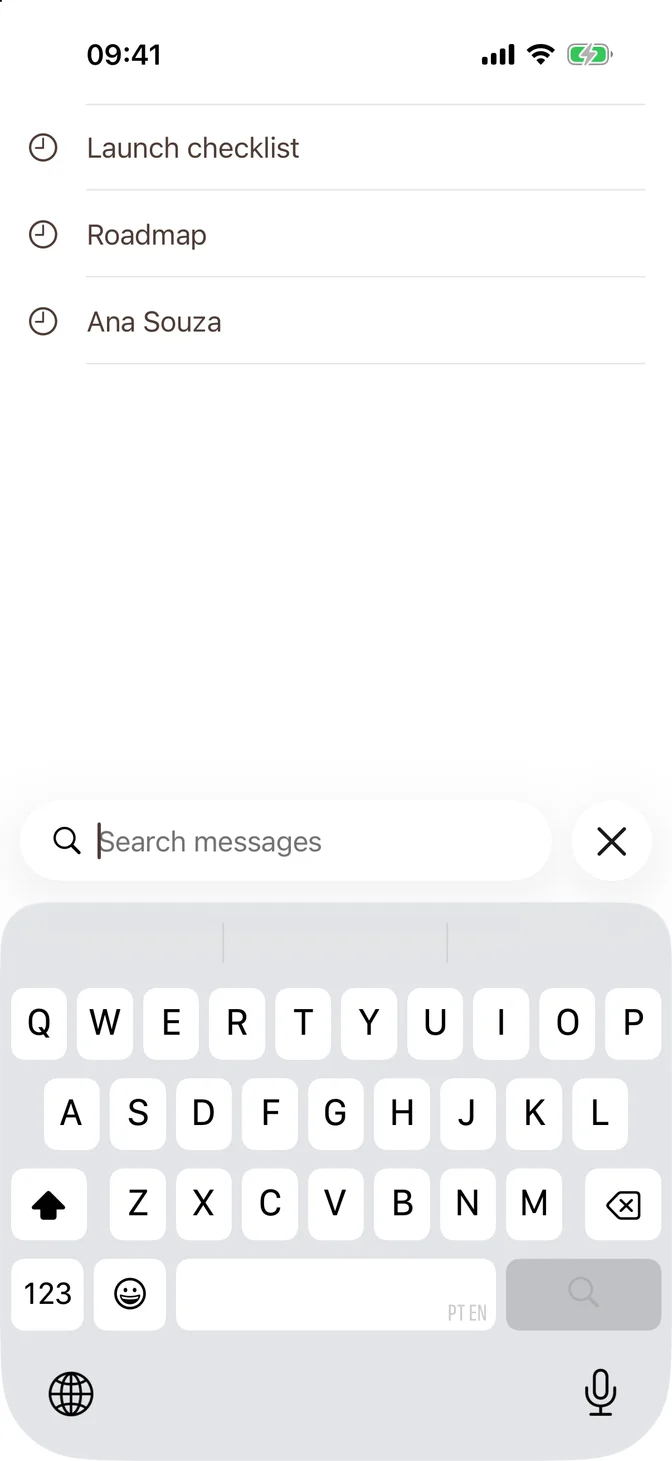
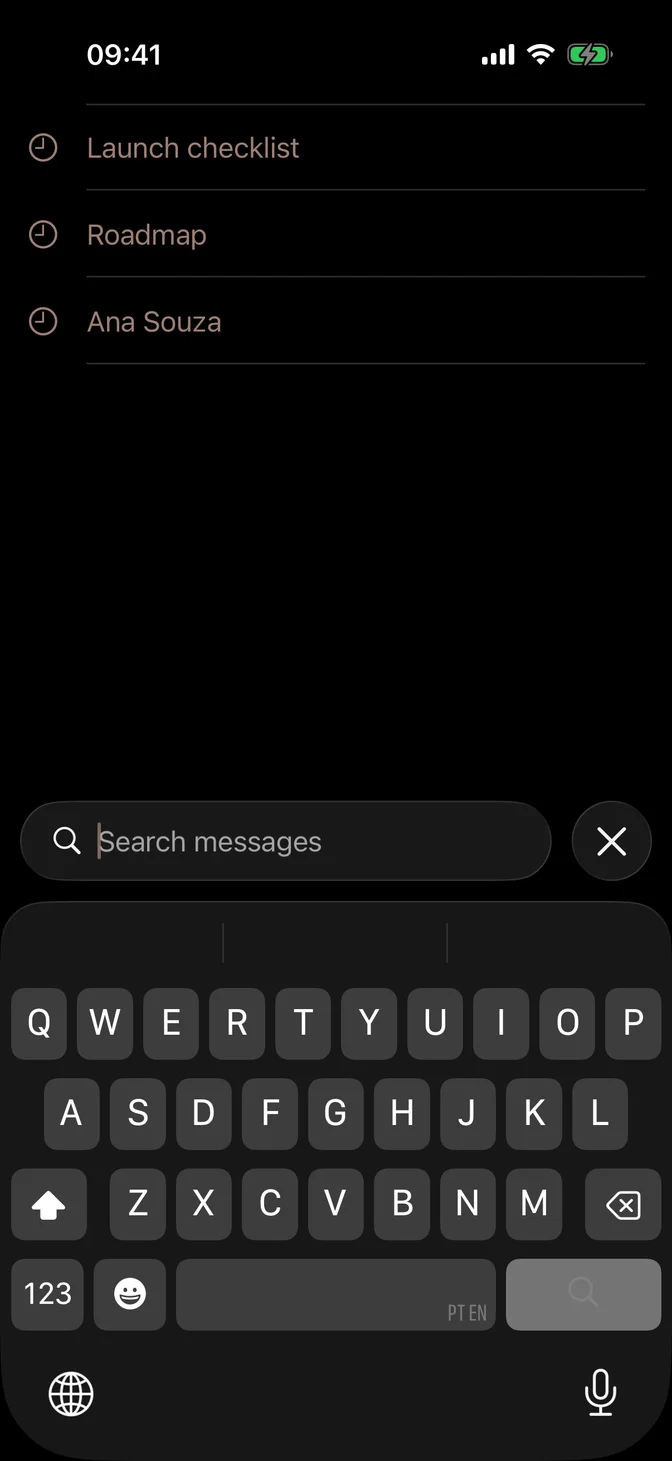
import SwiftUIstruct SearchSuggestionsExample: View { struct Message: Identifiable { let id: String let sender: String let time: String var isUnread = false } private let messages = [ Message(id: "The launch checklist is ready for review.", sender: "Ana Souza", time: "9:41", isUnread: true), Message(id: "Build 42 is on TestFlight with the fixes.", sender: "Bruno Lima", time: "8:15", isUnread: true), Message(id: "Here is the draft roadmap for next quarter.", sender: "Carla Dias", time: "Yesterday"), Message(id: "Staging keys were rotated, nothing to change.", sender: "Diego Alves", time: "Monday") ] @State private var query = "" private let recentSearches = ["Launch checklist", "Roadmap", "Ana Souza"] private var results: [Message] { guard !query.isEmpty else { return messages } return messages.filter { message in message.sender.localizedStandardContains(query) || message.id.localizedStandardContains(query) } } var body: some View { NavigationStack { List(results) { message in row(for: message) } .listStyle(.plain) .navigationTitle("Inbox") .searchable(text: $query, prompt: "Search messages") .searchSuggestions { if query.isEmpty { ForEach(recentSearches, id: \.self) { term in Label(term, systemImage: "clock") .searchCompletion(term) } } } } } private func row(for message: Message) -> some View { VStack(alignment: .leading, spacing: FLXSpacing.xs) { HStack { Text(message.sender) .flxFont(.headline) Spacer() Text(message.time) .flxFont(.subheadline) .foregroundStyle(.secondary) } Text(message.id) .flxFont(.subheadline) .foregroundStyle(.secondary) } }}Scopes
.searchScopes adds a scope bar to filter among clear categories. Start with the broadest scope, like All. By default, iOS shows scopes once people start typing. activation: .onSearchPresentation shows them as soon as search opens, as in the example.
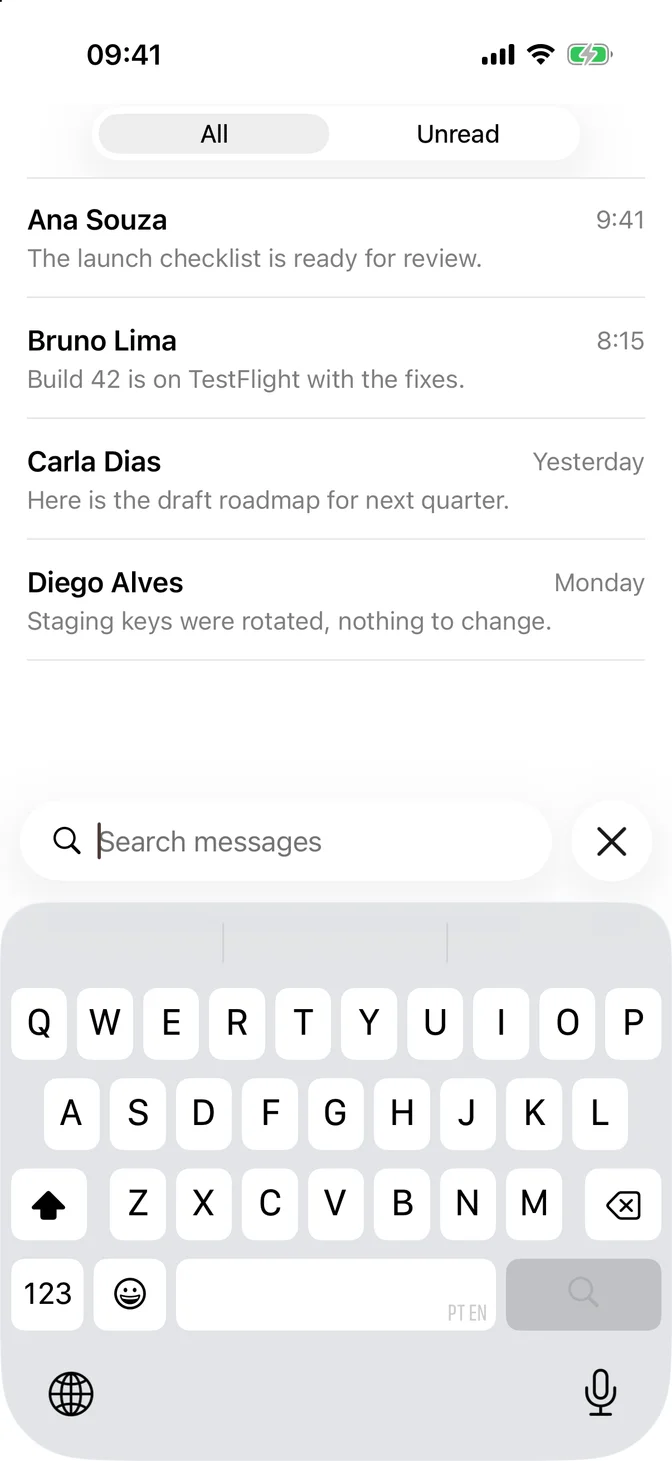
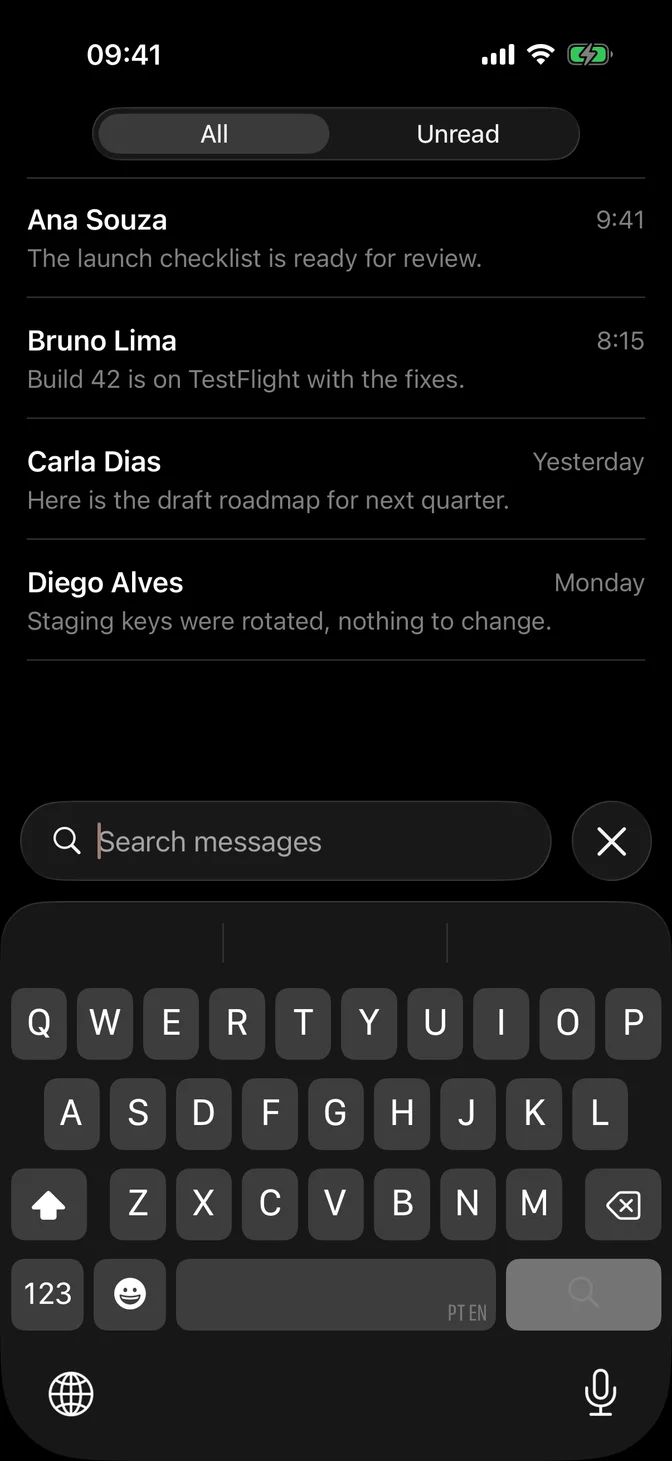
import SwiftUIstruct SearchScopesExample: View { struct Message: Identifiable { let id: String let sender: String let time: String var isUnread = false } private let messages = [ Message(id: "The launch checklist is ready for review.", sender: "Ana Souza", time: "9:41", isUnread: true), Message(id: "Build 42 is on TestFlight with the fixes.", sender: "Bruno Lima", time: "8:15", isUnread: true), Message(id: "Here is the draft roadmap for next quarter.", sender: "Carla Dias", time: "Yesterday"), Message(id: "Staging keys were rotated, nothing to change.", sender: "Diego Alves", time: "Monday") ] enum Scope: Hashable { case all case unread } @State private var query = "" @State private var scope = Scope.all private var results: [Message] { let scoped = messages.filter { message in scope == .all || message.isUnread } guard !query.isEmpty else { return scoped } return scoped.filter { message in message.sender.localizedStandardContains(query) || message.id.localizedStandardContains(query) } } var body: some View { NavigationStack { List(results) { message in row(for: message) } .listStyle(.plain) .navigationTitle("Inbox") .searchable(text: $query, prompt: "Search messages") .searchScopes($scope, activation: .onSearchPresentation) { Text("All").tag(Scope.all) Text("Unread").tag(Scope.unread) } } } private func row(for message: Message) -> some View { VStack(alignment: .leading, spacing: FLXSpacing.xs) { HStack { Text(message.sender) .flxFont(.headline) Spacer() Text(message.time) .flxFont(.subheadline) .foregroundStyle(.secondary) } Text(message.id) .flxFont(.subheadline) .foregroundStyle(.secondary) } }}No results
When nothing matches, show an Empty state over the list that says so and suggests what to try.
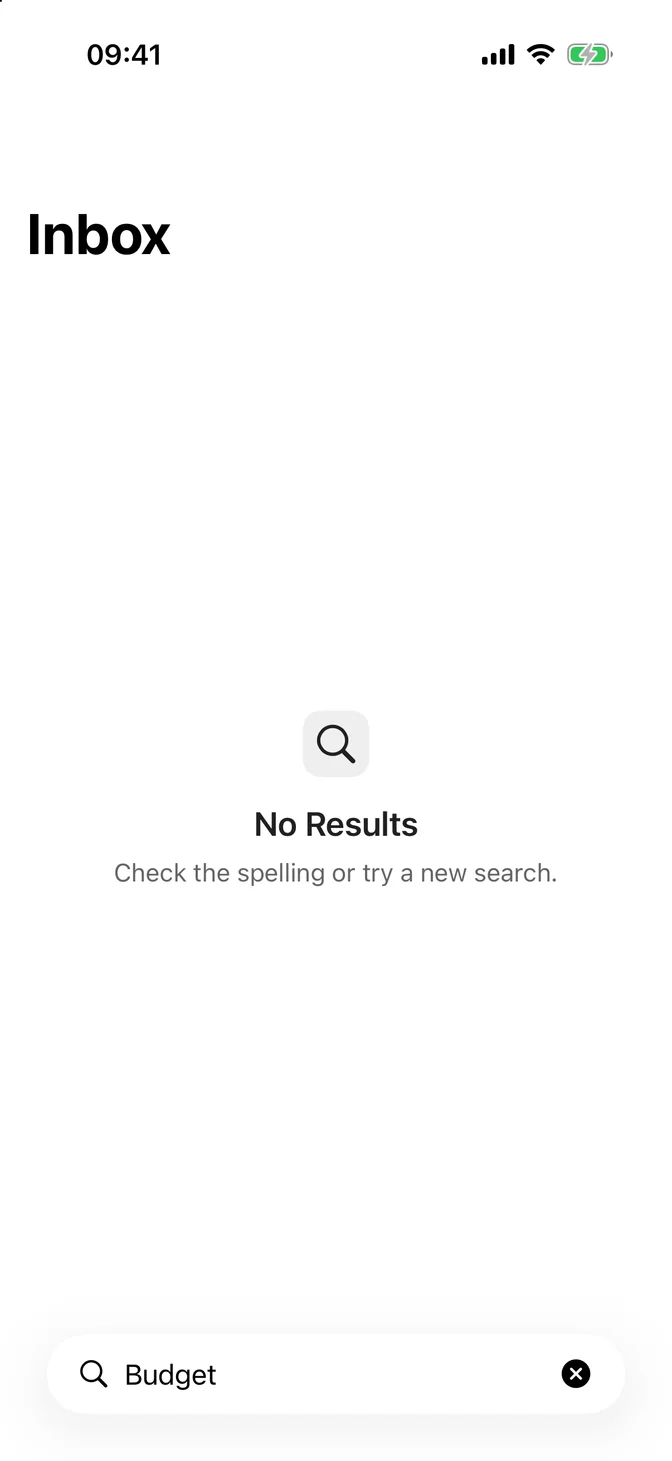
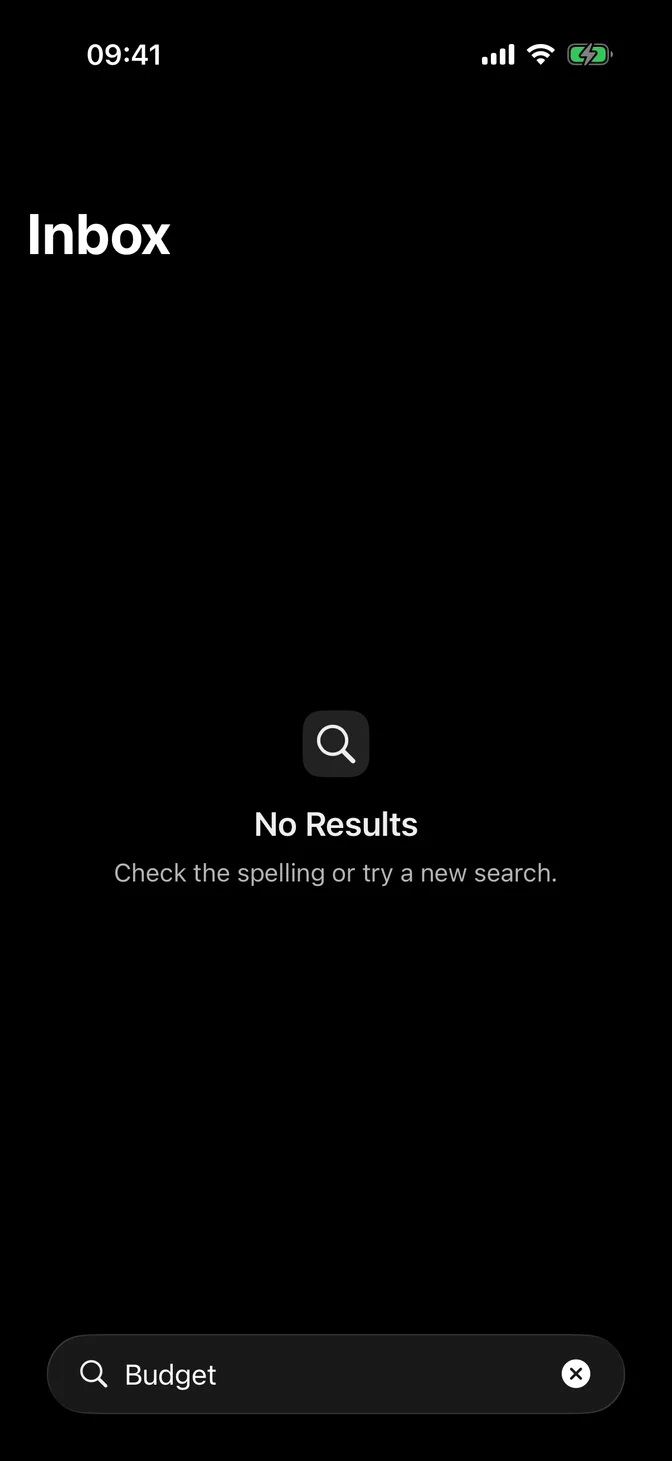
import SwiftUIstruct SearchEmptyExample: View { struct Message: Identifiable { let id: String let sender: String let time: String var isUnread = false } private let messages = [ Message(id: "The launch checklist is ready for review.", sender: "Ana Souza", time: "9:41", isUnread: true), Message(id: "Build 42 is on TestFlight with the fixes.", sender: "Bruno Lima", time: "8:15", isUnread: true), Message(id: "Here is the draft roadmap for next quarter.", sender: "Carla Dias", time: "Yesterday"), Message(id: "Staging keys were rotated, nothing to change.", sender: "Diego Alves", time: "Monday") ] @State private var query = "" private var results: [Message] { guard !query.isEmpty else { return messages } return messages.filter { message in message.sender.localizedStandardContains(query) || message.id.localizedStandardContains(query) } } var body: some View { NavigationStack { List(results) { message in row(for: message) } .listStyle(.plain) .overlay { if results.isEmpty { FLXEmpty { FLXEmptyHeader { FLXEmptyMedia(variant: .icon) { Image(systemName: "magnifyingglass") } FLXEmptyTitle("No Results") FLXEmptyDescription("Check the spelling or try a new search.") } } } } .navigationTitle("Inbox") .searchable(text: $query, prompt: "Search messages") } } private func row(for message: Message) -> some View { VStack(alignment: .leading, spacing: FLXSpacing.xs) { HStack { Text(message.sender) .flxFont(.headline) Spacer() Text(message.time) .flxFont(.subheadline) .foregroundStyle(.secondary) } Text(message.id) .flxFont(.subheadline) .foregroundStyle(.secondary) } }}Search tab
In an app with a tab bar, a search tab keeps search one tap away. See Tab View.
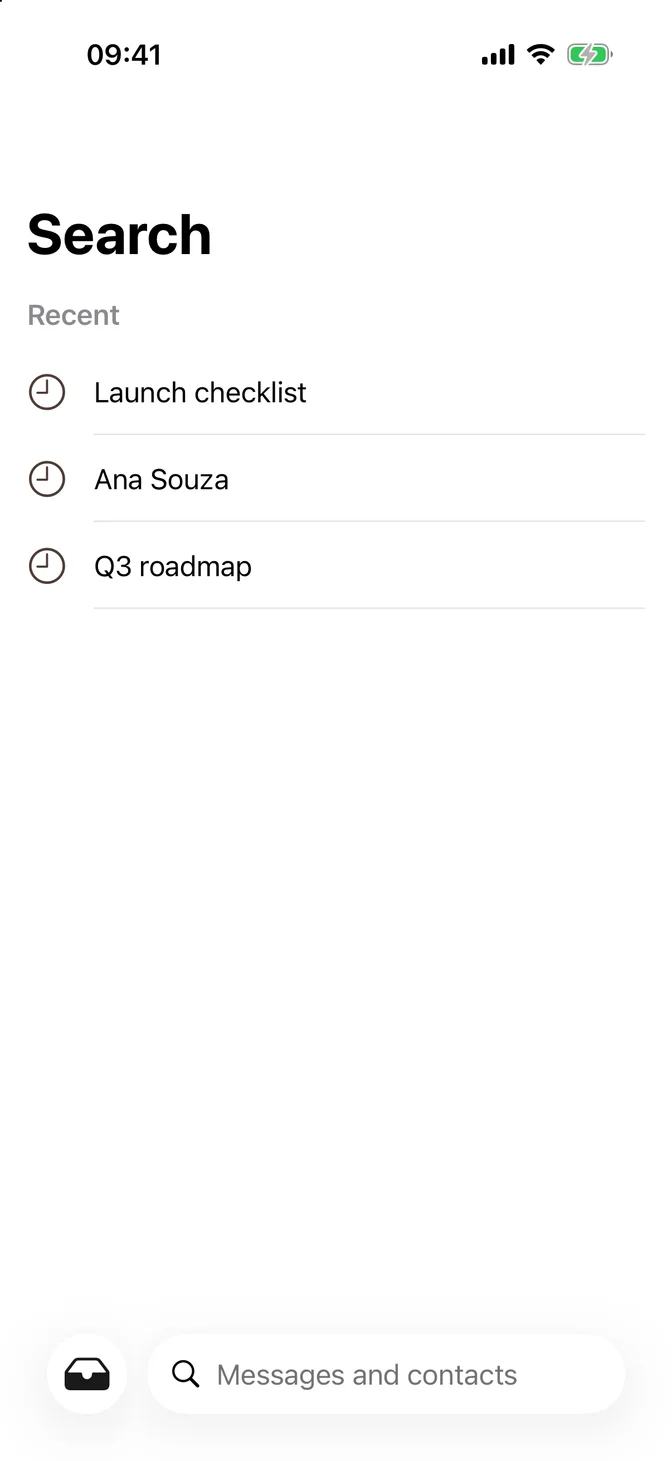
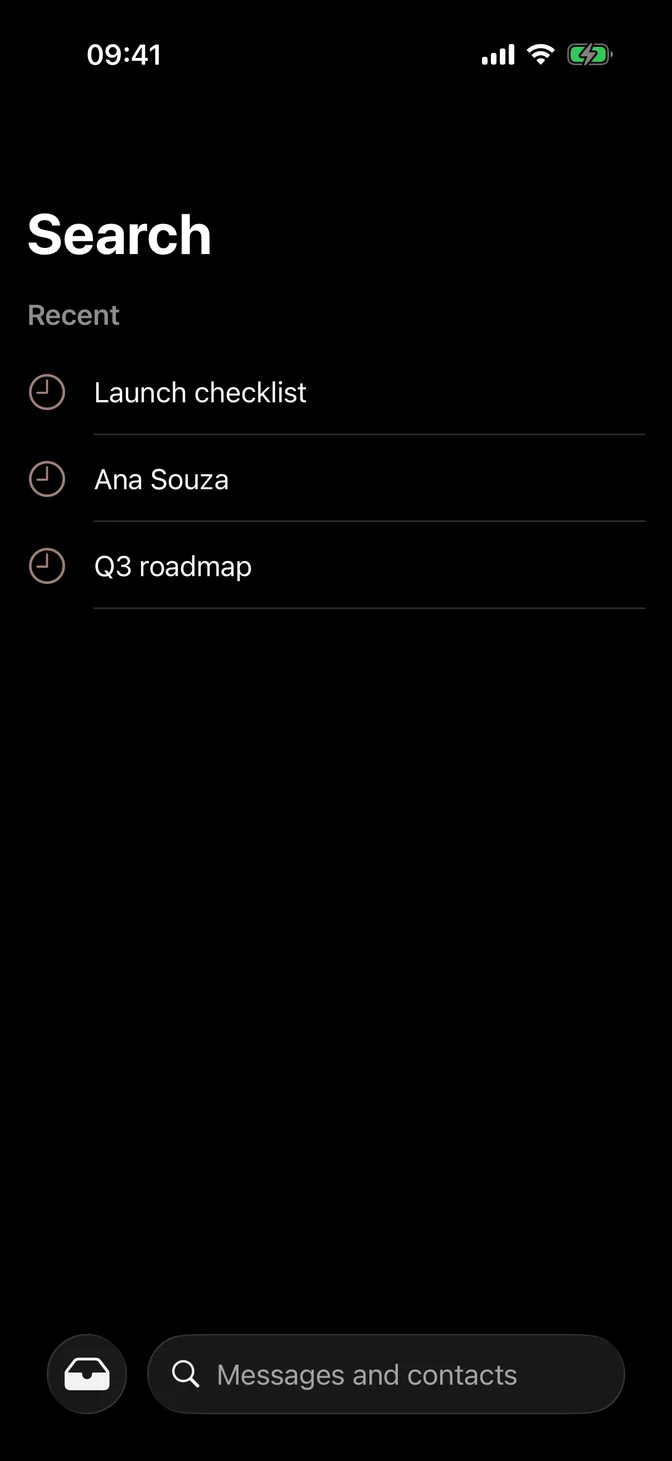
import SwiftUI@available(iOS 18.0, macOS 15.0, *)struct TabViewSearchExample: View { enum AppTab: Hashable { case inbox case contacts case search } @State private var selection = AppTab.inbox @State private var query = "" var body: some View { TabView(selection: $selection) { Tab("Inbox", systemImage: "tray.fill", value: .inbox) { NavigationStack { List(["Launch checklist", "Build 42", "Q3 roadmap"], id: \.self) { title in Text(title) } .listStyle(.plain) .navigationTitle("Inbox") } } Tab("Contacts", systemImage: "person.2.fill", value: .contacts) { NavigationStack { List(["Ana Souza", "Bruno Lima", "Carla Dias"], id: \.self) { name in Text(name) } .listStyle(.plain) .navigationTitle("Contacts") } } Tab(value: .search, role: .search) { NavigationStack { List { Section("Recent") { Label("Launch checklist", systemImage: "clock") Label("Ana Souza", systemImage: "clock") Label("Q3 roadmap", systemImage: "clock") } } .listStyle(.plain) .navigationTitle("Search") .searchable(text: $query, prompt: "Messages and contacts") } } } }}Search inside content
To filter a card or a single section of a screen, rather than the whole screen, put a Text Field Group with a search icon next to that content.


import SwiftUIstruct TextFieldGroupUsageExample: View { @State private var search = "" var body: some View { FLXTextFieldGroup("Search", text: $search) { FLXTextFieldGroupAddon { Image(systemName: "magnifyingglass") } } .padding(FLXSpacing.xl) }}Color
The text cursor and the suggestion icons follow the theme's tint, which .flxTheme(_:) applies at the root of your app. The scope bar stays neutral, like a Segmented Control.
For more information, see the Human Interface Guidelines for search fields and the Apple documentation.