Tab View

iOS 16.4+iPadOS 16.4+

Switches between the main sections of an app with SwiftUI's native tab bar.
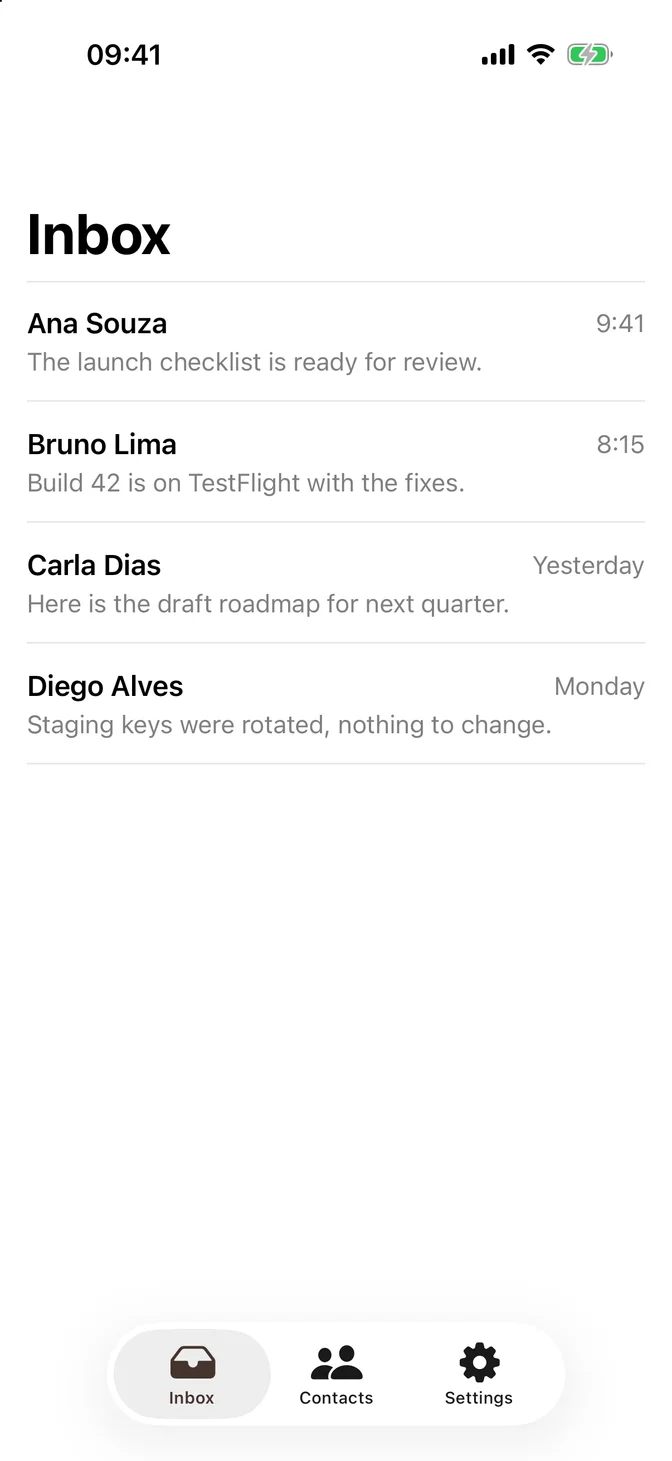
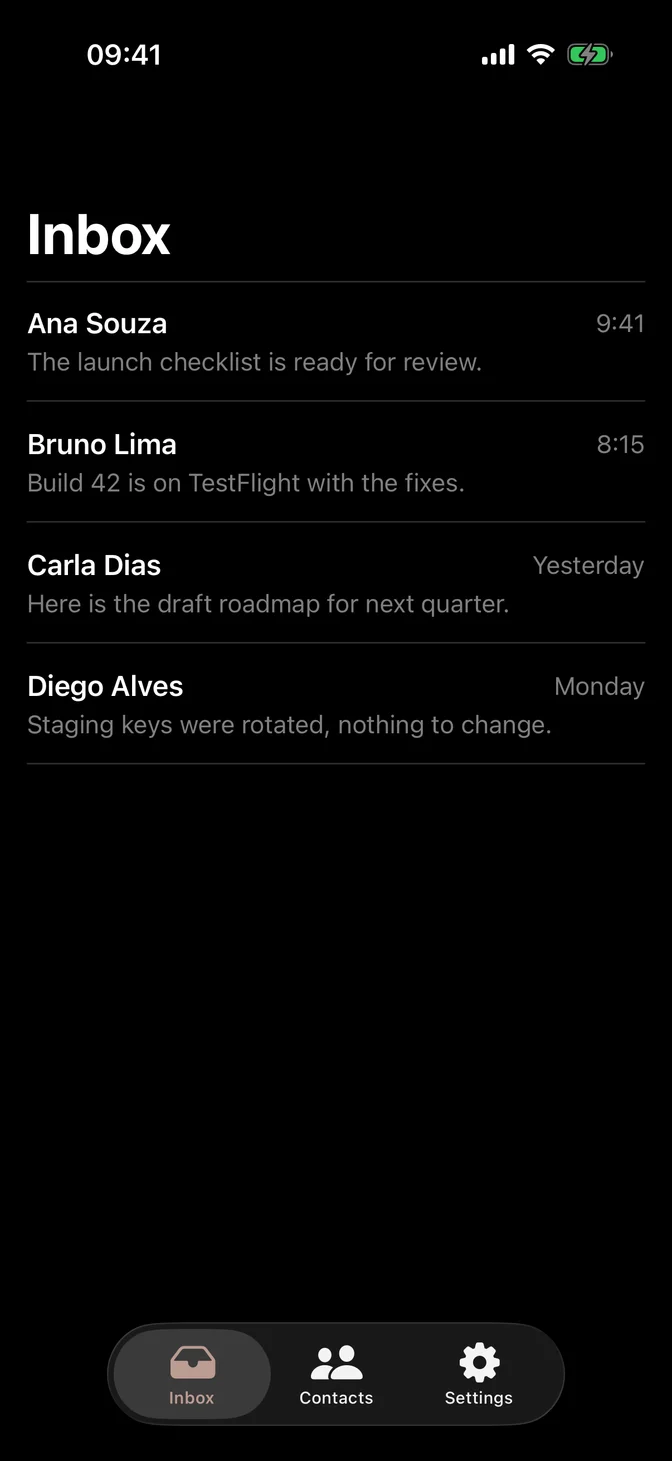
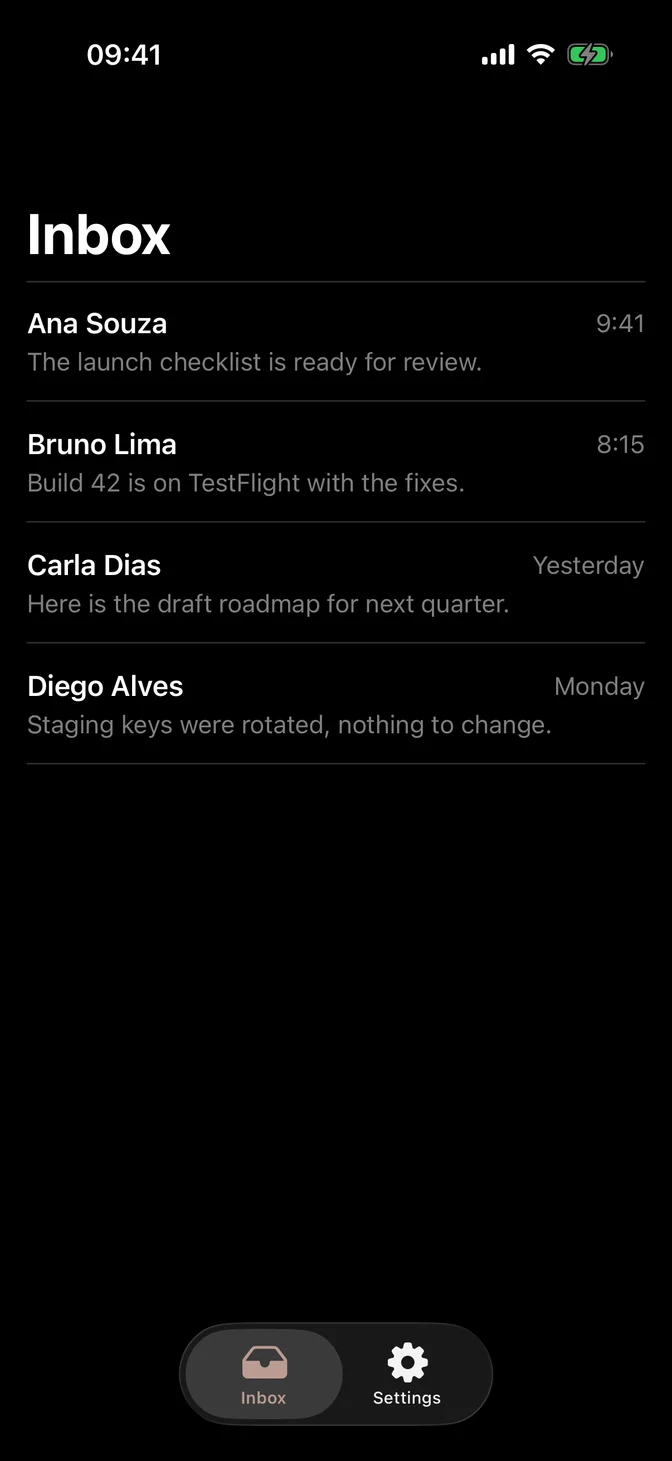
Native tab bar with inbox, contacts, and settings tabs
import SwiftUI@available(iOS 18.0, macOS 15.0, *)struct TabViewUsageExample: View {    struct Message: Identifiable {        let id: String        let sender: String        let time: String    }    private let messages = [        Message(id: "The launch checklist is ready for review.", sender: "Ana Souza", time: "9:41"),        Message(id: "Build 42 is on TestFlight with the fixes.", sender: "Bruno Lima", time: "8:15"),        Message(id: "Here is the draft roadmap for next quarter.", sender: "Carla Dias", time: "Yesterday"),        Message(id: "Staging keys were rotated, nothing to change.", sender: "Diego Alves", time: "Monday")    ]    @State private var notifications = true    var body: some View {        TabView {            Tab("Inbox", systemImage: "tray.fill") {                NavigationStack {                    List(messages) { message in                        row(for: message)                    }                    .listStyle(.plain)                    .navigationTitle("Inbox")                }            }            Tab("Contacts", systemImage: "person.2.fill") {                NavigationStack {                    List(["Ana Souza", "Bruno Lima", "Carla Dias"], id: \.self) { name in                        Text(name)                    }                    .listStyle(.plain)                    .navigationTitle("Contacts")                }            }            Tab("Settings", systemImage: "gearshape.fill") {                NavigationStack {                    Form {                        Toggle("Notifications", isOn: $notifications)                    }                    .navigationTitle("Settings")                }            }        }    }    private func row(for message: Message) -> some View {        VStack(alignment: .leading, spacing: FLXSpacing.xs) {            HStack {                Text(message.sender)                    .flxFont(.headline)                Spacer()                Text(message.time)                    .flxFont(.subheadline)                    .foregroundStyle(.secondary)            }            Text(message.id)                .flxFont(.subheadline)                .foregroundStyle(.secondary)        }    }}

Usage

The native TabView already brings the Liquid Glass tab bar, its layout on iPhone and iPad, and accessibility, so use it directly and put your screens inside:

TabView {    Tab("Inbox", systemImage: "tray.fill") {        NavigationStack {            InboxView()        }    }    Tab("Settings", systemImage: "gearshape.fill") {        NavigationStack {            SettingsView()        }    }}

Give each tab its own NavigationStack, so each section keeps its place when people switch tabs.

Use tabs to move between the main sections of your app, not to perform actions. For actions on the current screen, use a toolbar. Give every tab a short label and an SF Symbol, preferably a filled one.

Examples

Badge

.badge(_:) shows a count or a short label on a tab. Keep badges for information that needs attention.
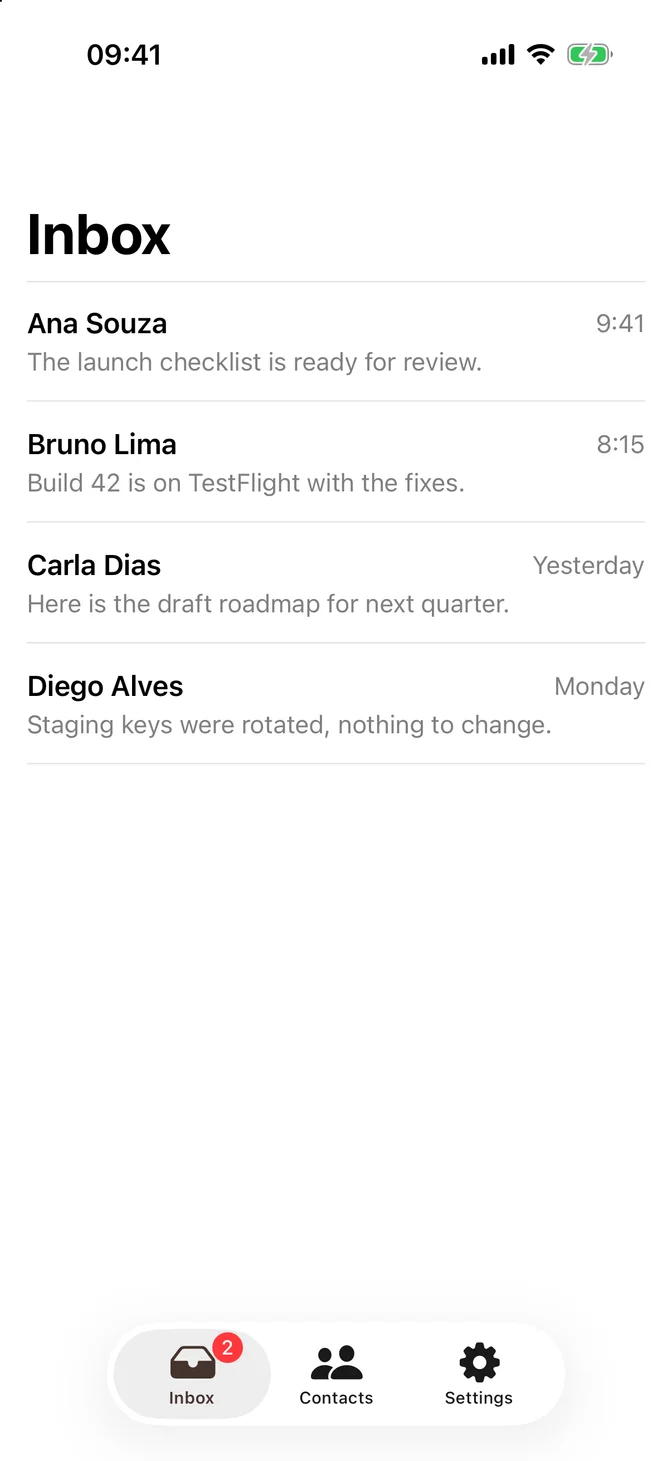
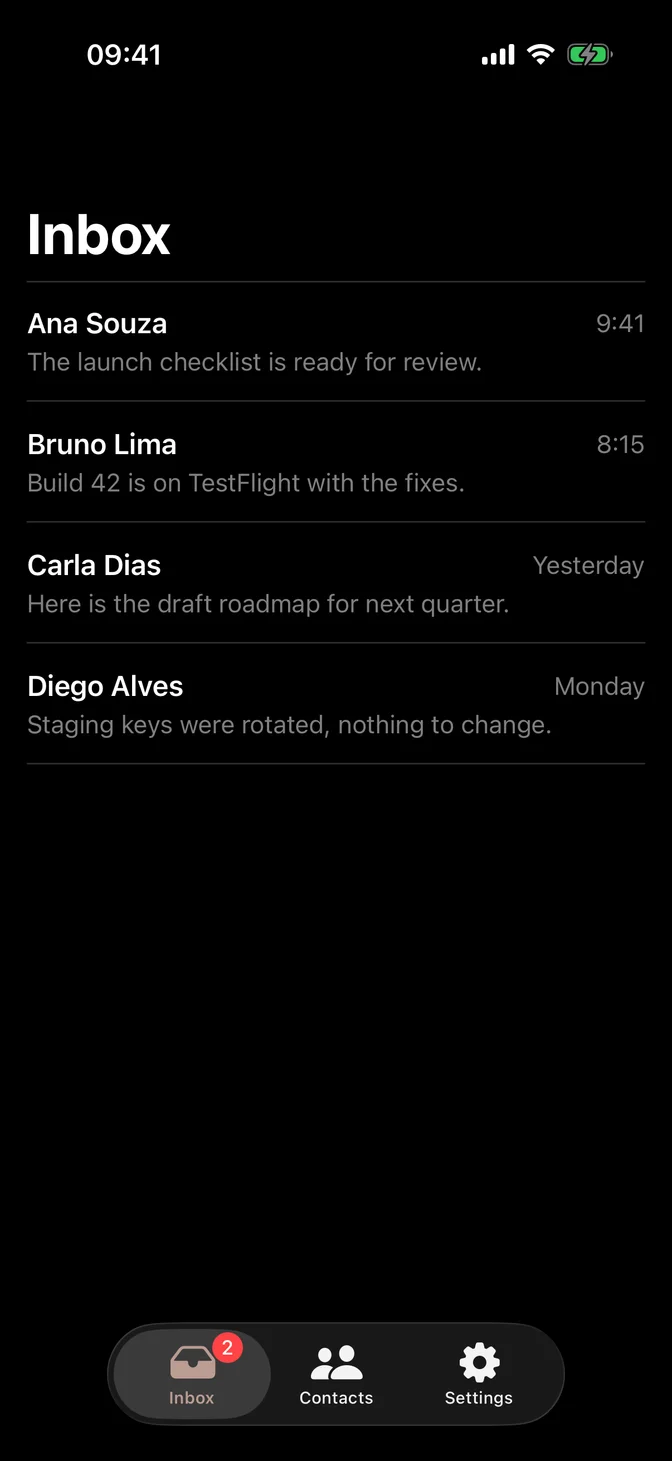
Tab bar with a badge on the inbox tab
import SwiftUI@available(iOS 18.0, macOS 15.0, *)struct TabViewBadgeExample: View {    struct Message: Identifiable {        let id: String        let sender: String        let time: String    }    private let messages = [        Message(id: "The launch checklist is ready for review.", sender: "Ana Souza", time: "9:41"),        Message(id: "Build 42 is on TestFlight with the fixes.", sender: "Bruno Lima", time: "8:15"),        Message(id: "Here is the draft roadmap for next quarter.", sender: "Carla Dias", time: "Yesterday"),        Message(id: "Staging keys were rotated, nothing to change.", sender: "Diego Alves", time: "Monday")    ]    @State private var notifications = true    var body: some View {        TabView {            Tab("Inbox", systemImage: "tray.fill") {                NavigationStack {                    List(messages) { message in                        row(for: message)                    }                    .listStyle(.plain)                    .navigationTitle("Inbox")                }            }            .badge(2)            Tab("Contacts", systemImage: "person.2.fill") {                NavigationStack {                    List(["Ana Souza", "Bruno Lima", "Carla Dias"], id: \.self) { name in                        Text(name)                    }                    .listStyle(.plain)                    .navigationTitle("Contacts")                }            }            Tab("Settings", systemImage: "gearshape.fill") {                NavigationStack {                    Form {                        Toggle("Notifications", isOn: $notifications)                    }                    .navigationTitle("Settings")                }            }        }    }    private func row(for message: Message) -> some View {        VStack(alignment: .leading, spacing: FLXSpacing.xs) {            HStack {                Text(message.sender)                    .flxFont(.headline)                Spacer()                Text(message.time)                    .flxFont(.subheadline)                    .foregroundStyle(.secondary)            }            Text(message.id)                .flxFont(.subheadline)                .foregroundStyle(.secondary)        }    }}

Tab(role: .search) adds a search tab, which the system places at the trailing end of the tab bar. This example also gives each tab a value and binds the selection, so you can change tabs in code.
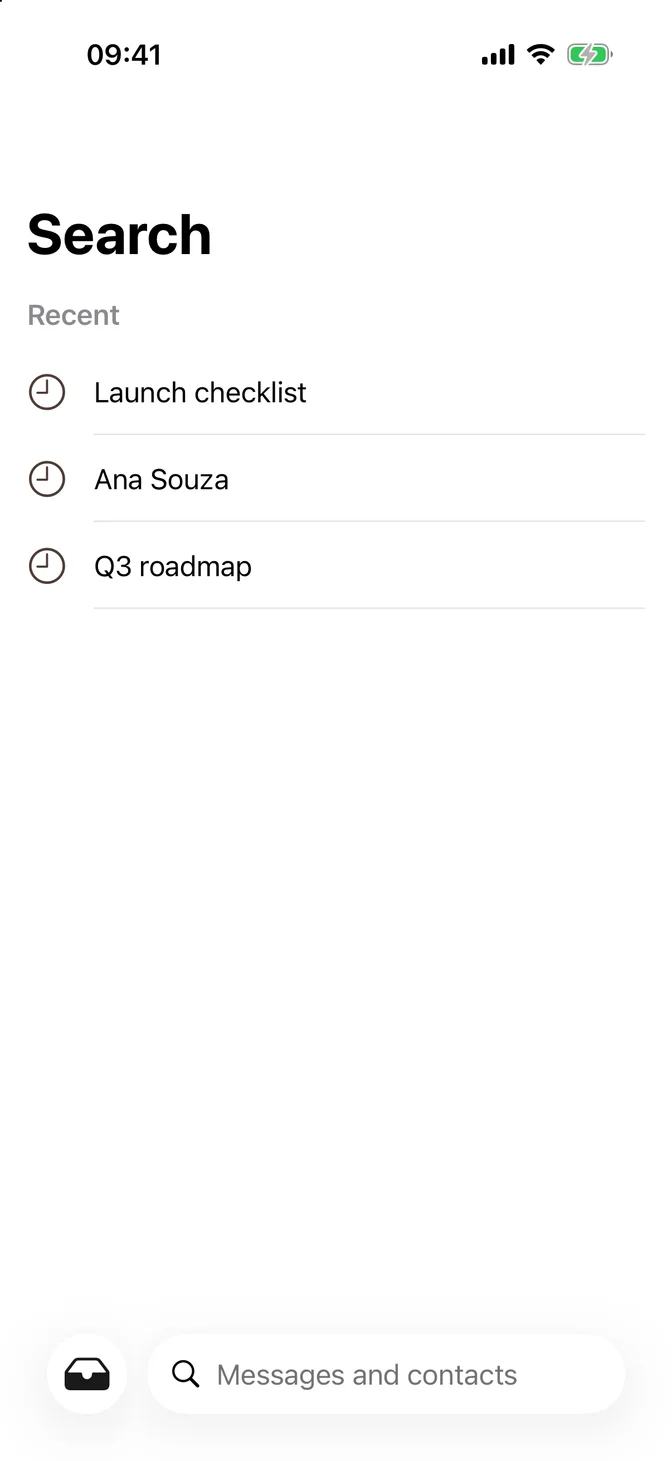
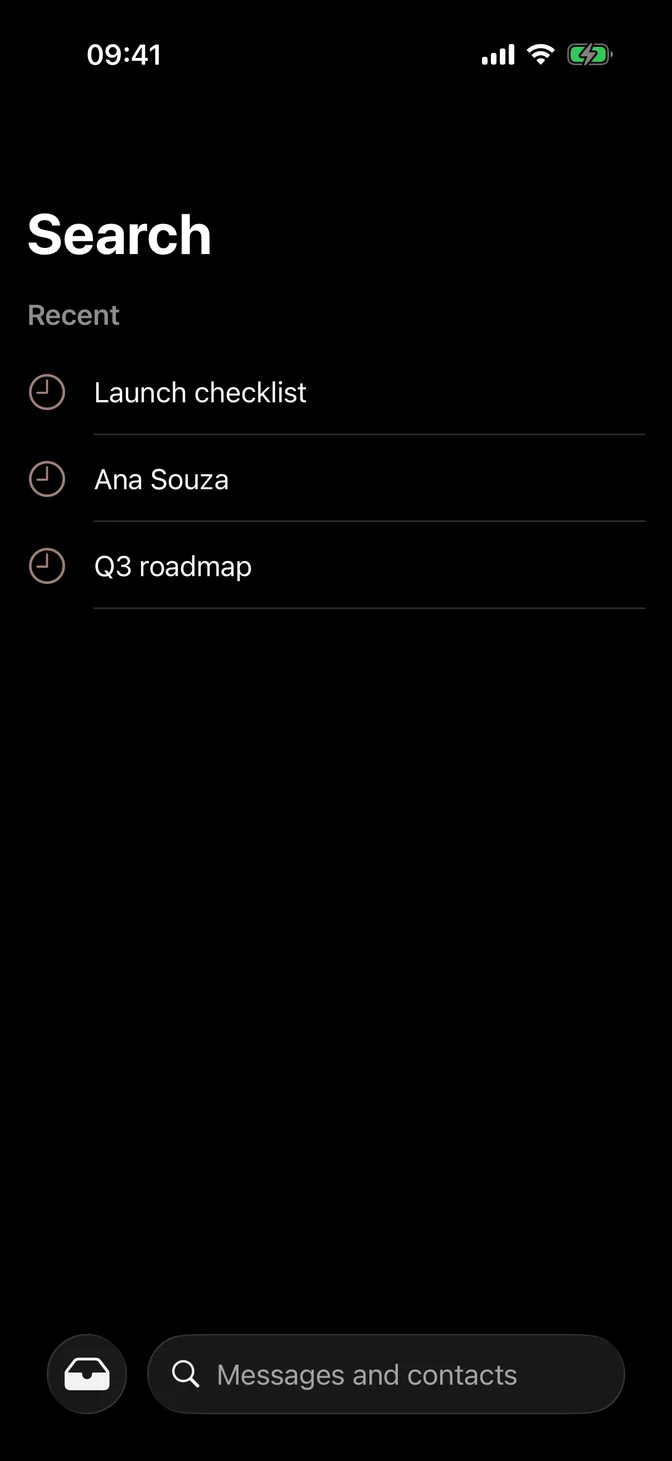
Search tab with recent searches and a search field
import SwiftUI@available(iOS 18.0, macOS 15.0, *)struct TabViewSearchExample: View {    enum AppTab: Hashable {        case inbox        case contacts        case search    }    @State private var selection = AppTab.inbox    @State private var query = ""    var body: some View {        TabView(selection: $selection) {            Tab("Inbox", systemImage: "tray.fill", value: .inbox) {                NavigationStack {                    List(["Launch checklist", "Build 42", "Q3 roadmap"], id: \.self) { title in                        Text(title)                    }                    .listStyle(.plain)                    .navigationTitle("Inbox")                }            }            Tab("Contacts", systemImage: "person.2.fill", value: .contacts) {                NavigationStack {                    List(["Ana Souza", "Bruno Lima", "Carla Dias"], id: \.self) { name in                        Text(name)                    }                    .listStyle(.plain)                    .navigationTitle("Contacts")                }            }            Tab(value: .search, role: .search) {                NavigationStack {                    List {                        Section("Recent") {                            Label("Launch checklist", systemImage: "clock")                            Label("Ana Souza", systemImage: "clock")                            Label("Q3 roadmap", systemImage: "clock")                        }                    }                    .listStyle(.plain)                    .navigationTitle("Search")                    .searchable(text: $query, prompt: "Messages and contacts")                }            }        }    }}

iOS 16 and 17

Tab needs iOS 18. On earlier versions, put .tabItem(_:) on each screen. It looks the same.
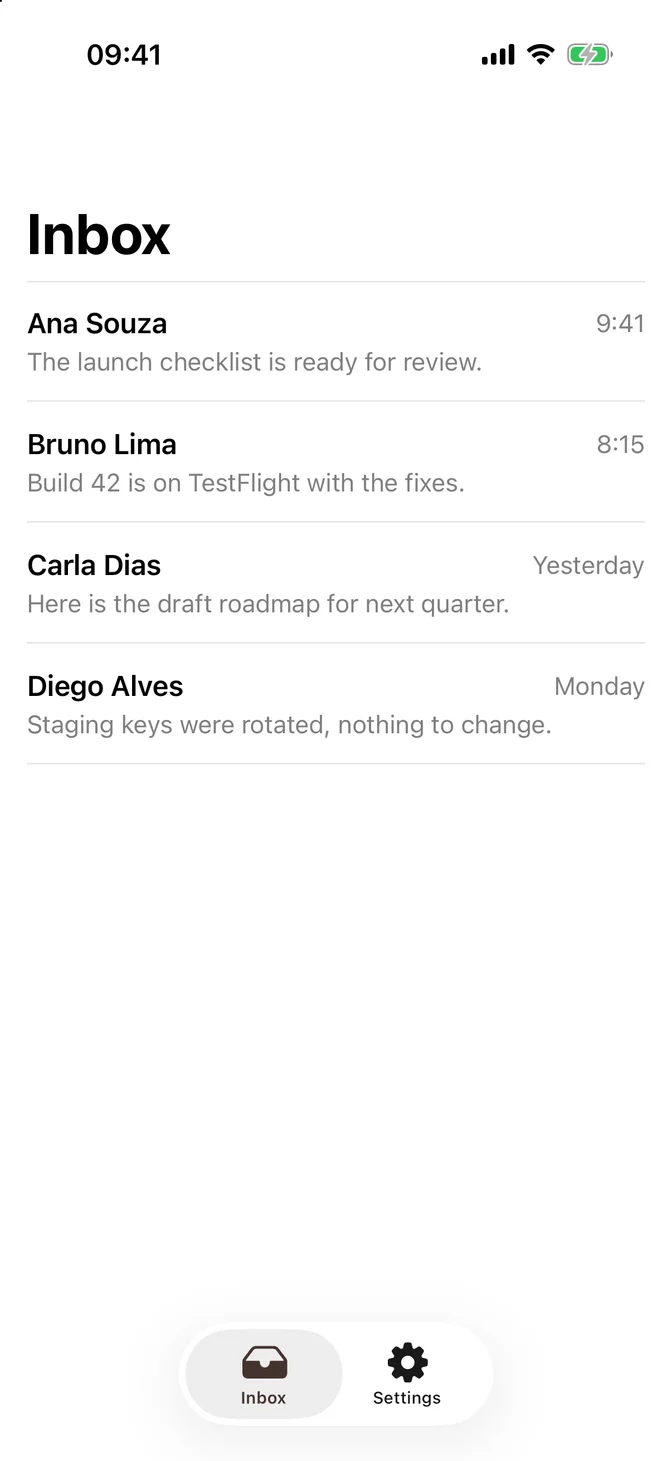
Tab bar built with tabItem
import SwiftUIstruct TabViewTabItemExample: View {    struct Message: Identifiable {        let id: String        let sender: String        let time: String    }    private let messages = [        Message(id: "The launch checklist is ready for review.", sender: "Ana Souza", time: "9:41"),        Message(id: "Build 42 is on TestFlight with the fixes.", sender: "Bruno Lima", time: "8:15"),        Message(id: "Here is the draft roadmap for next quarter.", sender: "Carla Dias", time: "Yesterday"),        Message(id: "Staging keys were rotated, nothing to change.", sender: "Diego Alves", time: "Monday")    ]    @State private var notifications = true    var body: some View {        TabView {            NavigationStack {                List(messages) { message in                    row(for: message)                }                .listStyle(.plain)                .navigationTitle("Inbox")            }            .tabItem {                Label("Inbox", systemImage: "tray.fill")            }            NavigationStack {                Form {                    Toggle("Notifications", isOn: $notifications)                }                .navigationTitle("Settings")            }            .tabItem {                Label("Settings", systemImage: "gearshape.fill")            }        }    }    private func row(for message: Message) -> some View {        VStack(alignment: .leading, spacing: FLXSpacing.xs) {            HStack {                Text(message.sender)                    .flxFont(.headline)                Spacer()                Text(message.time)                    .flxFont(.subheadline)                    .foregroundStyle(.secondary)            }            Text(message.id)                .flxFont(.subheadline)                .foregroundStyle(.secondary)        }    }}

Minimize on scroll

On iOS 26 and later, .tabBarMinimizeBehavior(.onScrollDown) shrinks the tab bar while people scroll down, so content gets more room:

TabView { ... }    .tabBarMinimizeBehavior(.onScrollDown)

iPad

On iPad, the tab bar appears near the top of the screen. .tabViewStyle(.sidebarAdaptable) adds a button that turns it into a sidebar, for apps with more sections.

Color

The selected tab uses the theme's tint, which .flxTheme(_:) applies at the root of your app.

Tab View or Segmented Control

Use a tab view for the main sections of your app. To switch between closely related views inside one screen, use a Segmented Control.

For more information, see the Human Interface Guidelines for tab bars and the Apple documentation.