Segmented Control

iOS 16.4+iPadOS 16.4+

Switches between a few options or views, like tabs, with SwiftUI's native segmented picker.
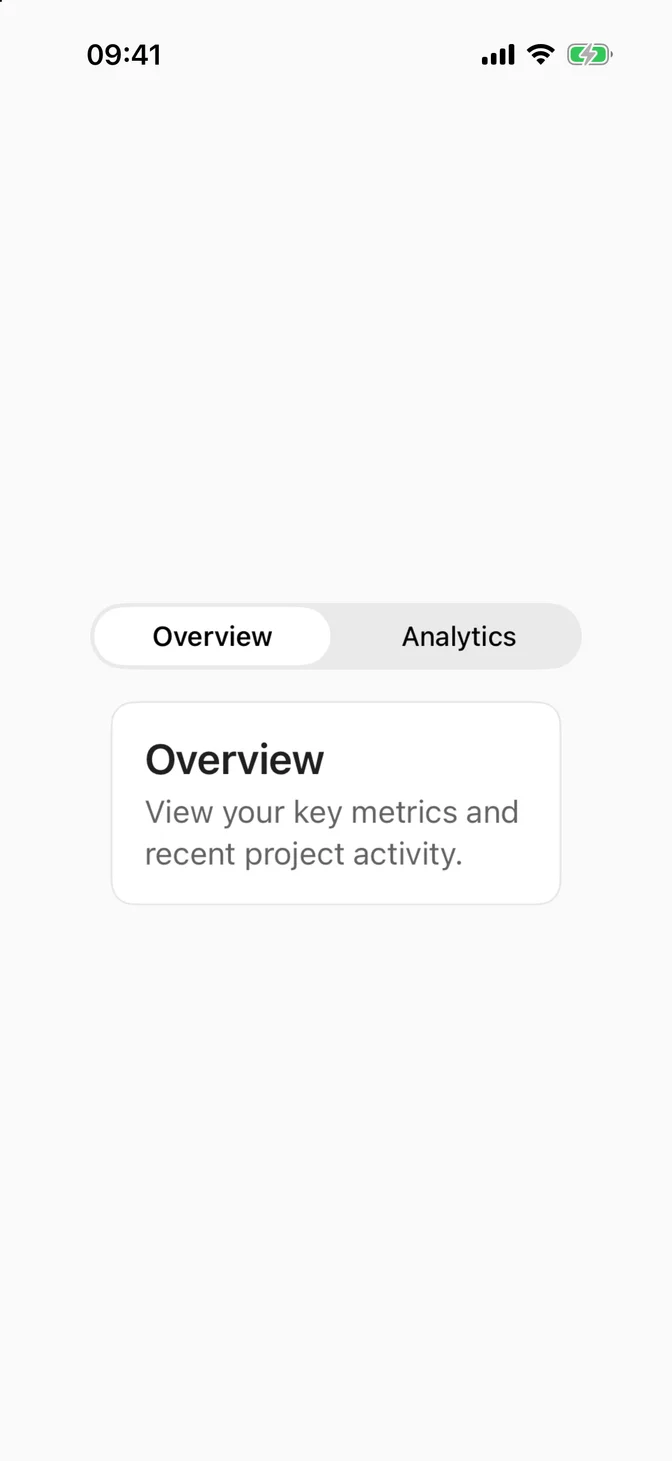
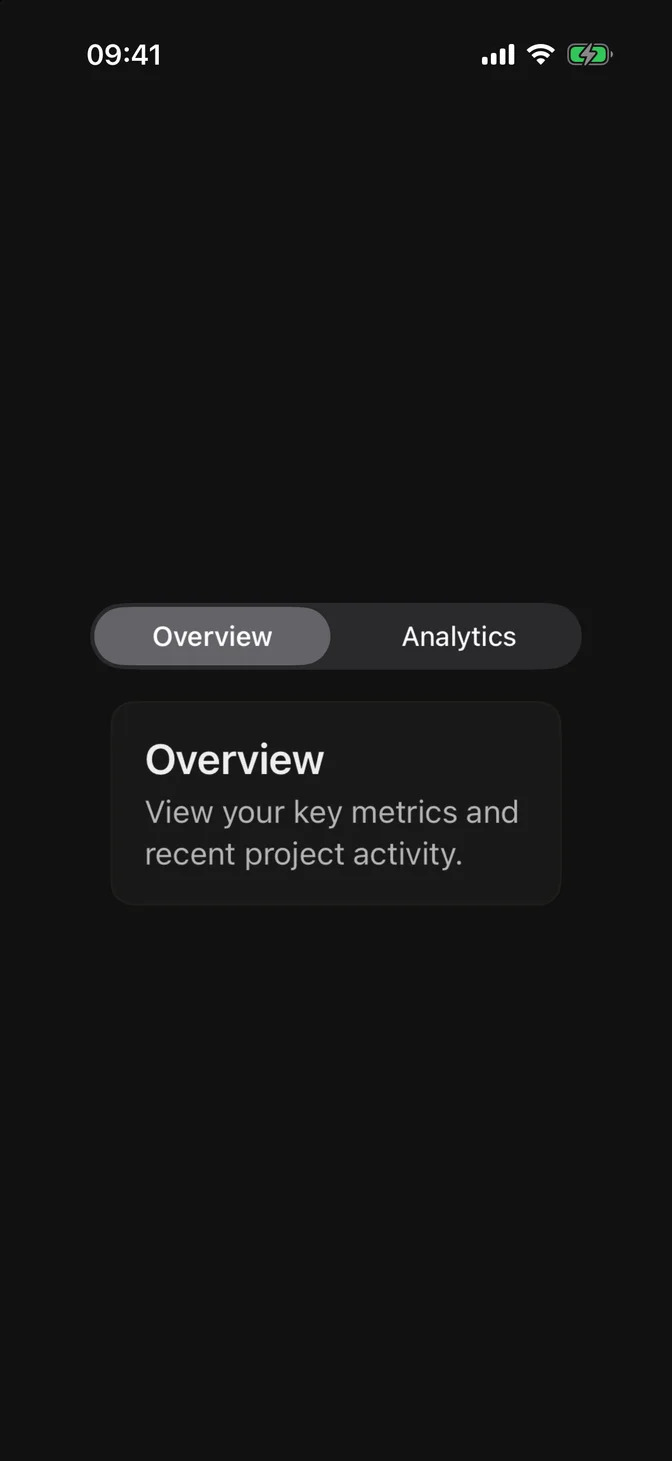
Segmented control switching between overview and analytics
import SwiftUIstruct SegmentedControlUsageExample: View {    enum Tab: String, CaseIterable, Identifiable {        case overview = "Overview"        case analytics = "Analytics"        var id: Self { self }    }    @State private var tab = Tab.overview    var body: some View {        VStack(spacing: FLXSpacing.lg) {            Picker("Section", selection: $tab) {                ForEach(Tab.allCases) { tab in                    Text(tab.rawValue).tag(tab)                }            }            .pickerStyle(.segmented)            .labelsHidden()            FLXCard {                FLXCardHeader {                    switch tab {                    case .overview:                        FLXCardTitle("Overview")                        FLXCardDescription("View your key metrics and recent project activity.")                    case .analytics:                        FLXCardTitle("Analytics")                        FLXCardDescription("Track performance and engagement across your projects.")                    }                }            }        }        .padding(FLXSpacing.xl)    }}

Usage

A Picker with the .segmented style already brings selection, animation, keyboard and VoiceOver support, and its system appearance, so use it directly:

Picker("Section", selection: $tab) {    Text("Overview").tag(Tab.overview)    Text("Analytics").tag(Tab.analytics)}.pickerStyle(.segmented).labelsHidden()switch tab {case .overview: OverviewCard()case .analytics: AnalyticsCard()}

On iPhone and iPad, the control fills the available width. .labelsHidden() hides the title from the screen, and VoiceOver still reads it.

Use a segmented control for two to five short options. For more options, use a Picker.

To move between the main sections of your app, use a Tab View instead.

Examples

Options

A segmented control can also pick a value, such as a date range, without changing the view around it.


Native segmented control with day, week, and month
import SwiftUIstruct SegmentedControlOptionsExample: View {    @State private var range = "Week"    private let ranges = ["Day", "Week", "Month"]    var body: some View {        Picker("Range", selection: $range) {            ForEach(ranges, id: \.self) { range in                Text(range)            }        }        .pickerStyle(.segmented)        .labelsHidden()        .padding(FLXSpacing.xl)    }}

Icons

Use either text or icons in one control, not both. Give each icon an accessibility label.

Segmented control with list, grid, and gallery icons
import SwiftUIstruct SegmentedControlIconsExample: View {    enum Layout: Hashable {        case list        case grid        case gallery    }    @State private var layout = Layout.list    var body: some View {        Picker("Layout", selection: $layout) {            Image(systemName: "list.bullet")                .accessibilityLabel("List")                .tag(Layout.list)            Image(systemName: "square.grid.2x2")                .accessibilityLabel("Grid")                .tag(Layout.grid)            Image(systemName: "photo")                .accessibilityLabel("Gallery")                .tag(Layout.gallery)        }        .pickerStyle(.segmented)        .labelsHidden()        .fixedSize()        .padding(FLXSpacing.xl)    }}

Sizes

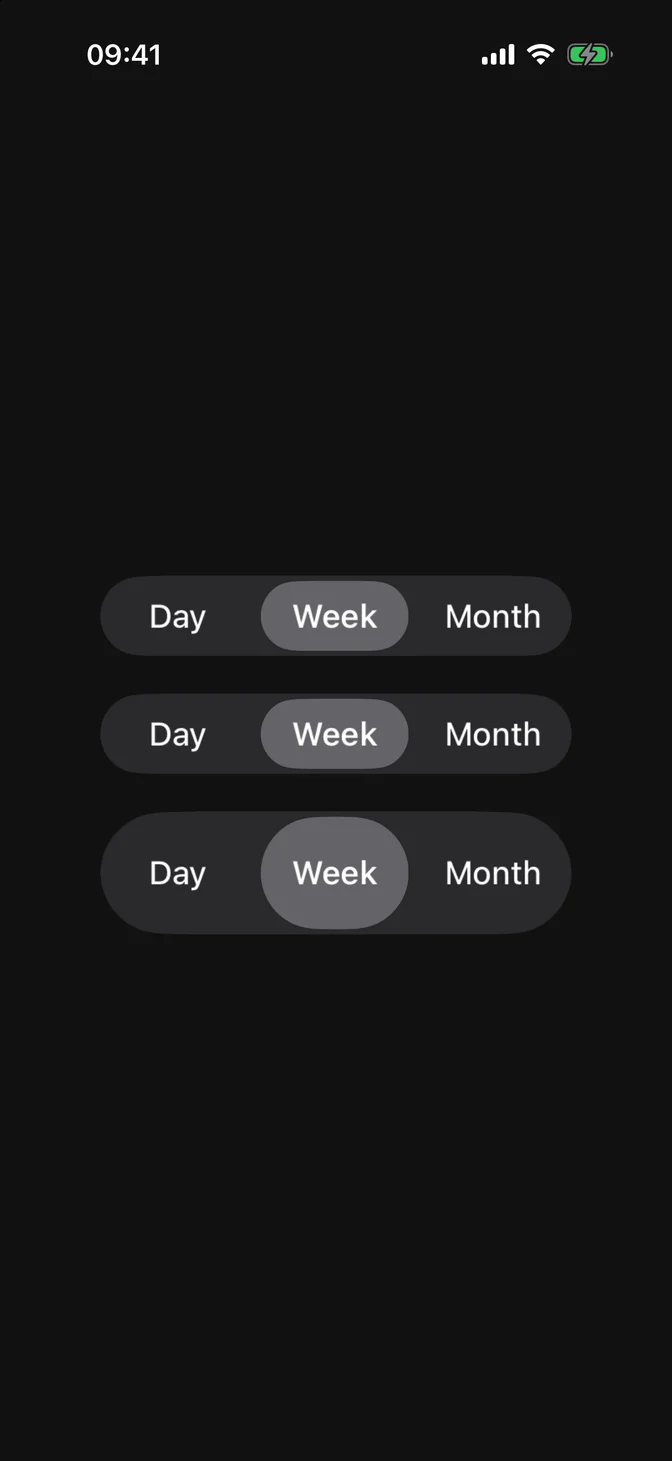
.controlSize(_:) changes the height.
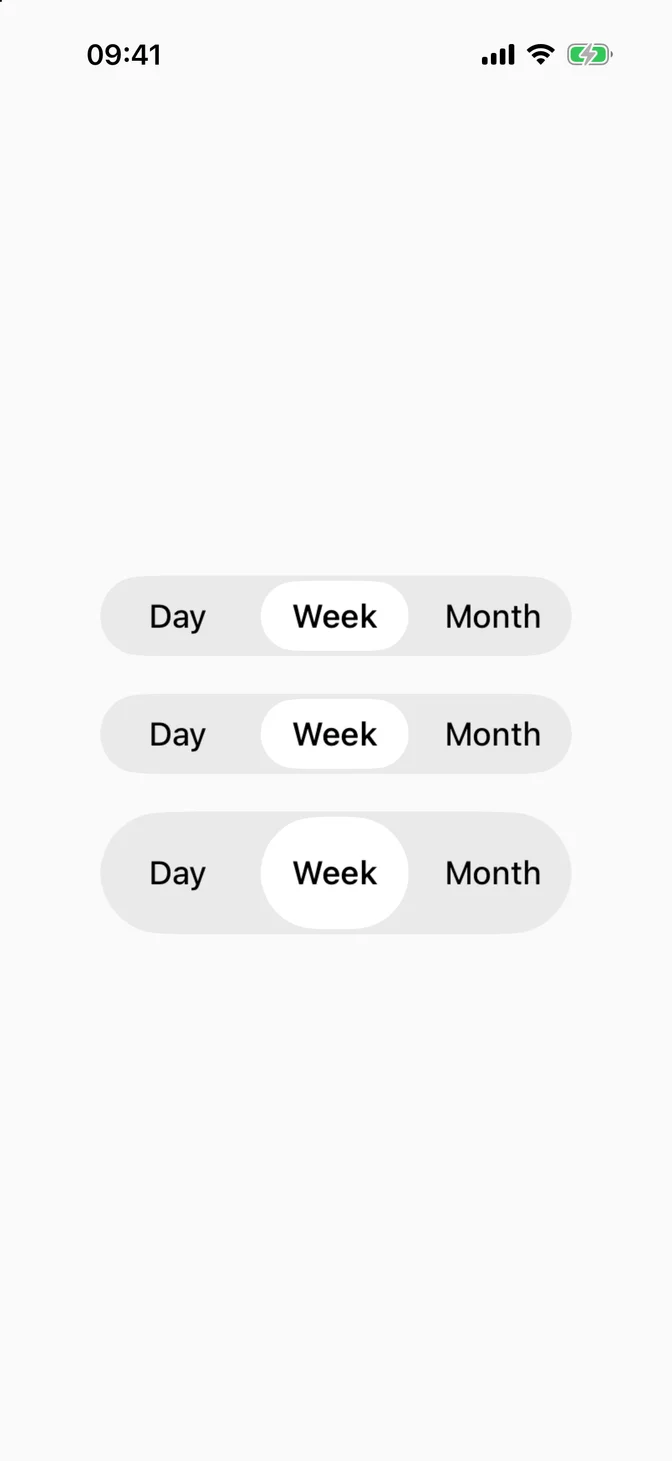
Small, regular, and large segmented controls
import SwiftUIstruct SegmentedControlSizesExample: View {    @State private var range = "Week"    private let ranges = ["Day", "Week", "Month"]    var body: some View {        VStack(spacing: FLXSpacing.lg) {            picker.controlSize(.small)            picker            picker.controlSize(.large)        }        .padding(FLXSpacing.xl)    }    private var picker: some View {        Picker("Range", selection: $range) {            ForEach(ranges, id: \.self) { range in                Text(range)            }        }        .pickerStyle(.segmented)        .labelsHidden()    }}

Color

On iOS 26 and later, the system draws the selected segment with Liquid Glass and keeps it neutral, as in Apple's own apps. It doesn't take the theme's tint.

UIKit's UISegmentedControl.appearance() can color it, but the change applies to every segmented control in the app, so leave it to the system unless your design needs it.

Text size

The segment titles stay at a fixed size and don't grow with Dynamic Type. Keep them to one or two short words.

For more information about the segmented style, see the Apple documentation.