Builds settings and data-entry screens with SwiftUI's native Form.
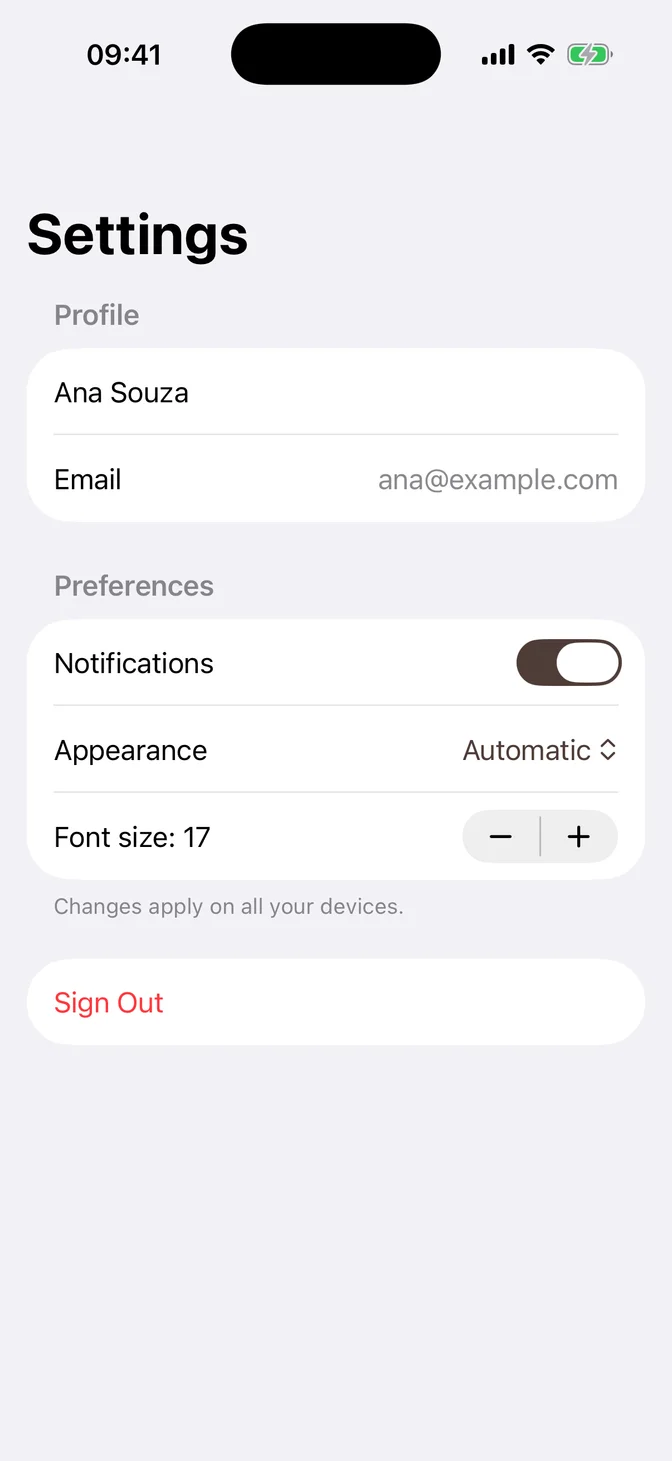
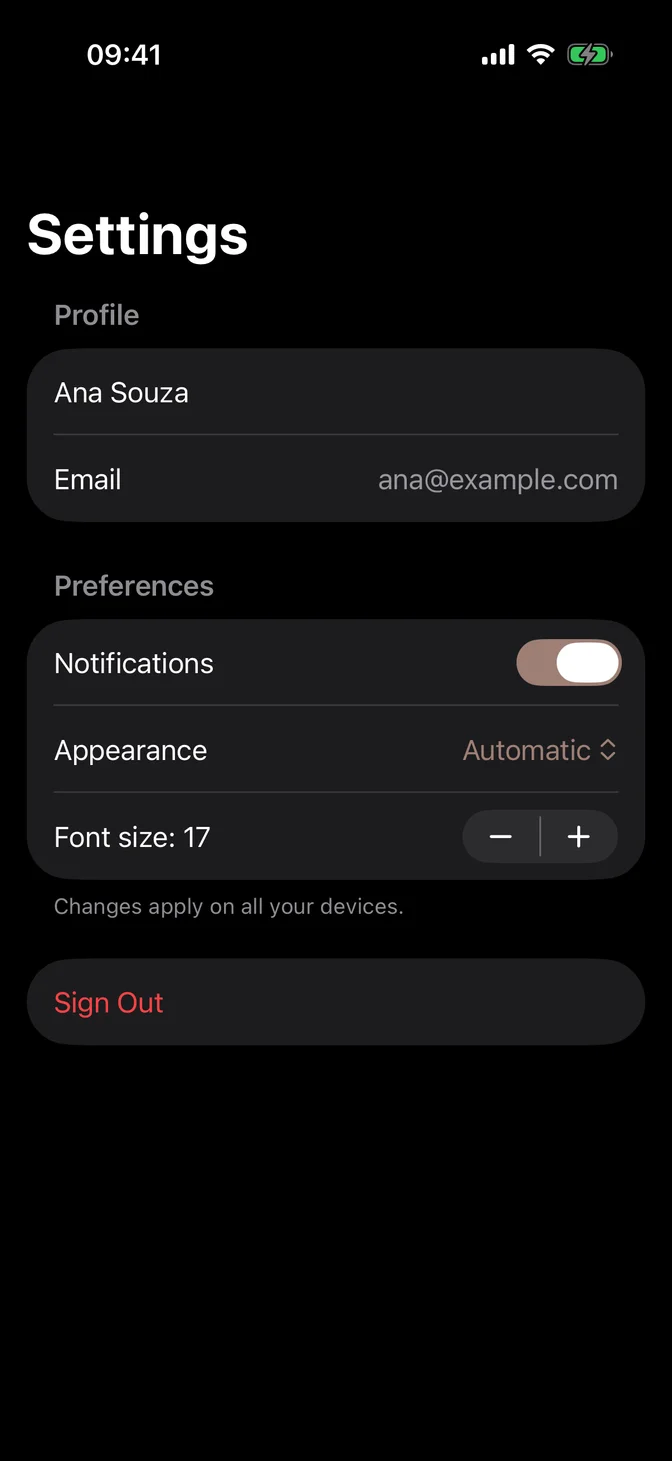
Usage
Inside a native Form, each control becomes a settings row, with the label on the leading side and the value on the trailing side. Use it directly.
Use a form for settings and data entry. To show a collection of items, use a List.
Examples
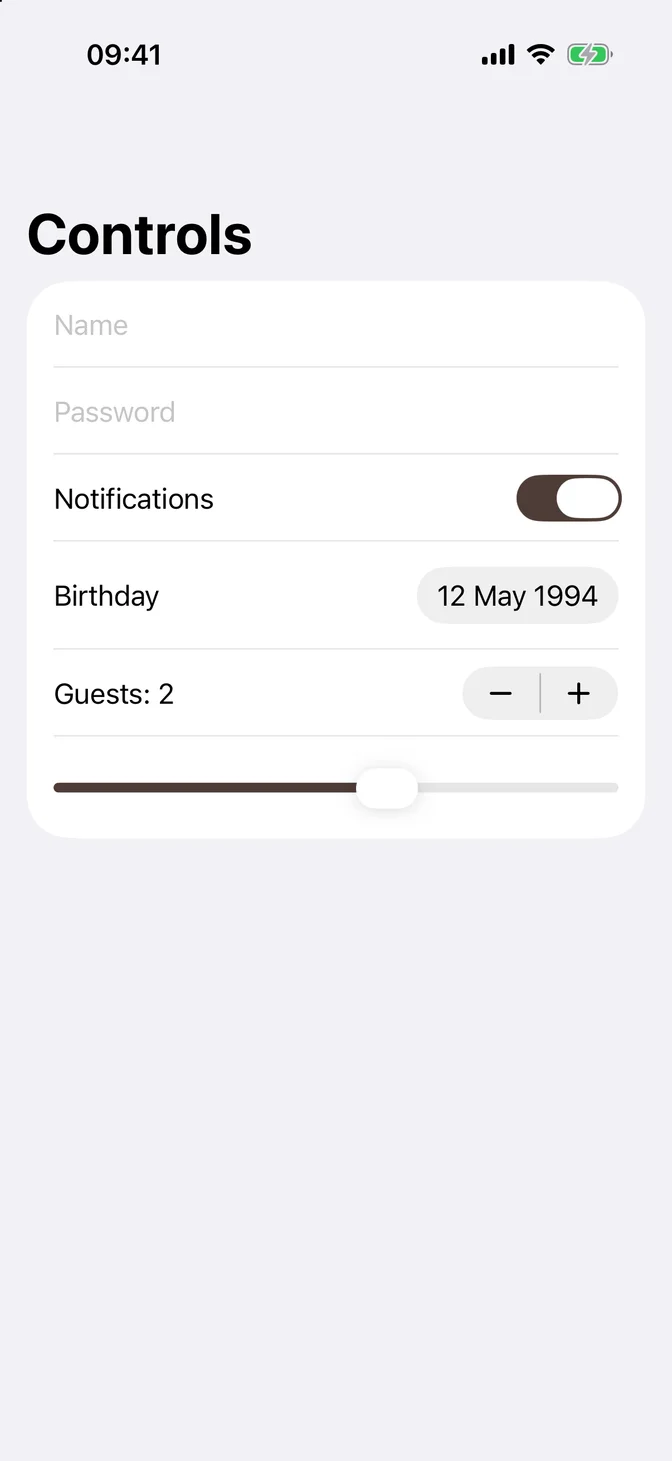
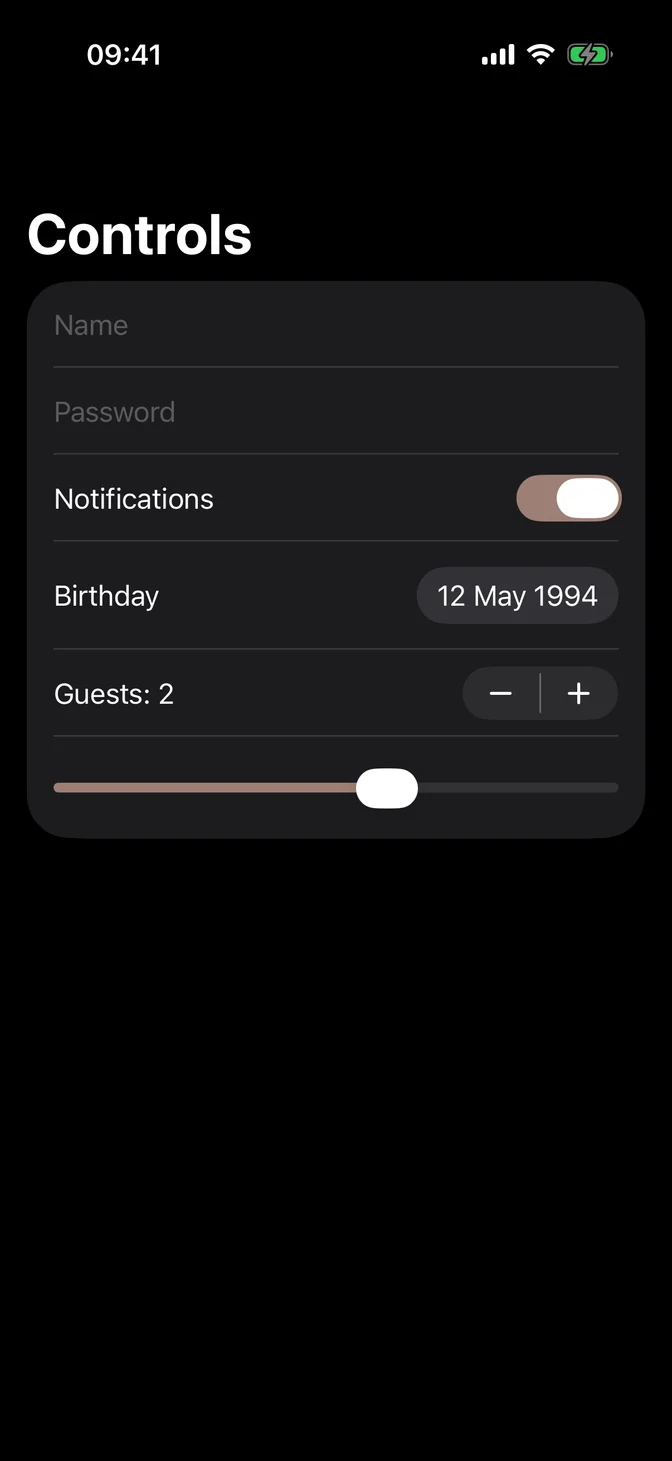
Controls
Native controls lay themselves out as rows. No extra layout code is needed.
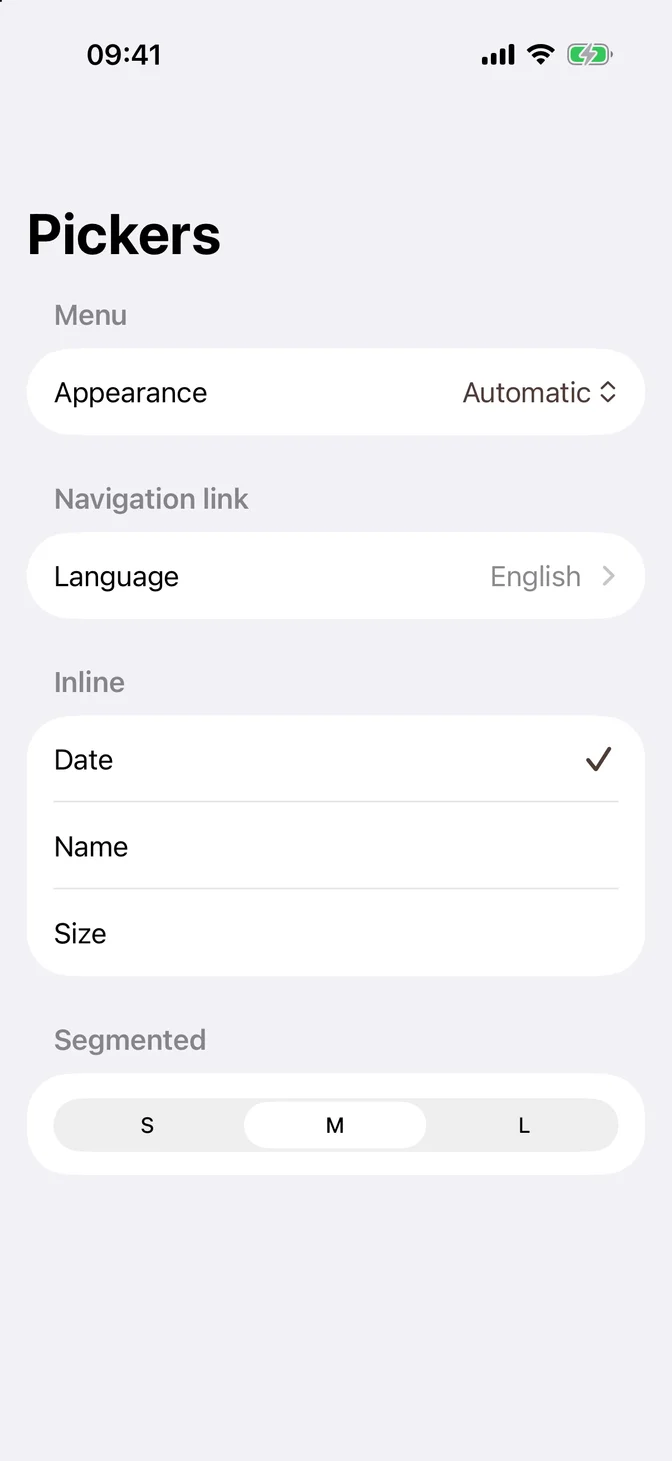
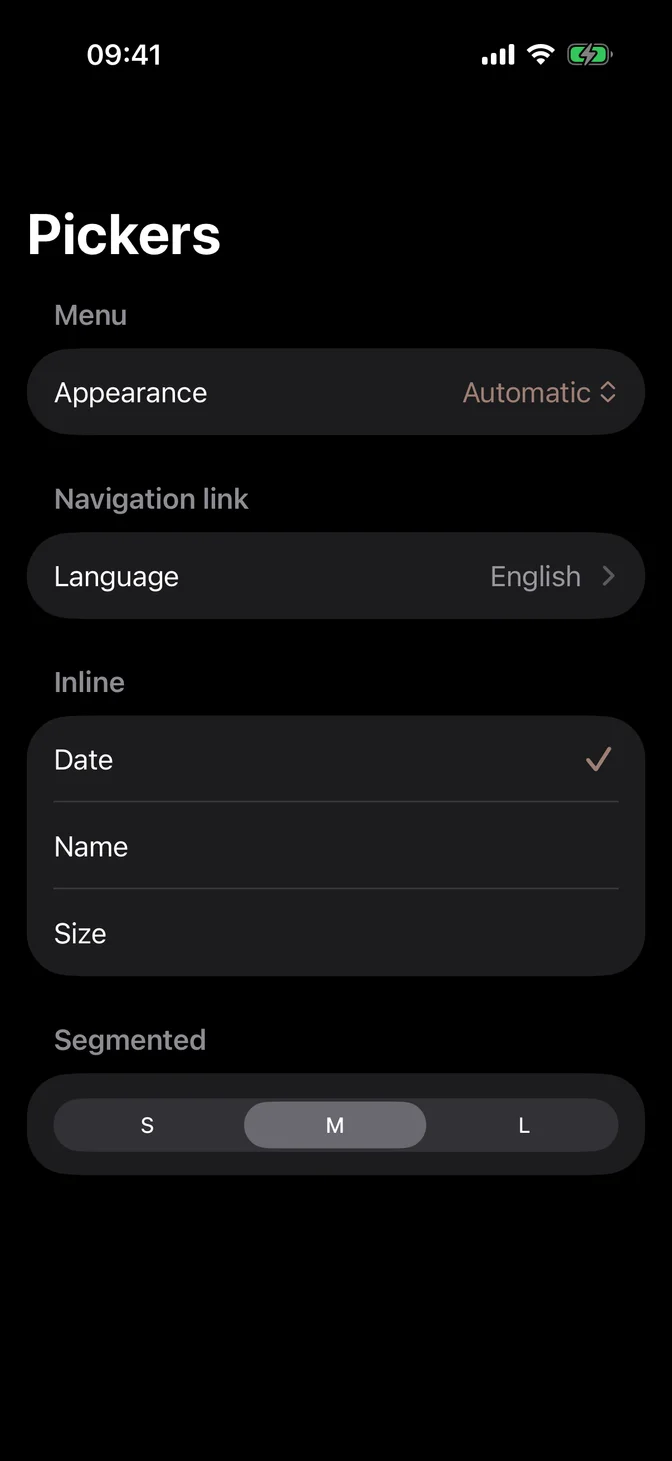
Pickers
A picker in a form opens a menu by default. .navigationLink pushes a list of options, .inline shows them as rows, and .segmented fits a few short options in one row.
Values and actions
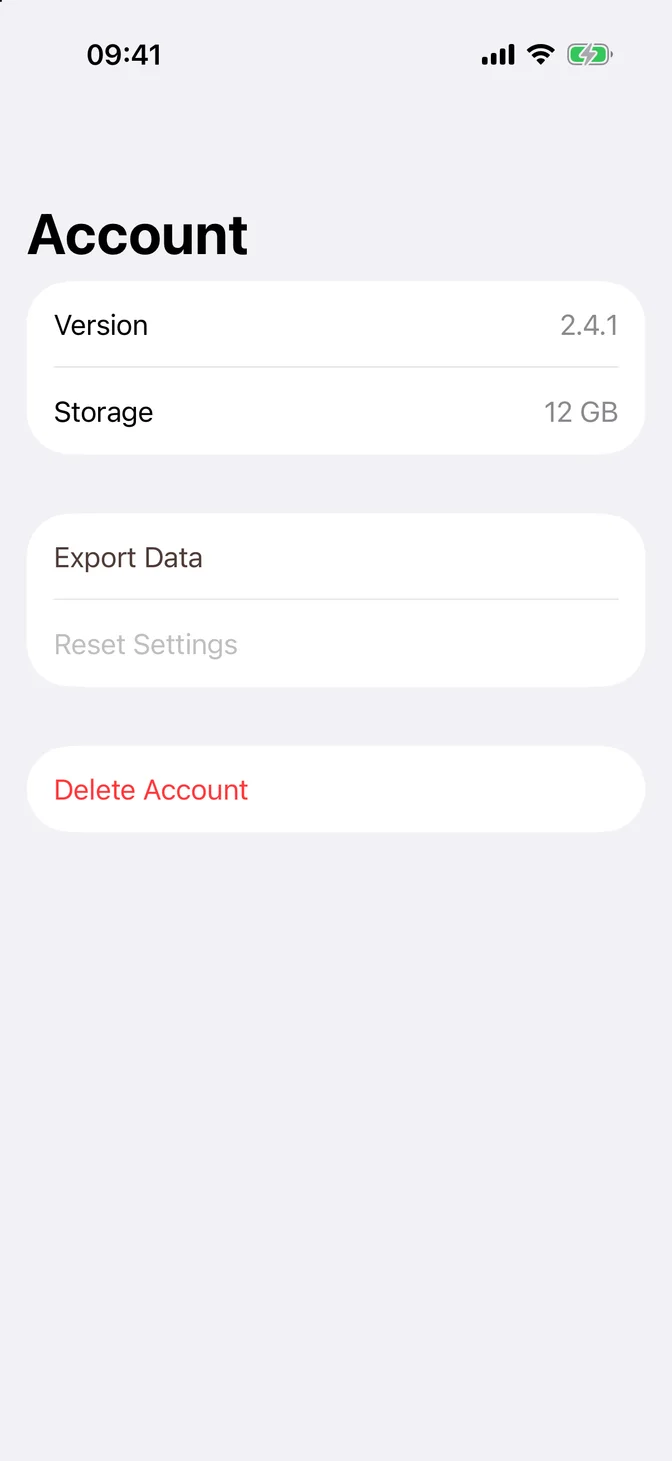
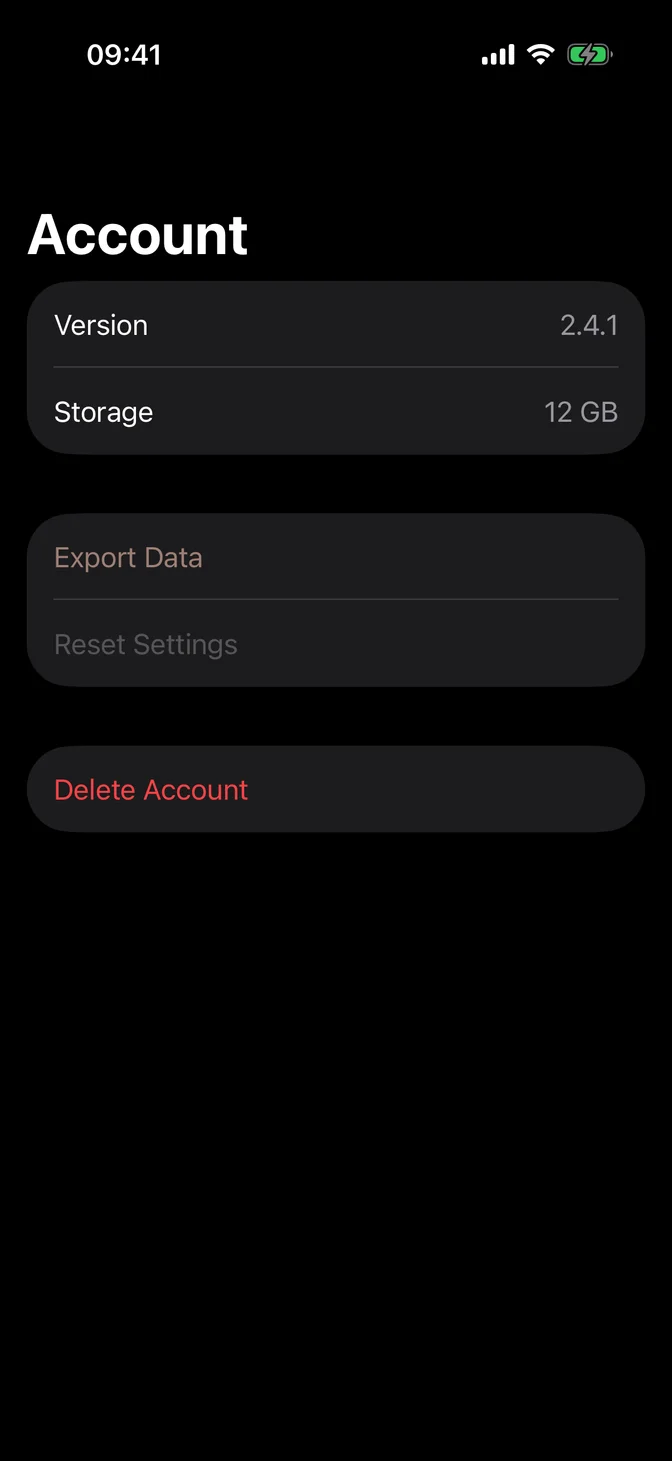
LabeledContent shows a read-only value. A Button becomes a tappable row, and a .destructive role paints it red.
Validation
Show the error in the section footer, in the theme's destructive color, and disable the action until the value is valid.
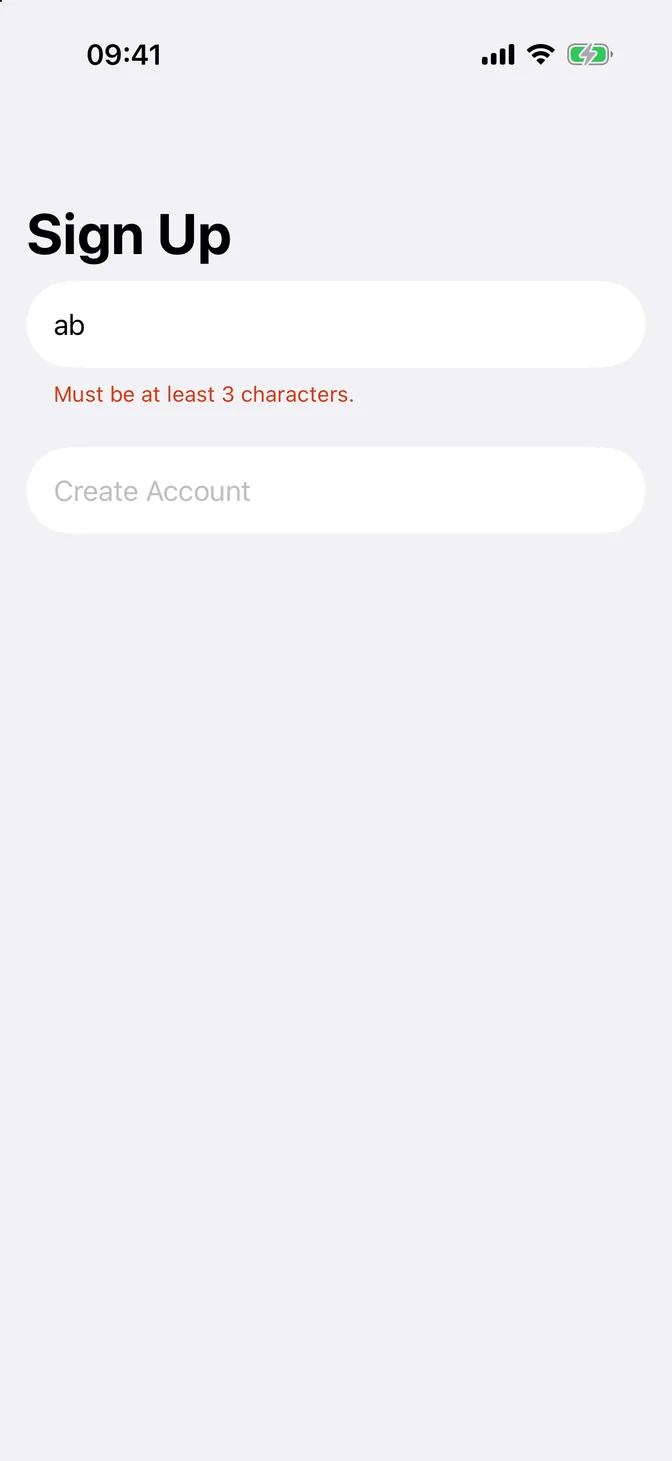

Form or Form Field
Inside a form, use native controls. FLX fields draw their own box, so inside a form row they show a box inside a box.
Use Form Field and the other FLX fields on screens outside a form, such as sign-in or onboarding.
Theming
Apply the theme at the root of your app. .flxTheme(_:) also sets the theme's tint, so switches, selection marks, swipe actions, and row buttons follow the theme in light and dark mode:
To use theme surfaces, hide the system background and set the row background and separator color. Rows stand apart from the background only by contrast, so pick colors that stay apart:
For more information about Form, see the Apple documentation.