Alert

iOS 16.4+iPadOS 16.4+

Asks people to confirm an action or acknowledge important information with SwiftUI's native alert.
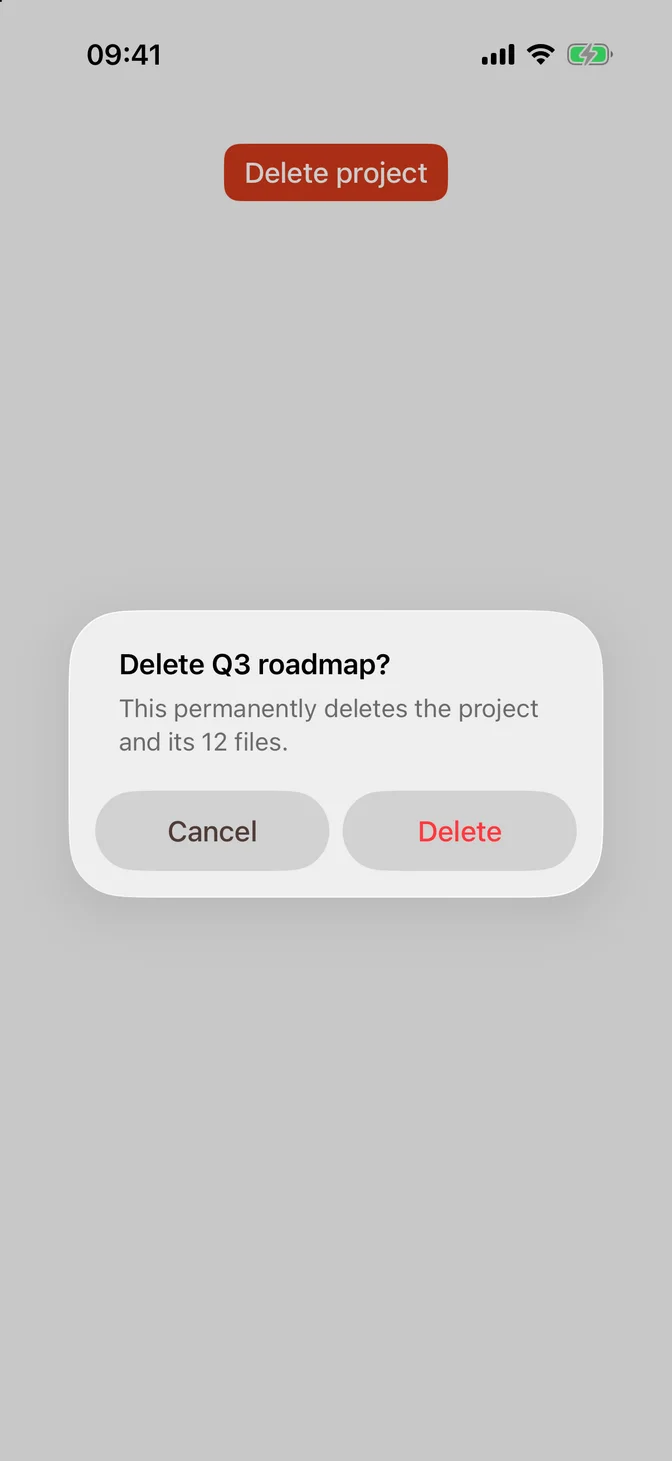
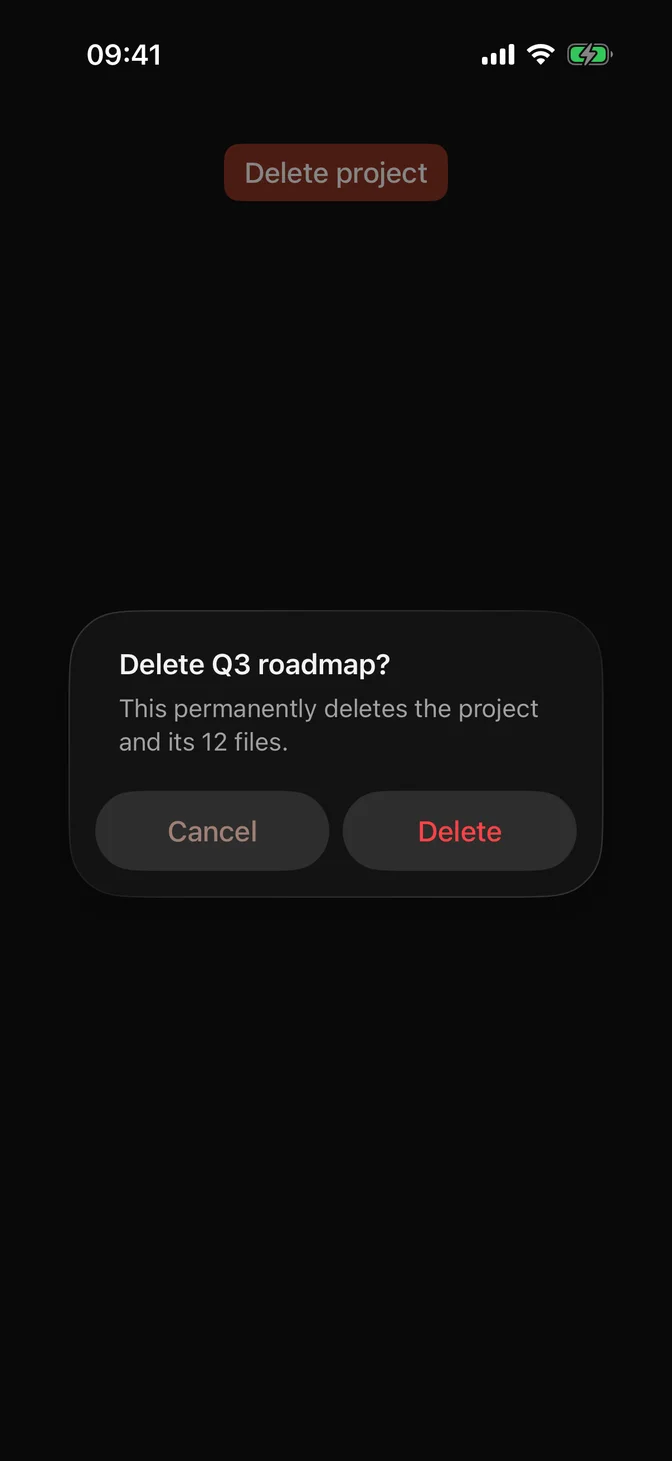
Native alert asking to delete a project
import SwiftUIstruct AlertUsageExample: View {    @State private var isPresented = false    var body: some View {        FLXButton("Delete project", role: .destructive) {            isPresented = true        }        .alert("Delete Q3 roadmap?", isPresented: $isPresented) {            Button("Delete", role: .destructive) {}            Button("Cancel", role: .cancel) {}        } message: {            Text("This permanently deletes the project and its 12 files.")        }    }}

Usage

The system draws alerts, with their own material, layout, and accessibility, so use .alert directly and open it from FLX components:

FLXButton("Delete project", role: .destructive) {    isPresented = true}.alert("Delete Q3 roadmap?", isPresented: $isPresented) {    Button("Delete", role: .destructive) {}    Button("Cancel", role: .cancel) {}} message: {    Text("This permanently deletes the project and its 12 files.")}

Inside an alert, use Button, not FLXButton. The system draws the buttons from their titles and roles and ignores button styles.

Buttons

A .destructive role paints the button red. A .cancel role marks the button that dismisses without acting, and the system places it for you. Every button dismisses the alert after its action runs.

Use .keyboardShortcut(.defaultAction) to mark the button people most likely want. On iOS 26 and later, the alert fills it with the app's AccentColor from the asset catalog, not with the theme, and picks a text color that reads on it. Set AccentColor to your theme's tint, as in Installation. Without it, the button is system blue.

Examples

Text field

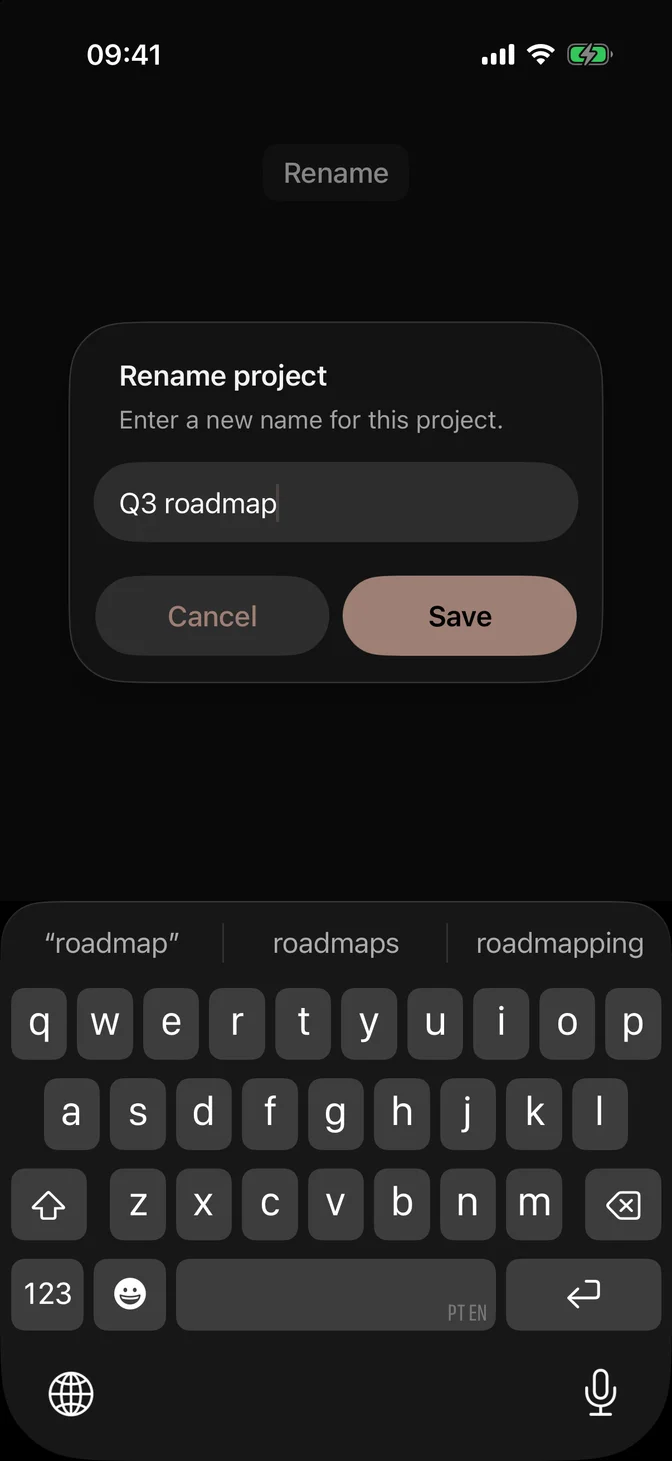
Add a TextField before the buttons to ask for a short value, such as a name.
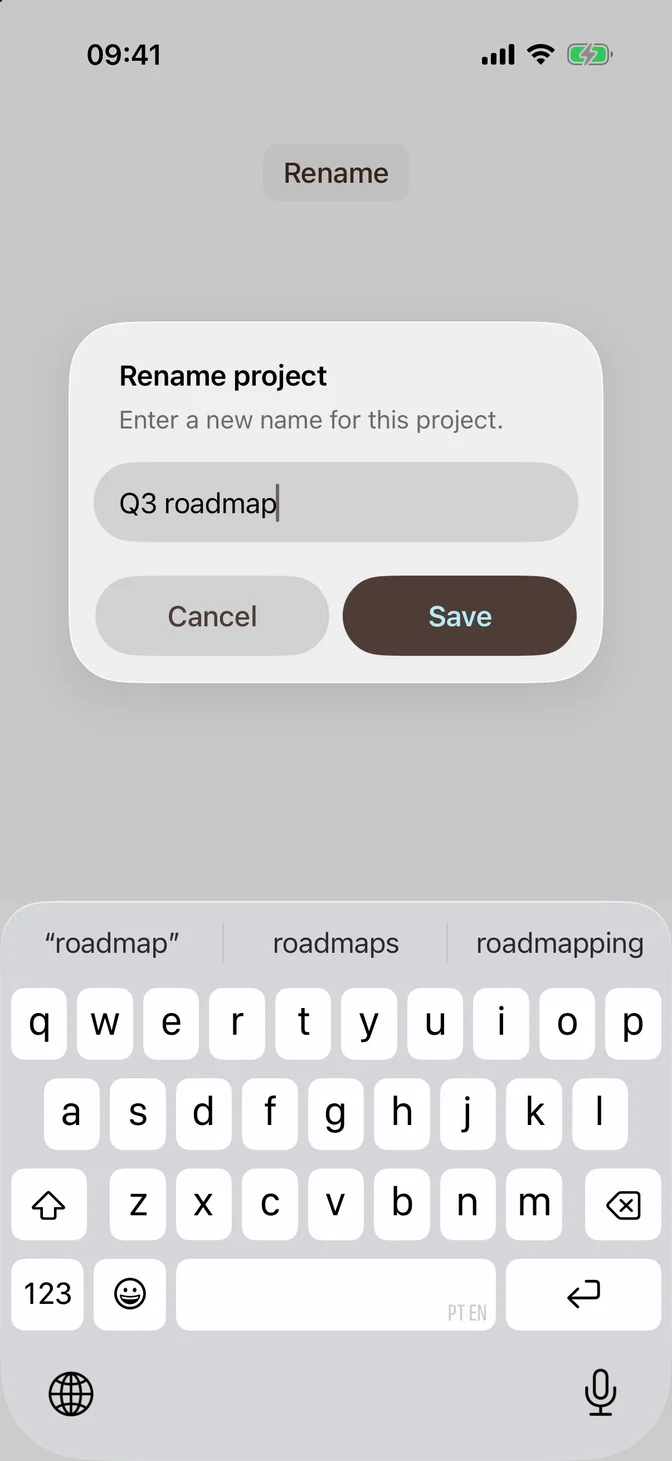
Native alert with a text field to rename a project
import SwiftUIstruct AlertTextFieldExample: View {    @State private var isPresented = false    @State private var name = "Q3 roadmap"    var body: some View {        FLXButton("Rename", variant: .secondary) {            isPresented = true        }        .alert("Rename project", isPresented: $isPresented) {            TextField("Name", text: $name)            Button("Cancel", role: .cancel) {}            Button("Save") {}                .keyboardShortcut(.defaultAction)        } message: {            Text("Enter a new name for this project.")        }    }}

Error

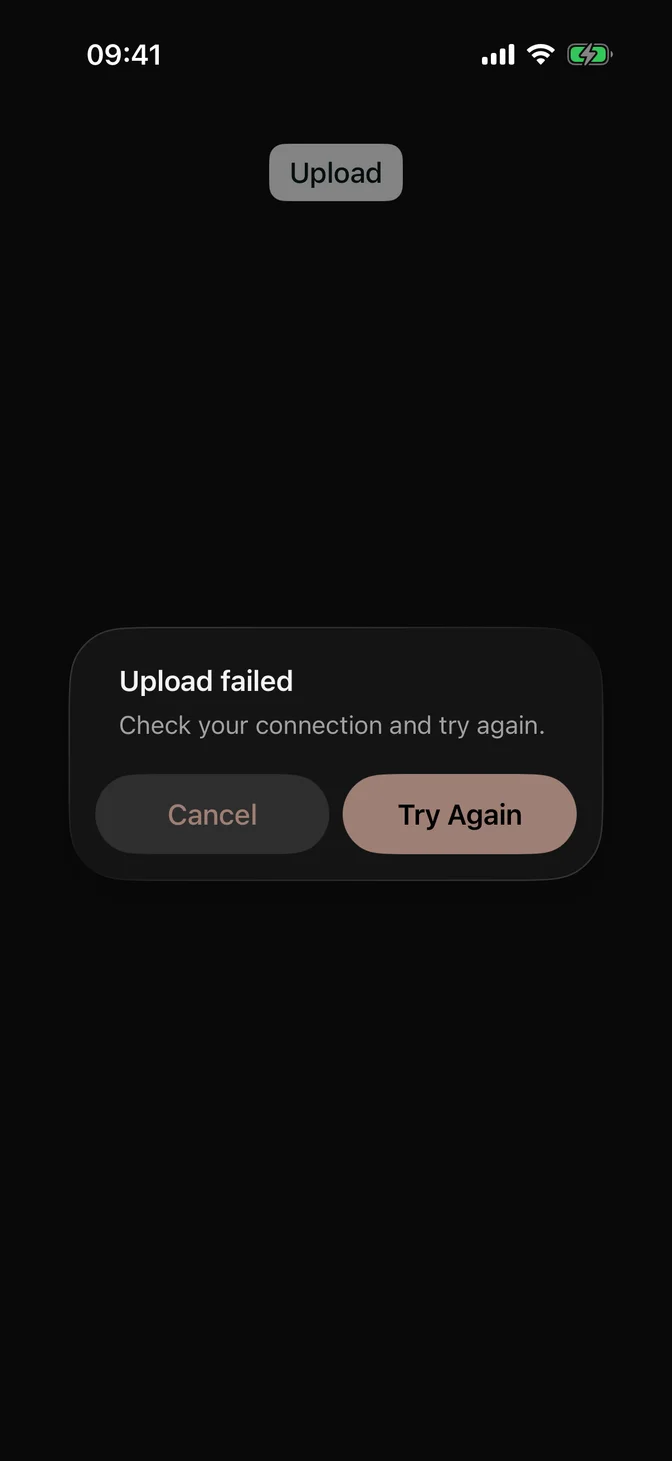
Pass a LocalizedError and the alert uses its errorDescription as the title.
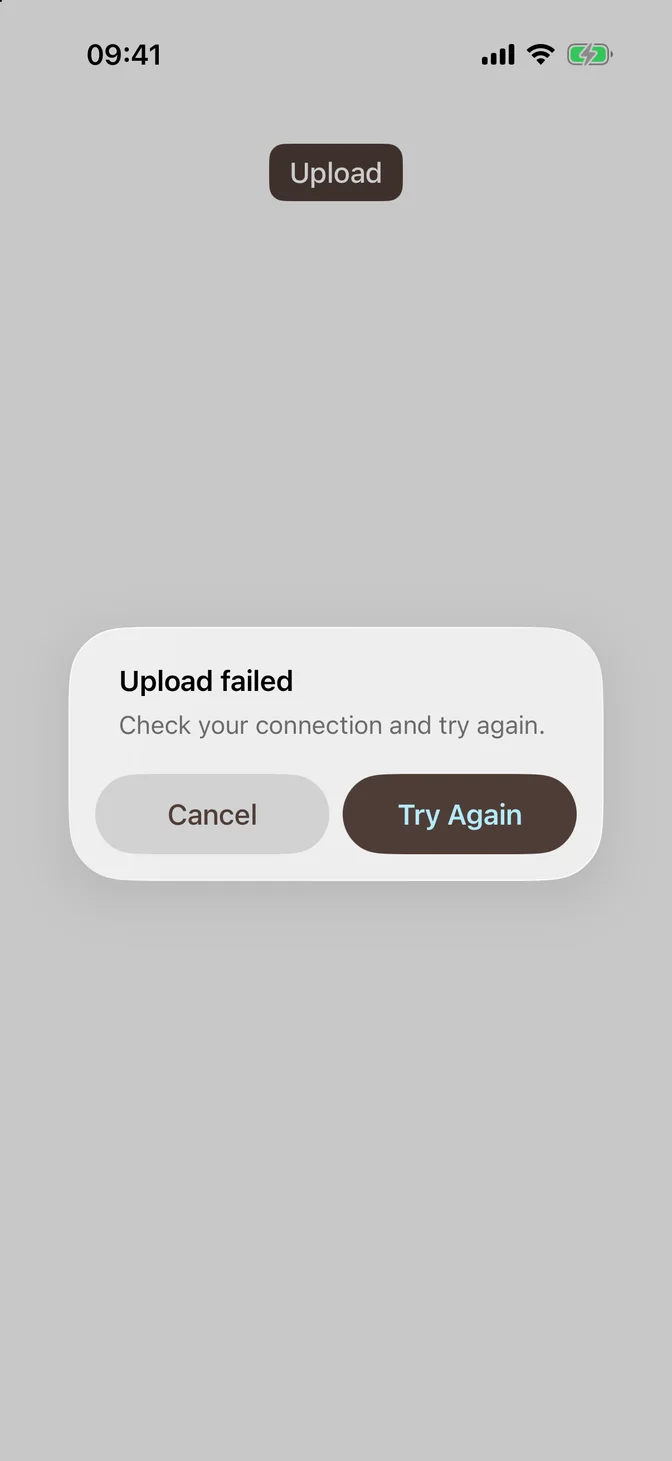
Native alert showing an upload error
import SwiftUIstruct AlertErrorExample: View {    struct UploadError: LocalizedError {        var errorDescription: String? { "Upload failed" }        var recoverySuggestion: String? { "Check your connection and try again." }    }    @State private var error: UploadError?    @State private var isPresented = false    var body: some View {        FLXButton("Upload", variant: .primary) {            error = UploadError()            isPresented = true        }        .alert(isPresented: $isPresented, error: error) { _ in            Button("Cancel", role: .cancel) {}            Button("Try Again") {}                .keyboardShortcut(.defaultAction)        } message: { error in            Text(error.recoverySuggestion ?? "")        }    }}

Confirmation dialog

Use .confirmationDialog to offer a few choices about an action someone started. On iPhone, a confirmation dialog appears next to the button that opened it. On iPad, it appears in a popover.
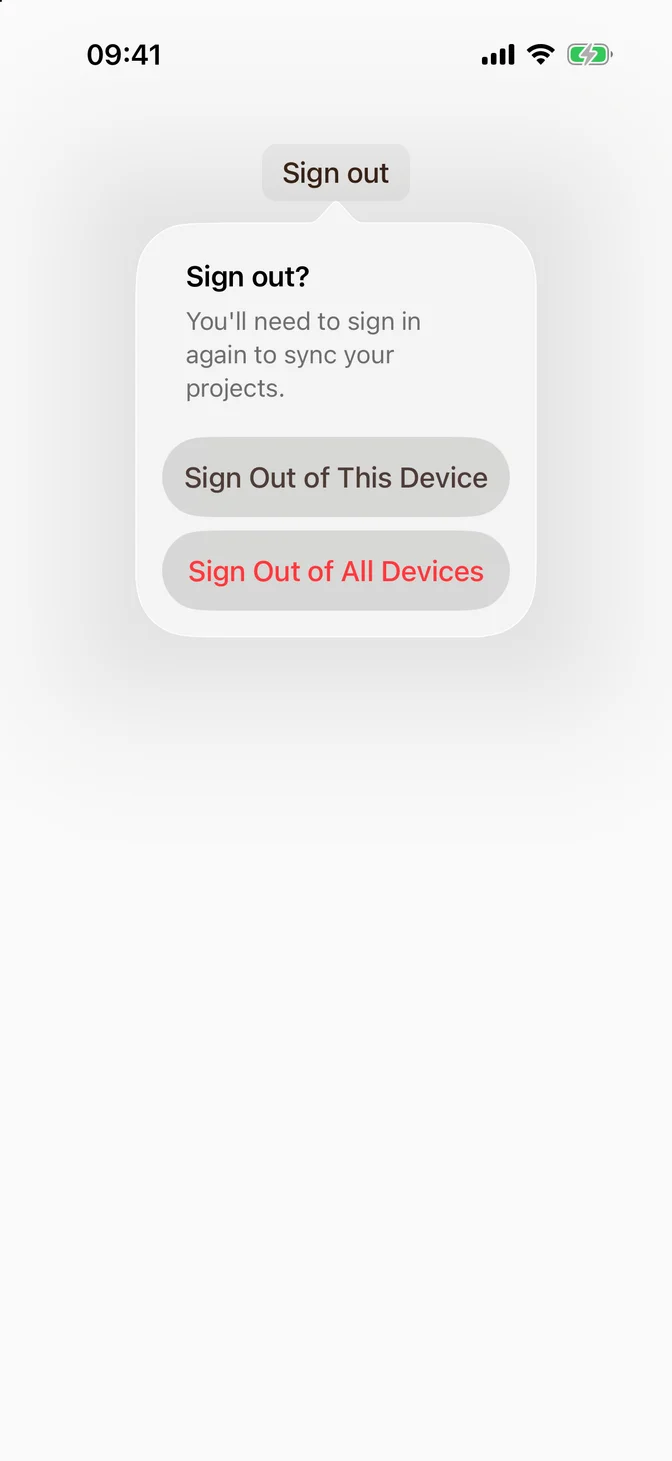
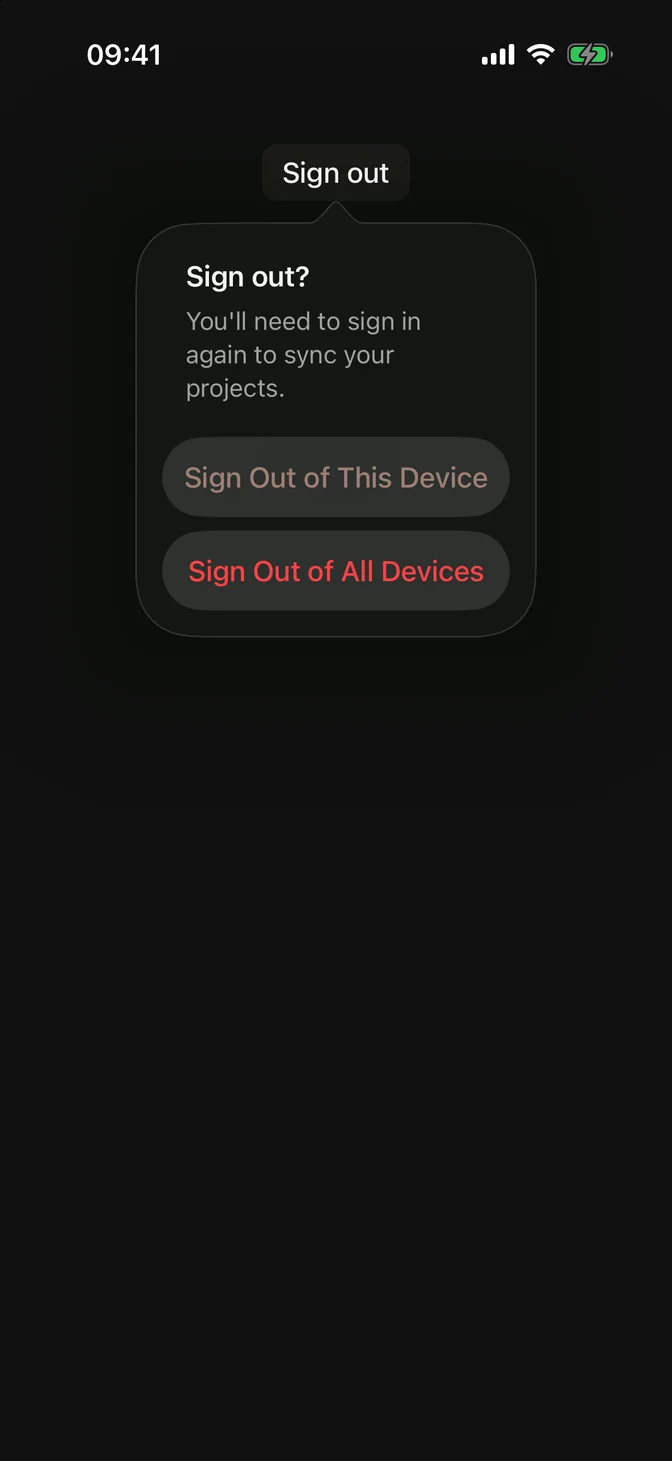
Native confirmation dialog with sign-out choices
import SwiftUIstruct AlertConfirmationDialogExample: View {    @State private var isPresented = false    var body: some View {        FLXButton("Sign out", variant: .secondary) {            isPresented = true        }        .confirmationDialog("Sign out?", isPresented: $isPresented, titleVisibility: .visible) {            Button("Sign Out of This Device") {}            Button("Sign Out of All Devices", role: .destructive) {}            Button("Cancel", role: .cancel) {}        } message: {            Text("You'll need to sign in again to sync your projects.")        }    }}

Alert, dialog, or sheet

  • Use an alert for important information that needs a response, such as confirming a destructive action or reporting an error.
  • Use a confirmation dialog when an action has a few possible outcomes.
  • Use a Sheet when you need more than a short message and a text field.

For more information about alerts and confirmation dialogs, see the Apple documentation.