Date Picker

iOS 16.4+iPadOS 16.4+

Picks a date, a time, or both with SwiftUI's native date picker.


Date picker showing a due date
import SwiftUIstruct DatePickerUsageExample: View {    @State private var dueDate = DateComponents(calendar: .current, year: 2026, month: 10, day: 14).date ?? .now    var body: some View {        DatePicker("Due date", selection: $dueDate, displayedComponents: .date)            .padding(FLXSpacing.xl)    }}

Usage

DatePicker already brings the calendar, keyboard and VoiceOver support, and the formats for every language and region, so use it directly:

DatePicker("Due date", selection: $dueDate, displayedComponents: .date)

By default, iOS shows the title on the leading side and the date in a compact field on the trailing side. Tapping the field opens a calendar. The field is as tall as FLX's text fields and pickers, so they line up in the same screen.

To hide the title, add .labelsHidden(). VoiceOver still reads it.

Examples

Date and time

displayedComponents picks what people can change: .date, .hourAndMinute, or both, which is the default.
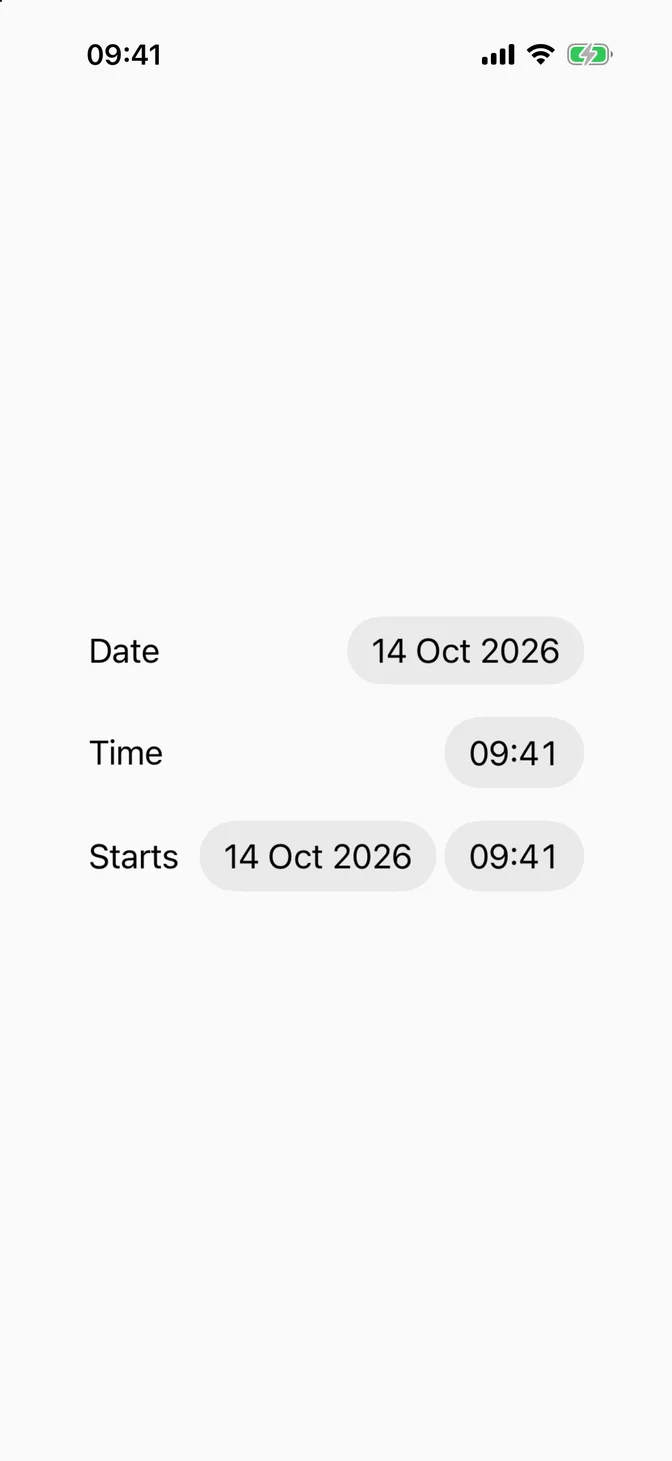
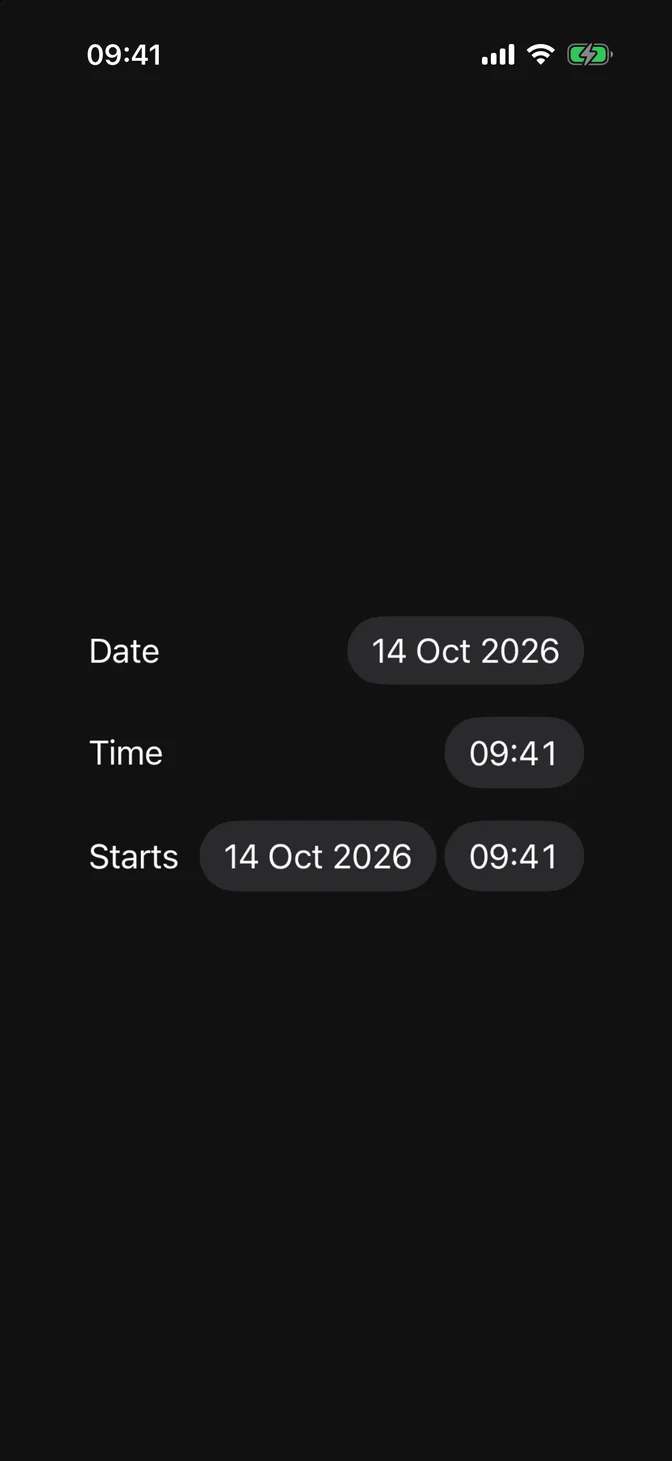
Date pickers for a date, a time, and both
import SwiftUIstruct DatePickerComponentsExample: View {    @State private var date = DateComponents(calendar: .current, year: 2026, month: 10, day: 14, hour: 9, minute: 41).date ?? .now    var body: some View {        VStack(spacing: FLXSpacing.lg) {            DatePicker("Date", selection: $date, displayedComponents: .date)            DatePicker("Time", selection: $date, displayedComponents: .hourAndMinute)            DatePicker("Starts", selection: $date)        }        .padding(FLXSpacing.xl)    }}

Graphical

.graphical shows the calendar inline. Use it when picking the date is the main task of a screen, such as booking.
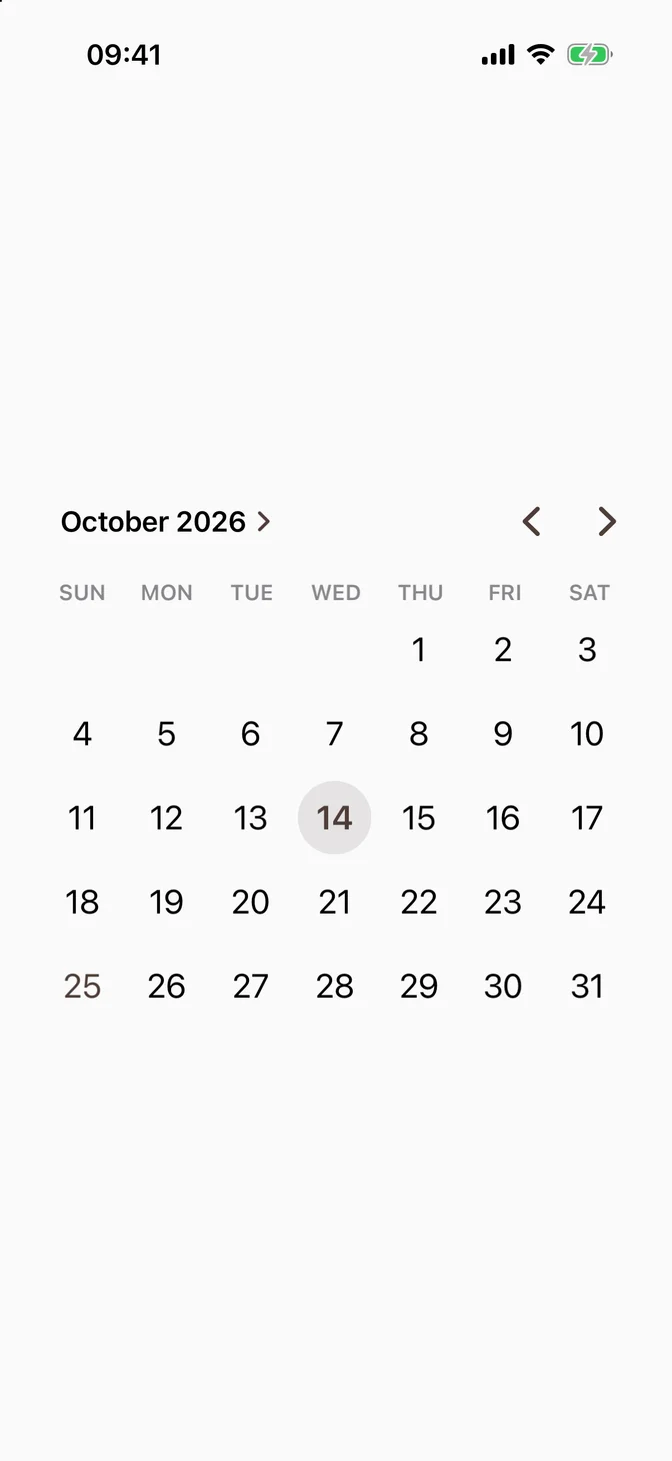
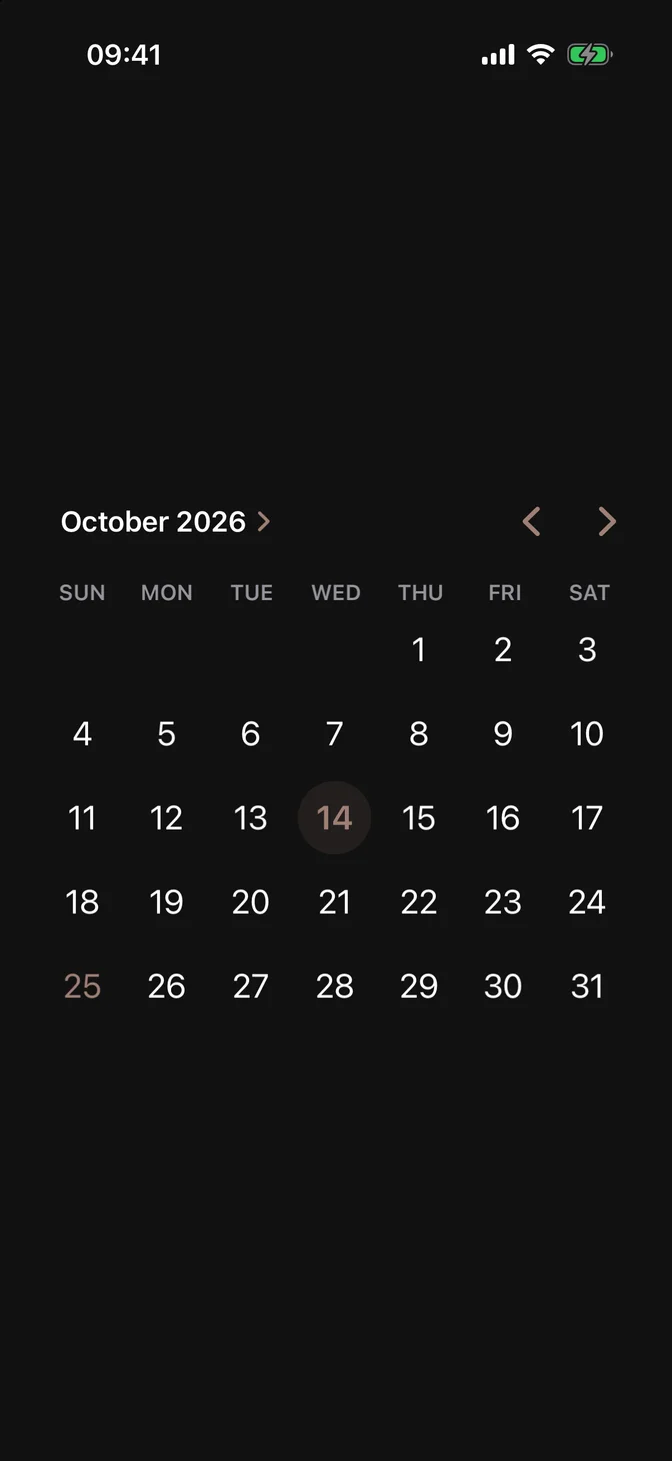
Inline calendar with a selected date
import SwiftUIstruct DatePickerGraphicalExample: View {    @State private var date = DateComponents(calendar: .current, year: 2026, month: 10, day: 14).date ?? .now    var body: some View {        DatePicker("Date", selection: $date, displayedComponents: .date)            .datePickerStyle(.graphical)            .padding(FLXSpacing.xl)    }}

Wheel

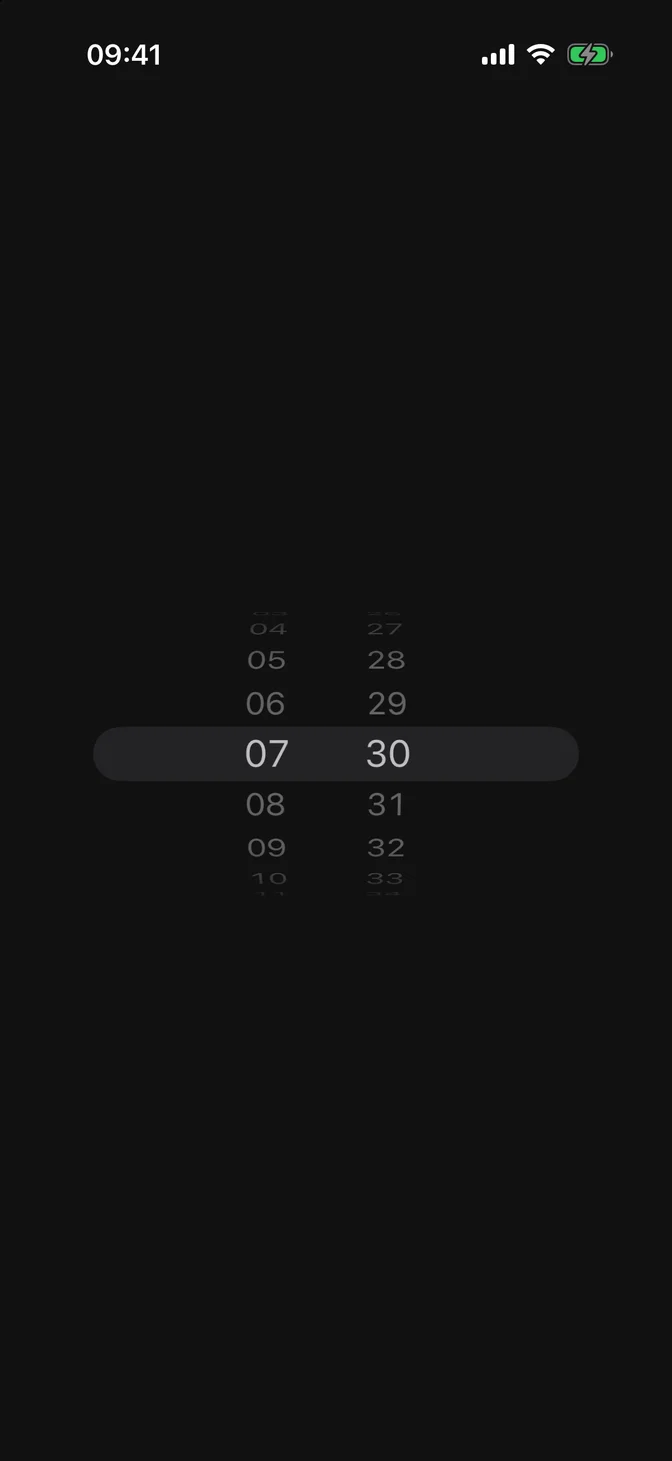
.wheel shows scrolling wheels. It fits a time that people set often, such as an alarm.
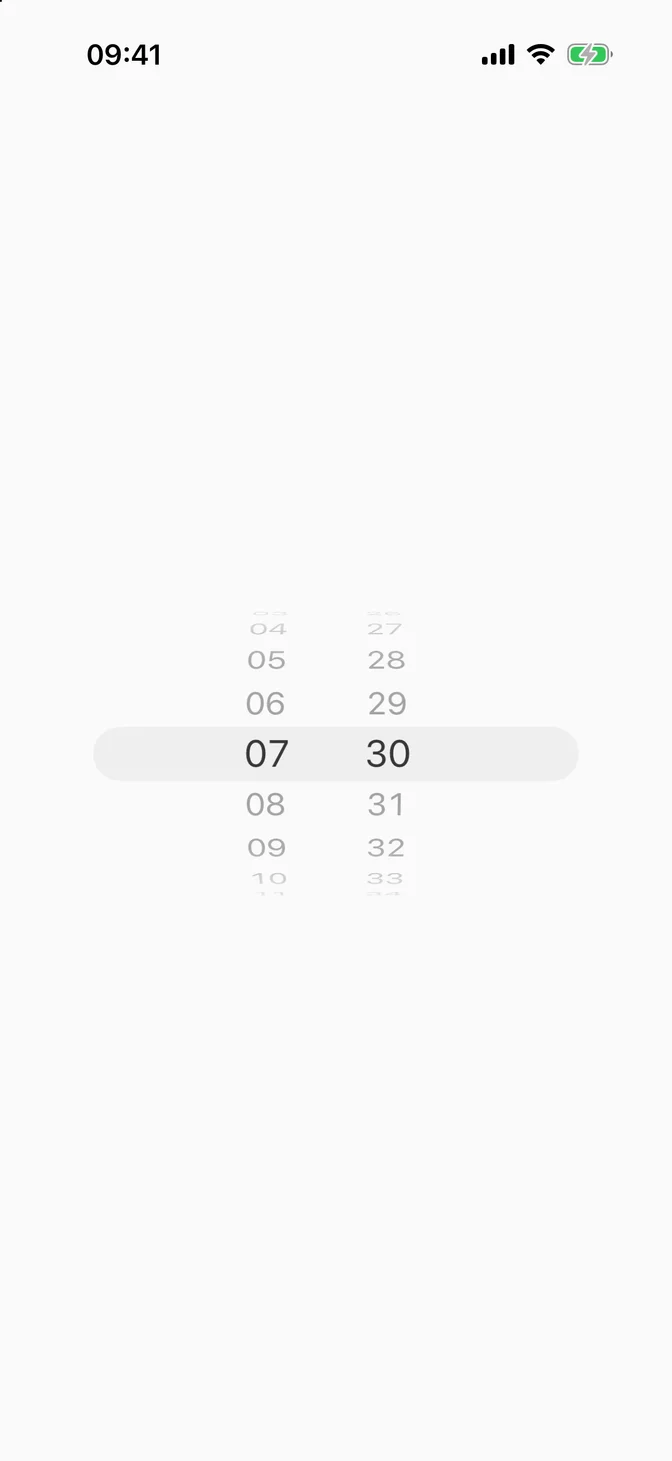
Wheels for hour and minute
import SwiftUIstruct DatePickerWheelExample: View {    @State private var time = DateComponents(calendar: .current, year: 2026, month: 10, day: 14, hour: 7, minute: 30).date ?? .now    var body: some View {        DatePicker("Alarm", selection: $time, displayedComponents: .hourAndMinute)            .datePickerStyle(.wheel)            .labelsHidden()            .padding(FLXSpacing.xl)    }}

Range

Pass a range to in: to limit the dates people can pick. Dates outside it appear dimmed in the calendar.

DatePicker("Check-in", selection: $checkIn, in: Date.now..., displayedComponents: .date)

In a form

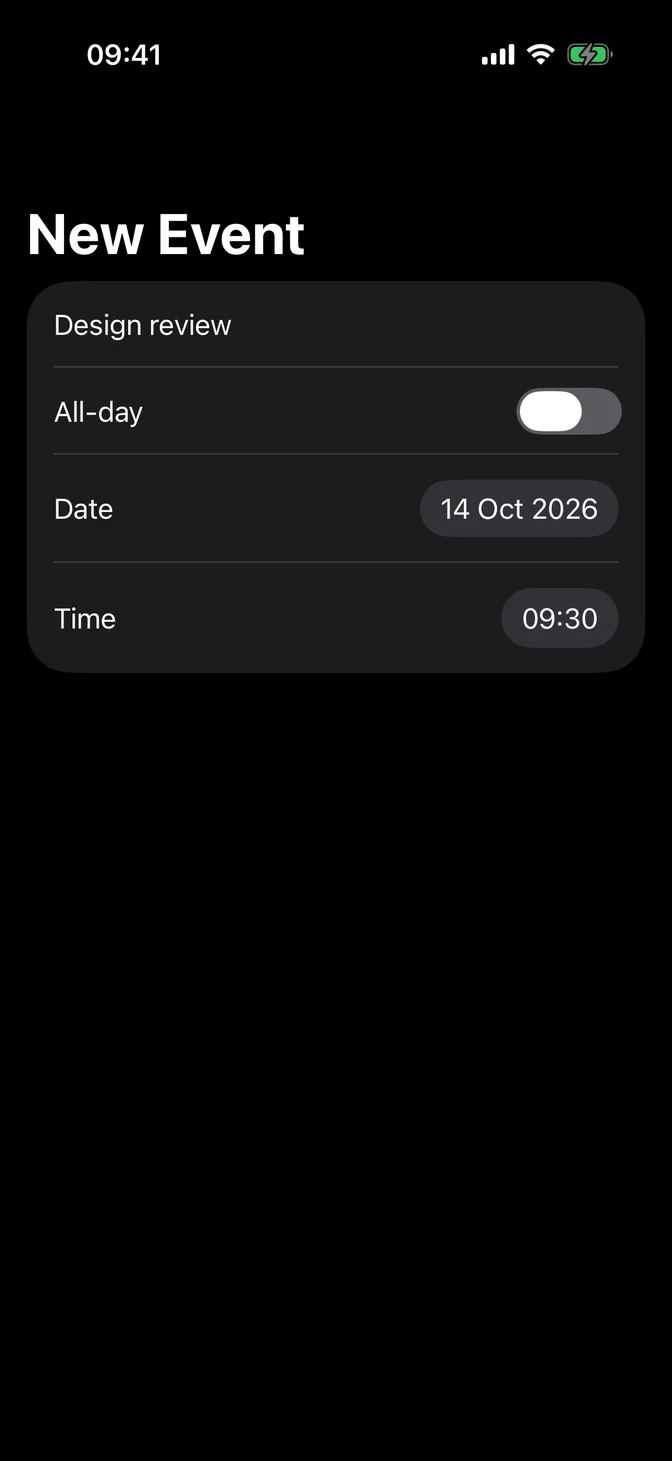
Inside a Form, each date picker becomes a row, with the title on the leading side.
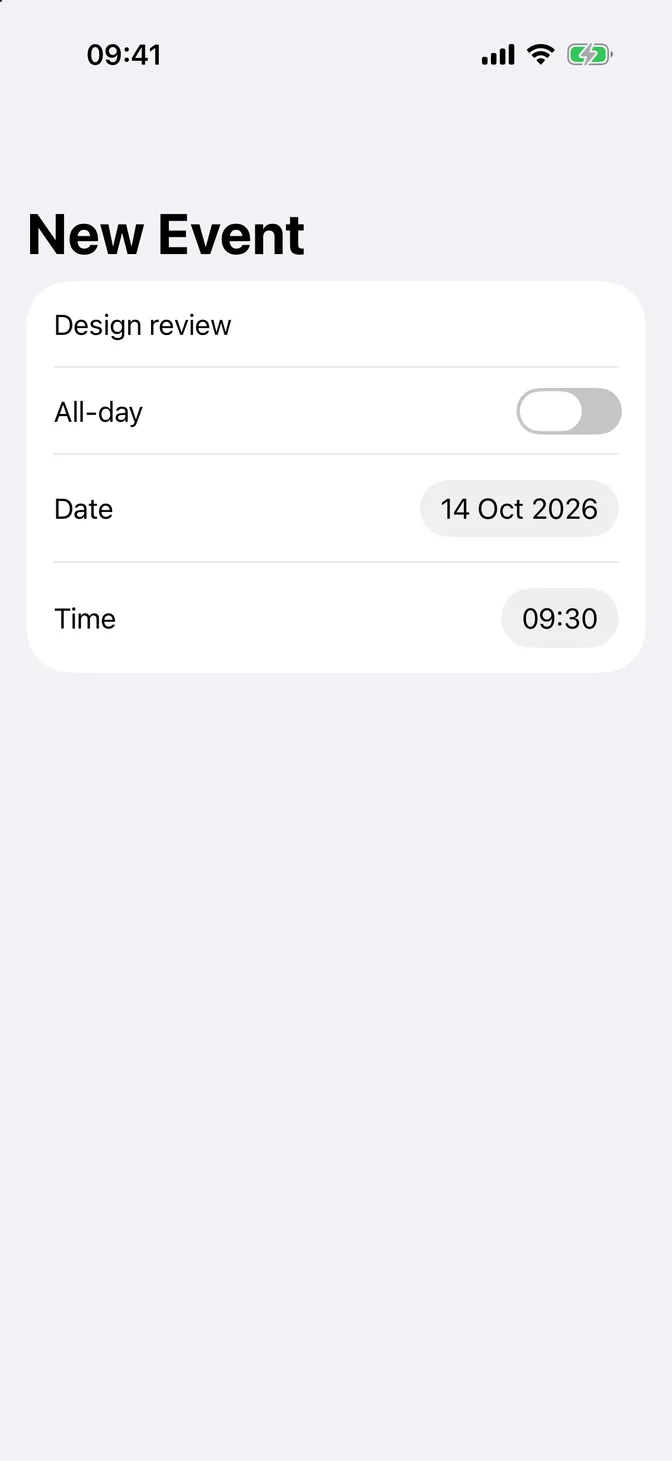
Form with a title, an all-day toggle, a date, and a time
import SwiftUIstruct DatePickerFormExample: View {    @State private var title = "Design review"    @State private var date = DateComponents(calendar: .current, year: 2026, month: 10, day: 14, hour: 9, minute: 30).date ?? .now    @State private var allDay = false    var body: some View {        NavigationStack {            Form {                TextField("Title", text: $title)                Toggle("All-day", isOn: $allDay)                DatePicker("Date", selection: $date, displayedComponents: .date)                if !allDay {                    DatePicker("Time", selection: $date, displayedComponents: .hourAndMinute)                }            }            .navigationTitle("New Event")        }    }}

With Form Field

Inside a Form Field, hide the date picker's title with .labelsHidden() and let FLXFieldLabel show it above, with a description below.

Due date picker with a label and a description
import SwiftUIstruct DatePickerFormFieldExample: View {    @State private var dueDate = DateComponents(calendar: .current, year: 2026, month: 10, day: 14).date ?? .now    var body: some View {        FLXFormField {            FLXFieldLabel("Due date") {                DatePicker("Due date", selection: $dueDate, displayedComponents: .date)                    .labelsHidden()            }            FLXFormFieldDescription("We'll remind you the day before.")        }        .padding(FLXSpacing.xl)    }}

Color

The .graphical calendar uses the theme's tint, which .flxTheme applies at the root of your app, for today and the selected date. Without a tint, it uses the app's AccentColor.

The compact field and the wheels stay neutral and don't take the tint.

Text size

The compact field grows with Dynamic Type. At the largest accessibility sizes, a picker with a date and a time shows them on two lines.

.controlSize(_:) doesn't change the date picker on iOS.

For more information about date pickers, see the Apple documentation.